Use Genie Code in Lakeflow Designer
Genie Code is the AI assistant built into Lakeflow Designer. Describe what you want in natural language, and Genie Code adds, configures, and connects operators, writes expressions, and helps you fix errors. All interactions are agentic and use context from the Databricks platform, such as the tables in your catalog. For an overview of Genie Code across Databricks, see Genie Code.
Requirements
- Genie Code must be available in your workspace. When it isn't, Lakeflow Designer hides its AI features, and you configure operators by hand.
Choose how to use Genie Code
Genie Code appears in several places in Lakeflow Designer. Use the one that matches the scope of your change:
Goal | Use |
|---|---|
Build or change several operators at the same time, such as adding a source, filtering, and aggregating. | |
Review the full conversation and what the agent did. | |
Change one operator's configuration. | |
Write a column expression, filter condition, or join condition. | |
Understand and fix an operator that failed. | |
Find the right operator for a task. | |
Create an operator for logic that no built-in operator covers. |
Prompt Genie Code on the canvas
The Genie Code prompt floats above the canvas. Type a request and press Enter. Genie Code plans the change, then adds, edits, connects, or deletes operators and parameters on the canvas. A status line shows what it's doing, such as adding or running an operator.
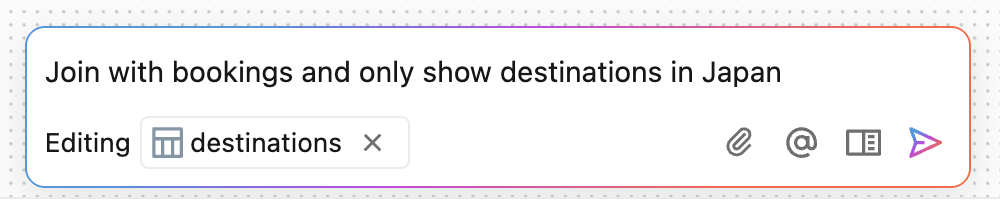
Try prompts such as the following:
Add a source for samples.nyctaxi.trips
Show average fare by pickup zip code
Filter taxi rides with fare over $50
If your request is ambiguous, Genie Code asks a clarifying question before it continues. After it finishes, a one-line summary of its most recent edit appears above the input box. To stop a request in progress, click Stop.
The following buttons in the prompt provide additional functionality:
 : Attaches a file to use as part of the prompt.
 : References tables, files, or operators in the prompt. To reference a canvas operator, type
 @and select it from Operators. : Starts a new chat thread with new agent context.
 : Opens the side pane.
Review the conversation in the side pane
To open the Genie Code side pane, click in the canvas prompt. The side pane shows the history of your Genie Code interactions and more detail on what the agent is doing. When the side pane is open, the in-canvas toolbar is minimized.
Edit an operator with Genie Code
To change a single operator by describing what you want, open the operator's configuration pane and click Edit with Genie Code. The canvas prompt opens to edit that operator. Describe the change.
For example, tell Genie Code:
Also keep the customer_id column.
You can also edit the AI-generated description that each operator displays. Editing the description reconfigures the operator to match.
Write expressions in natural language
Operators that take expressions, such as Filter, Join, Aggregate, and the custom columns in Prepare, include an AI description section in their expression editor. The description and the expression stay in sync:
- To generate an expression, enter what it should do in Describe what this expression should do…. Press Enter or click Apply description to regenerate the expression. Press Esc to close the editor without applying.
- To generate a description, write or edit the expression. Lakeflow Designer regenerates the description to match.
For example, describe an expression like this:
Days between order date and ship date
As you type an expression, Genie Code can also suggest a completion. Click Accept to use the suggestion, or dismiss it to keep typing.
Fix errors with Genie Code
When an operator fails, the output pane shows the error with an AI summary of what went wrong. Click Fix to have Genie Code diagnose the error and update the operator. Genie Code starts with the prompt Fix operator <operator-name> in the canvas prompt, so you can follow its changes.
Find operators with AI search
In the Operators pane, enter what you want to do in Search for an operator..., such as average by month. Keyword matches appear first. Operators that Genie Code suggests based on your intent appear under AI suggested, with a short reason why each one matches.