The Lakeflow Designer interface
The Lakeflow Designer editor has six areas that work together. The canvas sits in the middle, with panes around it for browsing, configuring, and checking your work:
- Header and toolbar: Pick compute, schedule the visual data prep, control previews, and move around the canvas.
- Left pane: Browse operators, the table of contents, workspace files, catalog data, and parameters.
- Canvas: Add operators and connect them to build a visual data prep.
- Configuration pane: Configure the selected operator. It opens on the right.
- Output pane: Check the selected operator's input and output data. It opens at the bottom.
- Genie Code prompt: Describe changes in natural language. It floats above the canvas.

In the image above, you can see:
- The left pane, with the Operators, Table of contents, and Parameters panes
- An operator
- A connection between two operators
- The drag-and-drop canvas
- The Genie Code prompt
- The output pane
- The data profile of the output
Header and toolbar
The header at the top of the editor holds the file name and file-level actions:
- Compute picker: Select the compute for the visual data prep. The picker is next to the Schedule button. See Prerequisites.
- Schedule: Create a scheduled job for the visual data prep. See Schedule as a job.
 kebab menu: Export the file, run or clear the whole visual data prep from the Run menu, and use other file actions. See Manage visual data prep files in Lakeflow Designer and Run the full visual data prep.
The toolbar above the canvas holds editing and canvas controls:
- Preview: Set how many rows operators process for previews. See Control how much data previews process.
- Run all: Run every operator on the full dataset. See Run the full visual data prep.
- Undo and redo: Undo or redo changes to the visual data prep. You can also press Cmd/Ctrl+Z and Cmd/Ctrl+Shift+Z.
- Canvas controls: Zoom, fit the view, auto-layout, and drag mode. See Navigate the canvas.
Left pane
The left pane holds the following panes:
- Operators: Browse and search the built-in operators and your user-defined operators. Search understands intent, so typing
average by monthreturns the Aggregate operator. Click an operator, or drag it onto the canvas, to add it. - Table of contents: Find any operator in the visual data prep, filter and sort the list, and view each operator's generated code. See Use the table of contents in Lakeflow Designer.
- Workspace: Browse the workspace file system. Drag a CSV or Excel file onto the canvas to add it as a source. See Drag and drop a file.
- Catalog: Browse Unity Catalog catalogs, schemas, and tables. Drag a table onto the canvas to add it as a source.
- Parameters: Define and manage parameters for the visual data prep.
Canvas
The canvas is where you build a visual data prep. Operators appear as boxes on the canvas, and connections between them show how data flows from left to right.
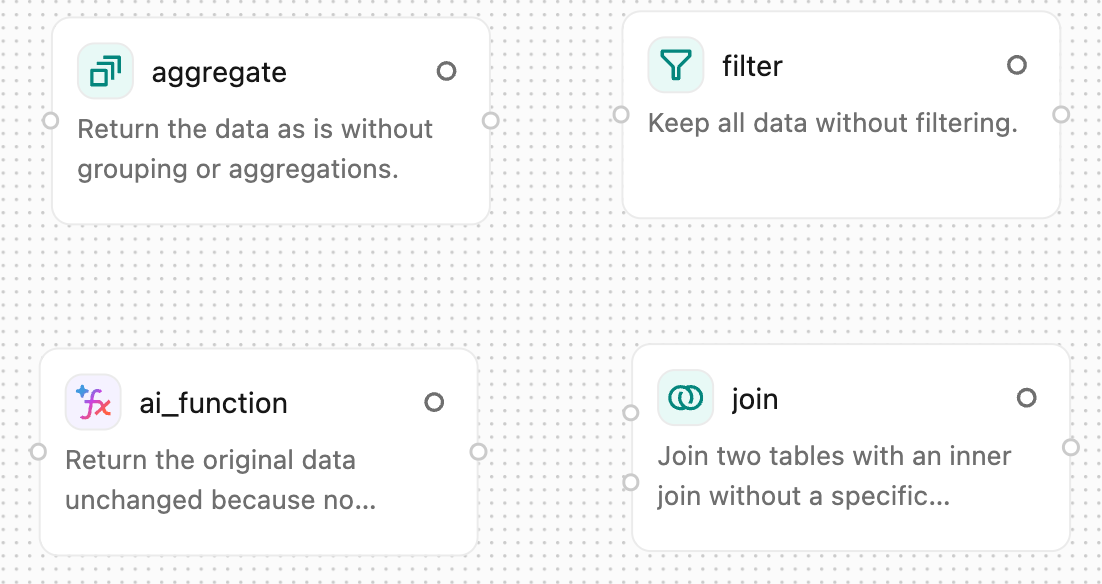
Add operators
Use any of the following methods to add an operator:
- In the Operators pane, click an operator, or drag it onto the canvas.
- Click the
 button next to an existing operator to add a new operator that's already connected to it.
 - Right-click the canvas and add an operator from the shortcut menu.
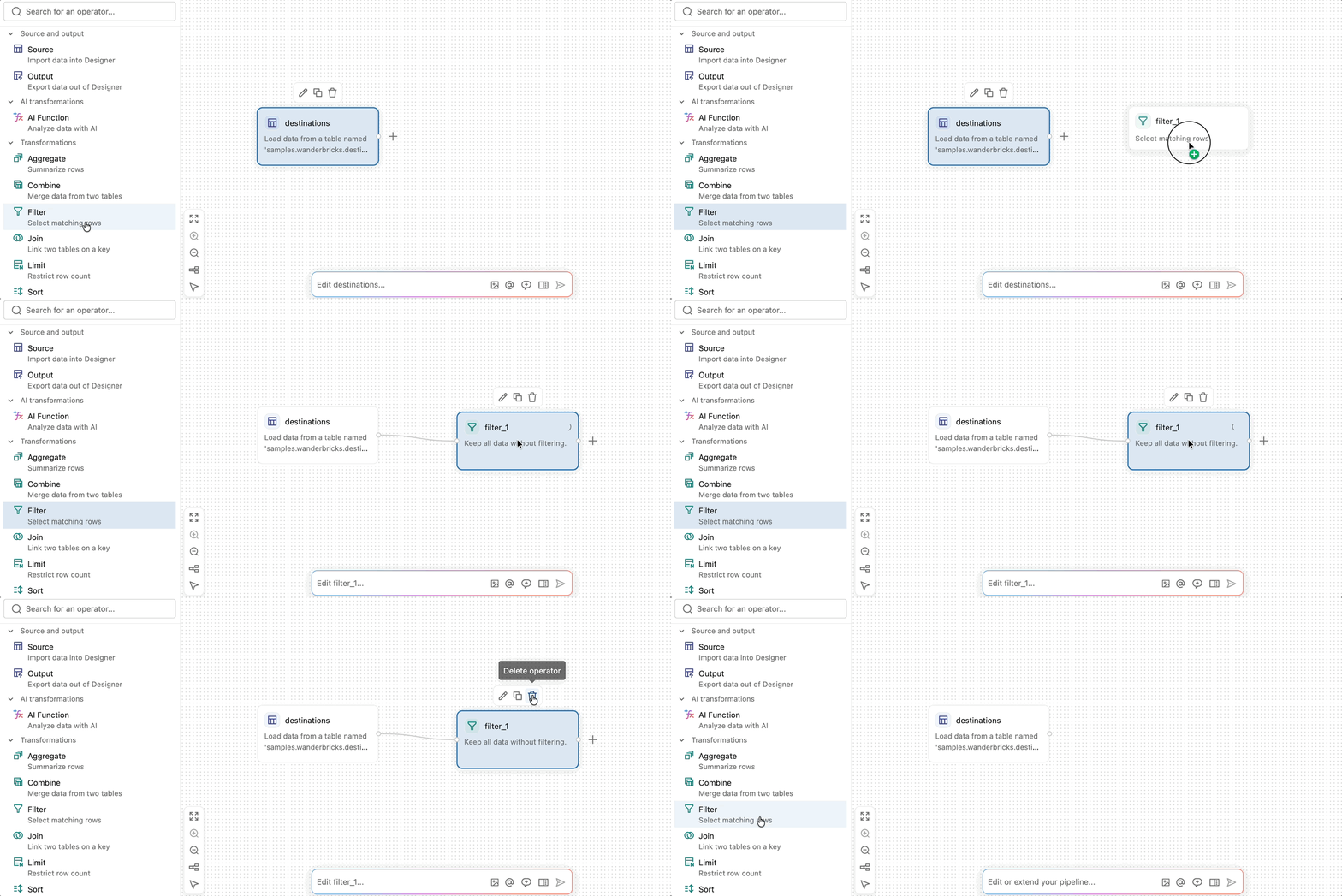
An unconfigured operator has a dashed border. For details on each operator, see Built-in operators in Lakeflow Designer.
Connect operators
To connect two operators, drag from the output port on the right edge of an operator to the input port on the left edge of the next operator. Data flows from the first operator into the second.
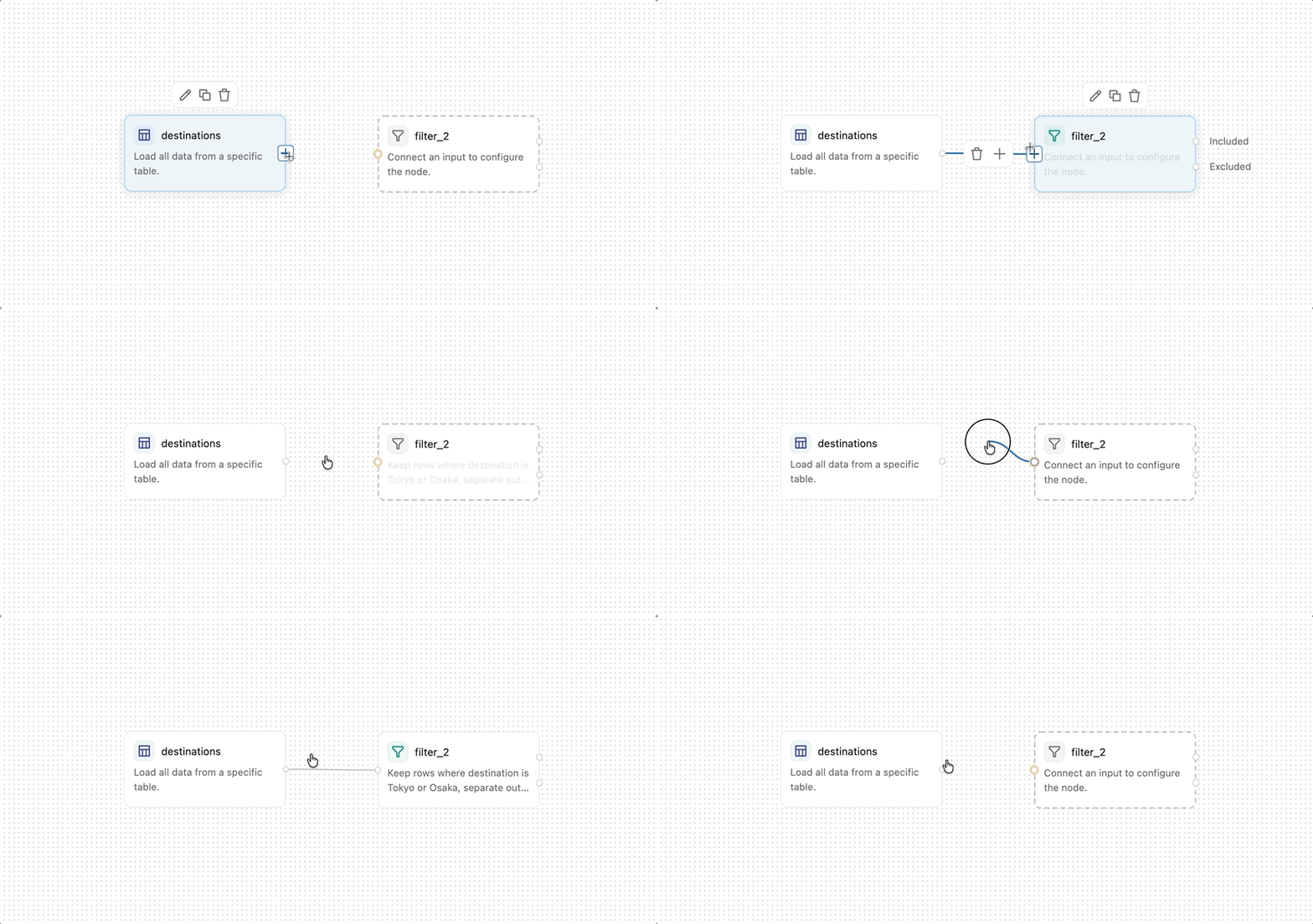
Some operators, such as Join and Combine, accept multiple input connections. A required input port that isn't connected is highlighted in yellow.
To remove a connection, hover over it and click  in the toolbar that appears over the connection.
Select an operator to highlight its lineage on the canvas. The connections back to its upstream sources and forward to its downstream outputs are highlighted, so you can follow how data reaches and leaves that operator.
Rename, copy, delete, and disable operators
After an operator is on the canvas, you can act on it as follows:
- Rename an operator: Click the box at the top of the configuration pane to rename the operator. Descriptive names make your visual data prep easier to understand at a glance. Some operators, such as the SQL operator, can reference the output of other operators by name.
- Copy an operator: Hover over an operator and click
 , or select an operator and press Cmd/Ctrl+C then Cmd/Ctrl+V.
 - Delete an operator: Hover over an operator and click in the toolbar that appears above it, or select the operator and press Delete.
- Enable or disable an operator: Right-click an operator, or a group, and select Disable to exclude it from runs, or Enable to include it again. A disabled operator produces no output rows, so downstream operators receive an empty result until you enable it. To disable an operator based on a parameter, see Enable or disable an operator with a parameter.
- Group operators: Use the Group operator to organize related operators on the canvas.
- Add a note: Use the Note operator to document the workflow on the canvas.
Navigate the canvas
Use the following controls to move around the canvas and arrange operators:
- Pan: Hold Space while clicking and dragging, or slide two fingers on a trackpad.
- Zoom: Pinch or stretch on a trackpad, or hold Ctrl and scroll. You can also click
 or
or  in the toolbar.
 - Drag mode: Click
 in the toolbar to turn drag mode on or off.
 - Auto-layout: Click
 in the toolbar to automatically arrange all operators in a compact layout.
 - Fit view: Click
 in the toolbar to see all operators in the current viewport.
 - Shortcut menu: Right-click anywhere on the canvas to access common actions, including adding operators, undo and redo, auto-layout, fit view, and opening the code pane.
- Command palette: Press Cmd+Shift+P on macOS or Ctrl+Shift+P on Windows to access editor actions.
Configuration pane
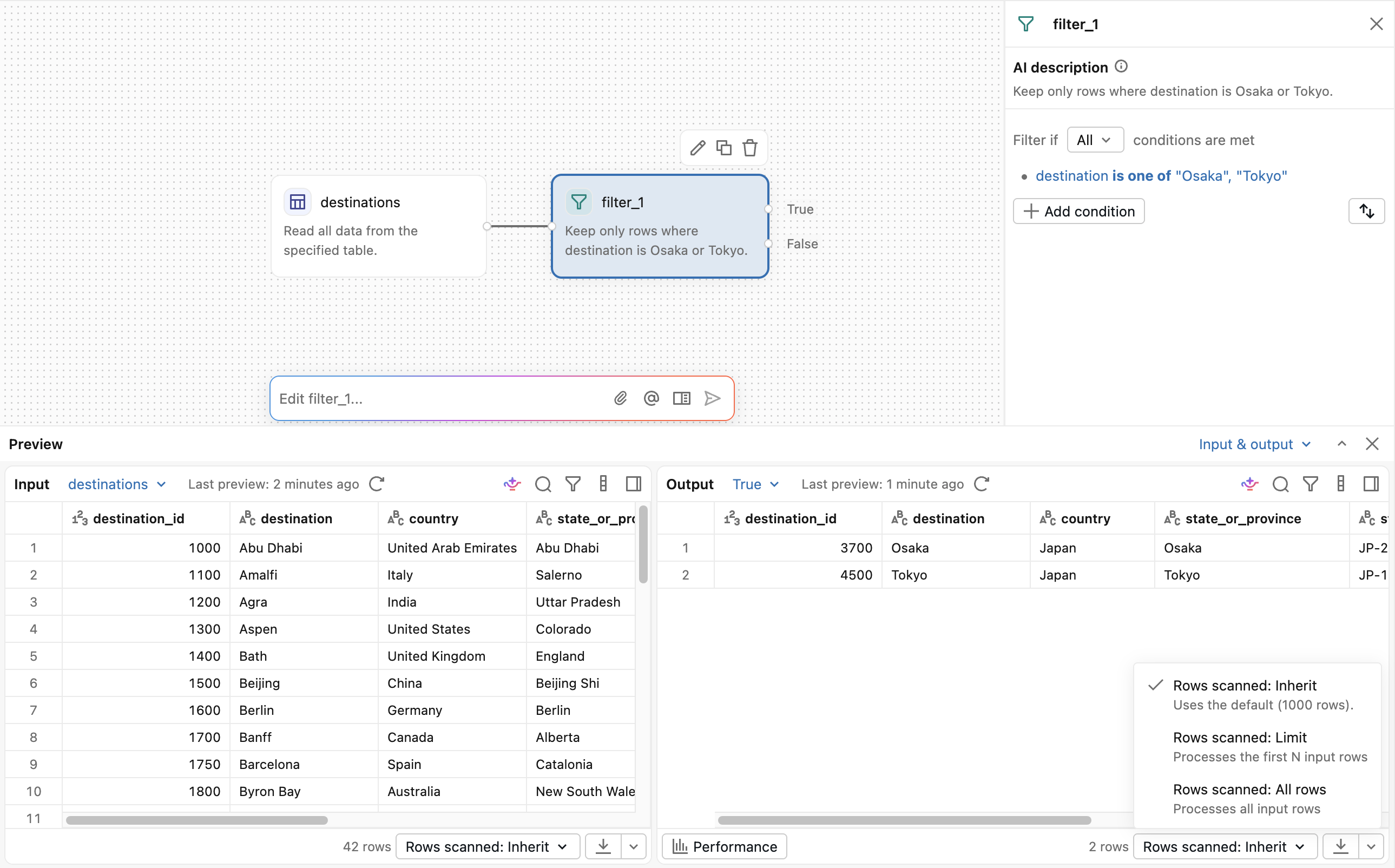
The configuration pane is where you fill in the details of an operator, such as the columns to join on or the condition to filter by. To open it, double-click an operator, or hover over it and click  (Edit operator). Set the options for that operator type, then click Apply.
Each operator also shows an AI-generated description of what it does. Editing the description reconfigures the operator to match. To change an operator by describing what you want, click Edit with Genie Code in the configuration pane. See Use Genie Code in Lakeflow Designer.
Output pane
The output pane opens at the bottom of the editor when you select an operator. It shows the operator's input and output data, or renders non-table results such as plots, HTML, and images. You can edit data directly in the preview, open a data profile, and download results. See Preview and refine results in Lakeflow Designer.
Genie Code prompt
The Genie Code prompt floats above the canvas. Type a request in natural language, and Genie Code adds or changes operators on the canvas.
For example, tell Genie Code:
Remove rows where the email is null.
A one-line summary of its most recent edit appears above the input box. To open the full conversation history, click  . See Use Genie Code in Lakeflow Designer.