Authorize headless access with the OAuth device code flow
This feature is in Beta. To use it, a workspace admin must turn on Workspace Device Code Authorization from the Previews page. See Manage Databricks previews.
Use device code authorization to get a workspace-level OAuth access token on a machine that can't open a browser, such as a remote VM or a container. You start the sign-in on the headless machine, complete it in a browser on any other device, and then return a confirmation code to the headless machine to get the token.
The flow is based on the OAuth 2.0 device authorization grant (RFC 8628), with an added confirmation step. After you sign in, Databricks shows a confirmation code that you enter on the headless machine. The token request fails without this code, so signing in alone doesn't issue a token. You must also return the confirmation code to the machine that started the request.
If your machine can open a browser, use the standard user-to-machine (U2M) flow instead. See Authorize user access to Databricks with OAuth.
Requirements
- A workspace admin has turned on Workspace Device Code Authorization from the Previews page. See Manage Databricks previews. If it isn't on, requests fail with an
access_deniederror that saysDevice authorization is not enabled for this workspace. - You use one of the following OAuth clients:
- The Databricks CLI OAuth application, with the client ID
databricks-cli. - A custom OAuth application. See Enable custom OAuth applications using the Databricks UI.
- The Databricks CLI OAuth application, with the client ID
- You have the workspace URL. Device code authorization works only with a workspace host, not the account console.
Get an access token with a device code
You have 10 minutes after step 1 to approve the sign-in in step 2. After you approve it, you have another 10 minutes to complete step 3. If either window passes, start again from step 1.
Step 1: Request a device code and user code
On the headless machine, use curl to request a device code. Replace <databricks-instance> with the Databricks workspace instance name, for example 1234567890123456.7.gcp.databricks.com.
To request a device code, run the following:
curl --request POST \
https://<databricks-instance>/oidc/v1/device/auth \
--data "client_id=databricks-cli" \
--data "scope=all-apis offline_access"
If you use a custom OAuth application, set client_id to its client ID. Include offline_access in scope only if you need a refresh token.
The response is similar to the following:
{
  "device_code": "Zk9x...Qm3w",
  "user_code": "ABCD1234",
  "verification_uri": "https://<databricks-instance>/device/verification",
  "expires_in": 600
}
Save the device_code value for step 3.
Step 2: Approve the sign-in in a browser
On any device that has a browser, such as your laptop or phone:
-
Go to the
verification_urifrom the response in step 1. -
If prompted, sign in to your Databricks workspace.
-
On the Sign into Databricks page, enter the
user_codefrom step 1 and click Sign In. -
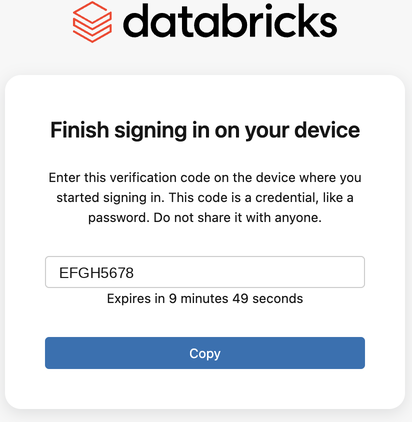
On the Finish signing in on your device page, click Copy to copy the confirmation code. The page shows how long the code remains valid.
Step 3: Exchange the codes for an access token
On the headless machine, use curl to exchange the device code and confirmation code for an access token.
Replace the following in the request:
<databricks-instance>: Your workspace instance name.<device-code>: Thedevice_codevalue from step 1.<confirmation-code>: The confirmation code from step 2. The code is case-sensitive.
To get the access token, run the following:
curl --request POST \
https://<databricks-instance>/oidc/v1/token \
--data "client_id=databricks-cli" \
--data "grant_type=urn:ietf:params:oauth:grant-type:device_code" \
--data "device_code=<device-code>" \
--data "confirmation_code=<confirmation-code>"
If you use a custom OAuth application, set client_id to the same client ID that you used in step 1. For a confidential application, also pass client_secret.
Copy the access_token value from the response. For example:
{
  "access_token": "eyJr...Dkag",
  "refresh_token": "doau...f26e",
  "scope": "all-apis offline_access",
  "token_type": "Bearer",
  "expires_in": 3600
}
The access token is valid for one hour. The response includes refresh_token only if you requested the offline_access scope in step 1. You can use the device code and confirmation code only one time.
Unlike the standard RFC 8628 flow, this flow doesn't use polling. Send the token request one time, after you have the confirmation code.
Step 4: Call a Databricks REST API
Use the access token to call workspace-level REST APIs.
This example uses curl along with Bearer authentication to list all available clusters in the workspace. Replace <oauth-access-token> with the access token, and replace <databricks-instance> with the Databricks workspace instance name, for example 1234567890123456.7.gcp.databricks.com.
export OAUTH_TOKEN=<oauth-access-token>

curl --request GET --header "Authorization: Bearer $OAUTH_TOKEN" \
"https://<databricks-instance>/api/2.0/clusters/list"
Refresh tokens and session lifetime
The device code flow issues single-use refresh tokens, regardless of your OAuth application's token settings. This follows the refresh token rotation guidance in RFC 9700, section 4.14. Refresh tokens from the device code flow have the following limits:
- Single-use: You can use each refresh token only one time. When you use it to get a new access token, the response includes a new refresh token, and the old one stops working. If you resend the previous refresh token within 30 seconds, the response returns the current refresh token instead of an error. Store the new refresh token each time. See What are single-use refresh tokens?.
- 24-hour session: Refresh tokens work for at most 24 hours after you complete the device code flow. Your OAuth application's token access policy can shorten this limit but can't extend it.
After the session ends, run the device code flow again to get a new access token.
Troubleshoot errors
The following table lists errors that the device code flow can return and how to resolve them.
Error | Cause | Resolution |
|---|---|---|
| The Workspace Device Code Authorization preview isn't turned on for the workspace. | Ask a workspace admin to turn it on from the Previews page. |
| The OAuth client doesn't support device code authorization. | Use |
| The user code is wrong, expired, or already used. | Check the code and enter it again. If it expired, start again from step 1. |
| The device code is wrong, expired, or already used. | Start again from step 1. |
| The confirmation code is missing, wrong, or expired. | Check that you copied the confirmation code exactly, including case. If it expired, start again from step 1. |
| You sent too many token requests for the same device code. | Wait a few seconds, then try again. If the code expires, start again from step 1. |
| You entered user codes too many times. | Wait a few seconds, then try again. |
Security recommendations
The user code and confirmation code grant access to your workspace. Follow these recommendations:
- Enter a user code only for a sign-in that you started yourself. If someone sends you a user code or verification link and asks you to sign in, don't enter it. An attacker can use this request to get a token for your account.
- Treat the device code, confirmation code, and tokens like passwords. Don't share them, and don't write them to logs or source control.
- Request only the scopes you need. Leave out
offline_accessif you don't need a refresh token.