Bundle and explorer features
The Databricks IDE extension provides additional features within Visual Studio Code that enable you to define, deploy, and run Declarative Automation Bundles, and explore workspace files and Unity Catalog catalogs.
To install the Databricks IDE extension, see Install the Databricks IDE extension.
Declarative Automation Bundles support in projects
The Databricks IDE extension adds the following features for your Declarative Automation Bundles projects:
- Easy authentication and configuration of your Declarative Automation Bundles through the Visual Studio Code UI, including AuthType profile selection. See Set up authorization for the Databricks IDE extension.
- A Target selector in the Databricks extension to quickly switch between bundle target environments. See Change the target deployment workspace.
- The Override Jobs cluster in bundle option in the extension to enable easy cluster override.
- A Bundles Resource Explorer view, which allows you to browse your bundle resources using the Visual Studio Code UI, deploy your local Databricks Asset Bundle's resources to your remote Databricks workspace with a single click, and go directly to your deployed resources in your workspace from Visual Studio Code. See Bundle Resource Explorer.
- A Bundles Variables View, which enables you to browse and edit your bundle variables using the Visual Studio Code UI. See Bundle Variables.
Bundle Resource Explorer
The Bundle Resource Explorer view in the Databricks IDE extension uses the resource definitions in the bundle configuration of the project to display resources, including pipeline datasets and their schemas. It also allows you to deploy and run resources, validate and perform partial updates of pipelines, view pipeline run events and diagnostics, and navigate to resources in your remote Databricks workspace. For information about bundle configuration resources, see resources.
For example, given a simple job definition:
resources:
  jobs:
    my-notebook-job:
      name: 'My Notebook Job'
      tasks:
        - task_key: notebook-task
          existing_cluster_id: 1234-567890-abcde123
          notebook_task:
            notebook_path: notebooks/my-notebook.py
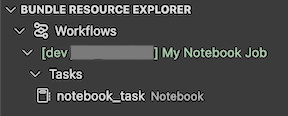
The Bundle Resource Explorer view in the extension displays the notebook job resource:
Deploy and run a job
To deploy the bundle, click the cloud (Deploy bundle) icon.

To run the job, in the Bundle Resource Explorer view, select the name of the job, which is My Notebook Job in this example. Next click the play (Deploy the bundle and run the resource) icon.

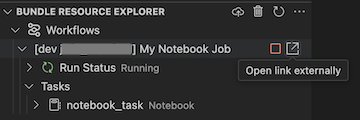
To view the running job, in the Bundle Resource Explorer view, expand the job name, click Run Status, and then click the link (Open link externally) icon.
Validate and diagnose pipeline problems
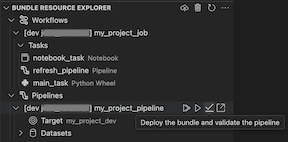
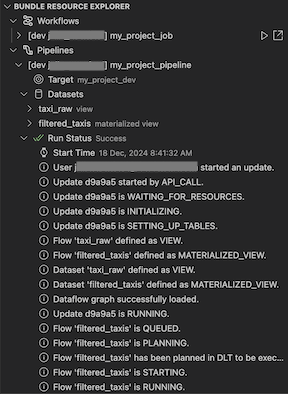
For a pipeline, you can trigger validation and a partial update by selecting the pipeline, then the check (Deploy the bundle and validate the pipeline) icon. The events of the run are displayed, and any failures can be diagnosed within the Visual Studio Code PROBLEMS panel.
Bundle Variables
The Bundle Variables View view in the Databricks IDE extension displays any custom variables and associated settings that are defined in your bundle configuration. You can also define variables directly using the Bundles Variables View. These values override the ones set in the bundle configuration files. For information about custom variables, see Custom variables.
For example, the Bundle Variables View view in the extension would display the following:

For the variable my_custom_var defined in this bundle configuration:
variables:
  my_custom_var:
    description: 'Max workers'
    default: '4'

resources:
  jobs:
    my_job:
      name: my_job

      tasks:
        - task_key: notebook_task
          job_cluster_key: job_cluster
          notebook_task:
            notebook_path: ../src/notebook.ipynb

      job_clusters:
        - job_cluster_key: job_cluster
          new_cluster:
            spark_version: 13.3.x-scala2.12
            node_type_id: i3.xlarge
            autoscale:
              min_workers: 1
              max_workers: ${var.my_custom_var}
Workspace File System
The Workspace File System view of the Databricks IDE extension pane allows you to view and open your Databricks workspace files directly in Visual Studio Code or Cursor. Click a notebook to open it in Databricks. You can also create files or folders, or upload files to your workspace from the IDE using controls in the extension pane.
Unity Catalog
The Unity Catalog view of the Databricks IDE extension pane displays your Databricks catalogs. Use the controls in this extension view to open a catalog, schema, or other data asset in Databricks.