Explore sample data with Genie Code
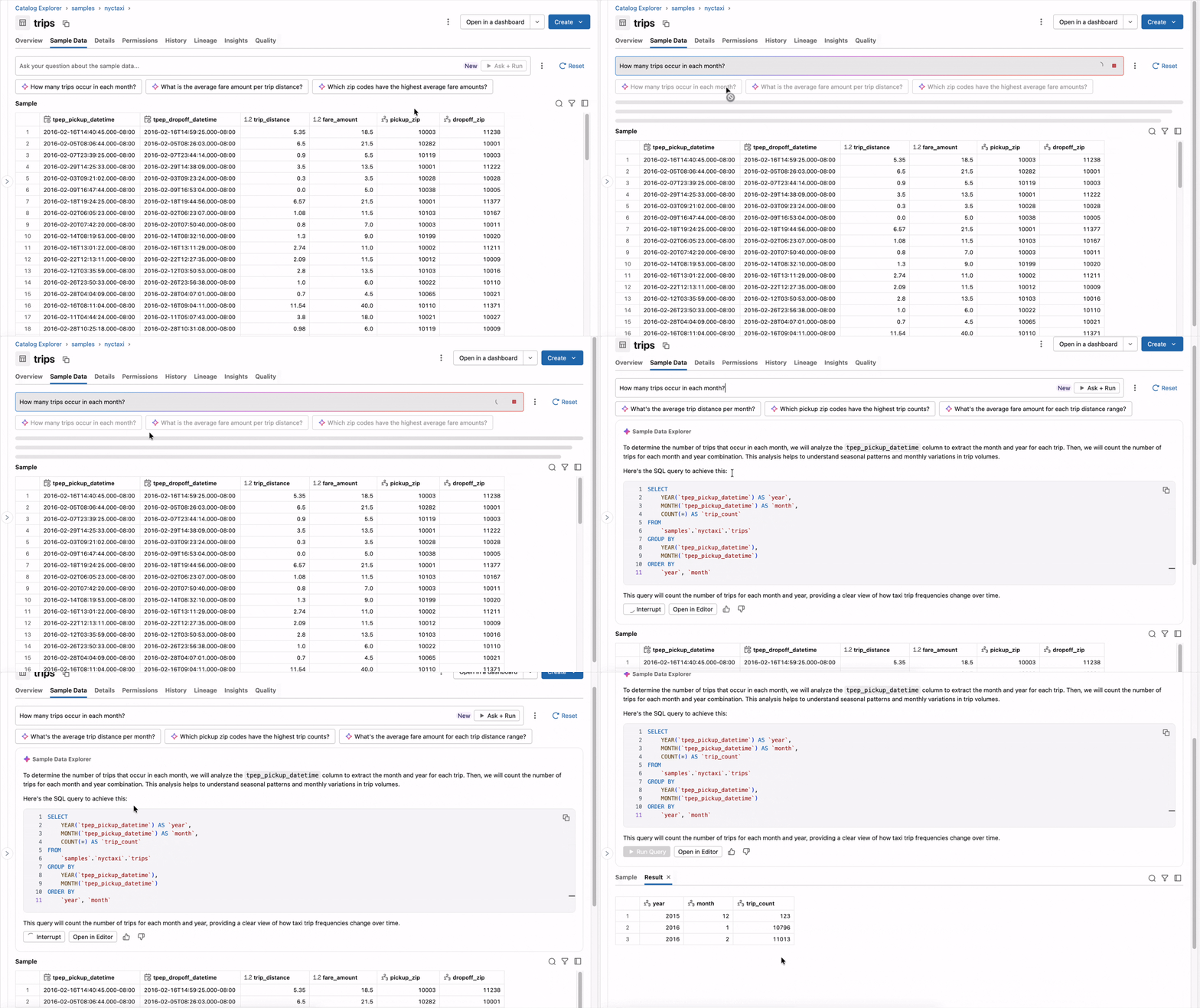
Sample Data Explorer uses Genie Code to let you ask natural-language questions about sample data in your Unity Catalog tables, then generates SQL from table metadata and row-level samples. Review each query before running it, or configure Sample Data Explorer to auto-run queries.
Sample Data Explorer supports the following table types:
- Managed, external, and foreign tables
- Views and materialized views
- Streaming tables
- AI Search indexes
Requirements
- Unity Catalog must be enabled in your workspace. See Get started with Unity Catalog.
- Genie Code must be enabled. See Genie Code features and capabilities.
You must have the SELECT privilege on the target table, as well as USE SCHEMA on the parent schema, and USE CATALOG on the parent catalog.
Explore sample data
To explore sample data for a table:
-
In your Databricks workspace, click
 Catalog.
 -
Select the table that you want to explore.
-
Click the Sample data tab.
-
In the prompt box, ask Sample Data Explorer a question about the data. Typical questions include:
- Asking about table properties: "Is there a field with contact information?"
- Getting quick stats: "How many trips happened after 8 PM?"
- Debugging and running partial SQL: "select deployable_account_id, order by descending DATE."
-
Genie Code returns an answer to your question, along with a generated SQL query. If it's your first time using Sample Data Explorer, it might prompt you to choose how queries are run:
- Click Yes to have Genie Code automatically run generated queries. Genie Code runs the query and returns the answer immediately.
- Click No, run manually to review the generated SQL before running it.
-
If Sample Data Explorer is configured to run queries manually, it displays the Run query and Open in Editor buttons after each response. Click Run query to run the query, or Open in Editor to modify it.
You can modify the auto-run setting at any time by clicking the  icon to the right of the prompt box, then selecting Auto-run queries or Run manually.
