Chat in Genie One
Genie One answers questions and takes action, grounded in your organization's business context in Genie Ontology. Genie One chat answers from your Genie Agents, dashboards, queries, metric views, connected data sources, and more. It can then act on what it finds. For example, it can draft a shareable document, take actions in connected tools such as Jira and Slack, and run scheduled tasks that post results back as a thread.
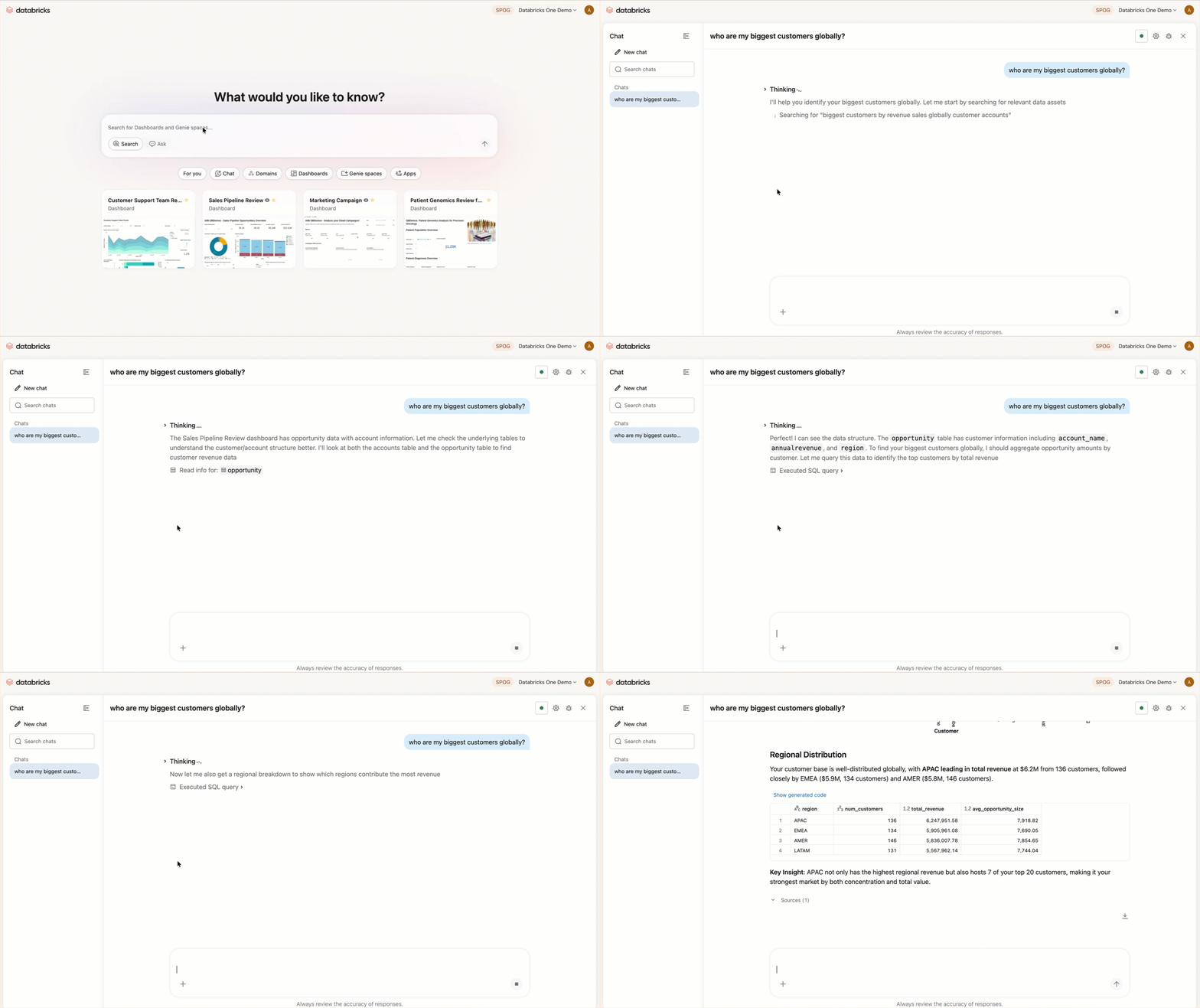
What you can do in chat
Use the following pages to go further with chat.
Topic | Description |
|---|---|
Teach chat repeatable tasks and share them with your team. | |
Run a prompt on a schedule and get the results in a chat thread and by email. | |
Use memory, past conversations, and personalized starter questions. | |
Save the context from a conversation as a reusable Genie Agent. | |
Draft a shareable document from a conversation. | |
Create slide decks and other visual pages from your data. This feature is in Beta. To build an editable deck, see Slides in Genie One. | |
Run code in a secure sandbox for work that goes beyond SQL. This feature is in Beta. | |
Connect applications such as Gmail and Slack with MCP connectors. |
How chat works
When you submit a question to chat:
- It searches available Genie Agents for one relevant to your question.
- If a matching Genie Agent is found, it uses that space to generate a response.
- If no matching Genie Agent is found, it searches for relevant data assets to answer your question.
To open chat, click New chat from the sidebar or use Ask mode in the search bar. You must have the CAN USE permission on at least one SQL warehouse to use chat.
Select compute
Chat uses Auto compute by default, which automatically selects the best available SQL warehouse and is recommended for most users. To use a specific warehouse instead:
- Click ••• in the top right.
- Click Manage compute.
- Select your SQL warehouse.
Use content from outside Databricks
Users can connect applications such as Gmail and Slack to Genie One with MCP connectors and their own credentials, so chat can look up live information and take action. See Connect Genie One to external applications with MCP.
Manage chats in the sidebar
Your recent chats appear in the sidebar. Hover over a chat and click the  kebab menu to manage it:
- Pin a chat: Select Pin to keep the chat at the top of the sidebar for quick access. Pinned chats stay at the top until you unpin them.
- Rename a chat: Select Rename, enter a new name, and confirm to give the chat a clearer title.
Navigate a long conversation
When a conversation has two or more of your messages, a conversation outline appears along the left edge of the conversation. The outline has one tick for each message you sent, and the tick for the part of the conversation you're reading is highlighted.
- Preview a message: Hover over a tick to see your message and the start of the response.
- Jump to a message: Click a tick to scroll to that message.
In long conversations, the outline shows an evenly spaced subset of your messages, and always includes the first message, the last message, and the message you're reading. The outline isn't available on touch devices, such as phones.
Expand a visualization
You can open a visualization from a Genie One response in the side panel to interact with it at a larger size next to the conversation.
Click  in the lower-right corner of the visualization. While the visualization is open in the side panel, it appears as a card in the conversation. Click the card to close the panel.
Genie Ontology
Genie One answers using Genie Ontology, the context layer that it shares with Genie Code, so context you curate in Unity Catalog semantics, such as metric views, domains, and Pages, applies to both. To see which sources Genie One used for an answer, click the  citation icons in a response.
Upload a file
Upload CSV, Excel, PDF, image, Word, PowerPoint, Markdown, and text files directly into a chat conversation to analyze them in natural language alongside your other data. Uploaded files are private to the conversation you add them to, and only you can access them.
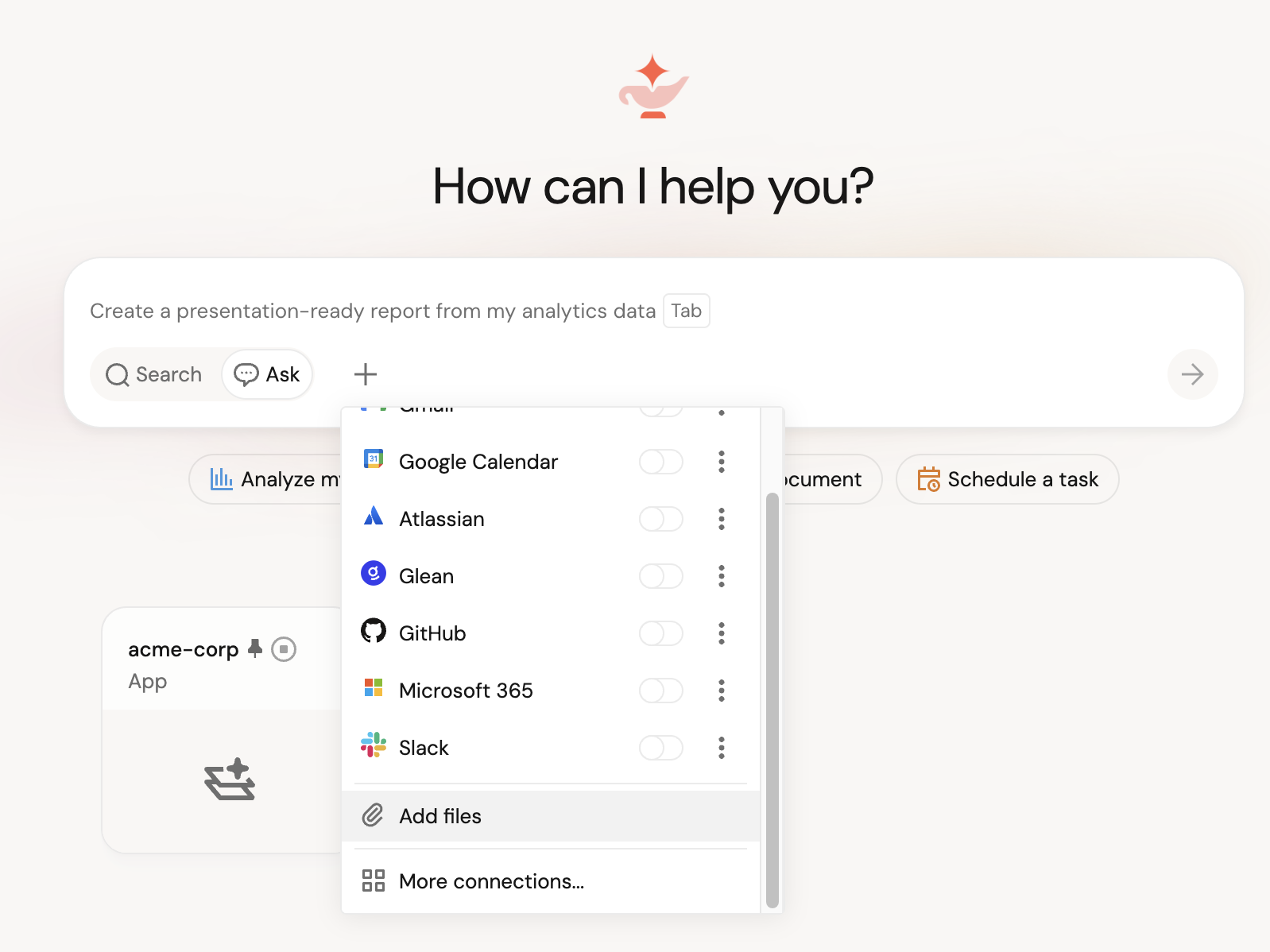
To upload a file, select  in the message composer, then
 Add files. You can also drag and drop files onto the composer or paste them from your clipboard. To see the files in a conversation, select and open the Uploaded files list.
File requirements:
- Each CSV or Excel (
.xlsxor.xls) file must be smaller than 200 MB. An Excel file can contain multiple sheets. To query a specific sheet, reference it by name. - Each PDF must be smaller than 20 MB and contain no more than 100 pages. Genie One reads up to 4,000 characters per page.
- Each image (PNG, JPG, or JPEG) must be smaller than 5 MB. Genie One automatically downscales larger images.
- You can upload Word (
.docx) and PowerPoint (.pptor.pptx) files. - Each Markdown (
.md) or text (.txt) file must be smaller than 20 MB. - You can upload up to 100 files per conversation, and up to 5 files in a single action.
Databricks stores uploaded files in a Unity Catalog managed volume, in customer-managed root storage on classic workspaces or in default storage on serverless workspaces. For details, see Upload a file.
Uploaded files have no fixed retention period and no configurable lifecycle policy. They remain until you remove them or delete the conversation. For details, see Remove a file.
Search the web
This feature is in Beta. To use it, a workspace admin must turn on Web search in Genie Code and Genie One from the Previews page. See Manage Databricks previews.
Genie One can search the public web to answer questions that need current information, such as recent release notes, third-party documentation, or news. Genie One decides when to search based on your request and cites the sources it uses. Each source appears in the response as a link you can open.
Web search has the following requirements:
- The workspace must have partner-powered AI features enabled.
- The workspace must be in an eligible geo (Americas or Europe), or have cross-geography processing enabled.
- For workspaces with the compliance security profile enabled, web search is only supported for HIPAA. Other compliance standards are not supported.
Share a chat
You can share a chat conversation as read-only with specific users and groups, or with all users in your account. Recipients can see every message in the conversation, including future messages.
To share a chat:
-
Click Share in the upper-right corner of the conversation. The Share chat dialog opens.
-
Choose who can view the chat:
- To share with specific users or groups, enter them in the users and groups field. They appear under People with access.
- To share with all users in your account, under General access, select All account users.
-
To send a link to the chat, click
 Copy link.
-
Click Done.

To stop sharing a chat with all users in your account, set General access to Restricted. Only the users and groups under People with access can then view the chat.
Sharing a chat doesn't share the artifacts that Genie saved from it. To share an artifact, share the artifact itself. See Share an artifact.
Limitations
- File upload is not currently supported for users who have only consumer access, or in the Genie mobile app.
- Workspaces with many Genie Agents might experience reduced routing accuracy.