Test and monitor a Genie Agent
Test a Genie Agent with real world questions, review the generated SQL and visualizations, edit responses when Genie gets something wrong, and monitor agent usage and user feedback so you can keep the agent accurate as data and questions evolve. Use benchmarks to score response accuracy at scale.
Genie Agents were formerly known as Genie Spaces.
Test your Genie Agent
Most user interactions take place in the chat window. The best way to learn if your agent is working as you want is to test it with realistic questions that you expect your business users to ask.
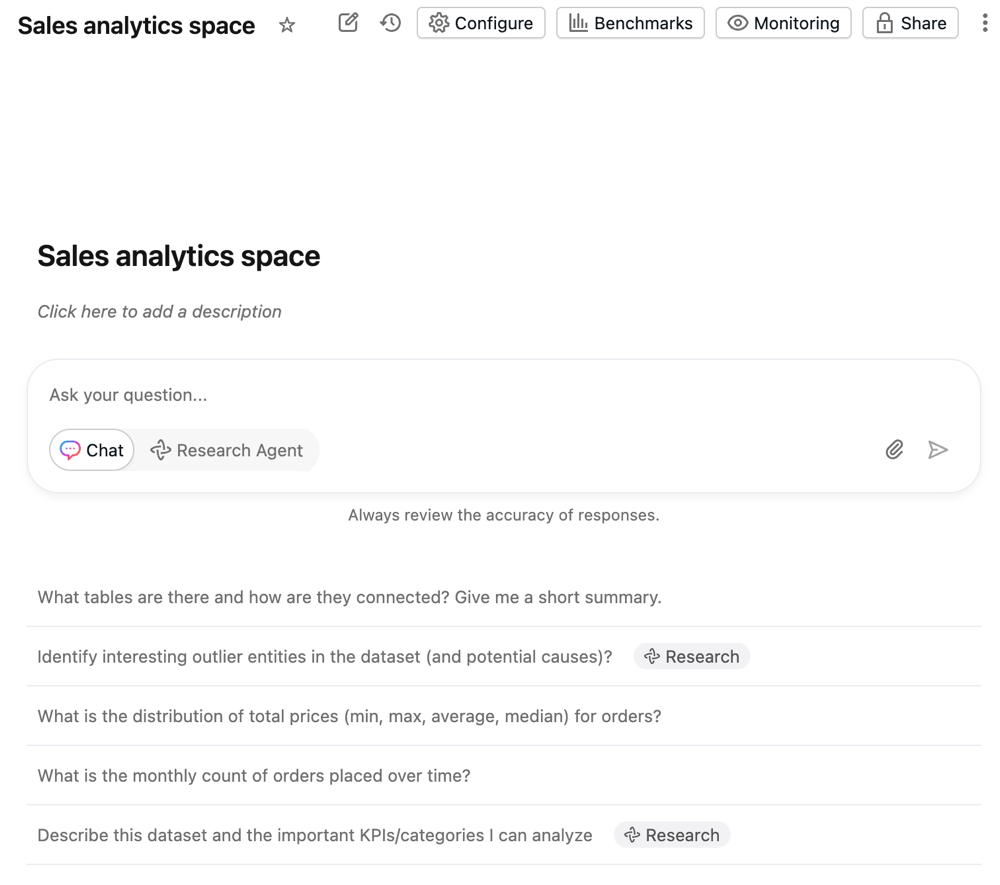
Sample questions configured in the agent settings appear in the chat window. Genie can also generate sample questions based on the agent's context to help users begin exploring the data. Users can click a sample question or enter their own questions in the text field at the bottom of the screen.
Responses appear above the text field. After a user enters a question, it is saved to the chat history.
To start a new conversation:
- Click New chat to start a new chat. Click
 to open a previous conversation.
 - Type your question into the Ask your question… text entry field.
Review responses
Responses are typically delivered as natural language answers to the questions and a table showing the relevant result set. When Genie detects that a visualization could improve response clarity, it also returns a visualization. The precise response structure varies based on the question. If a SQL query was generated to answer the question, it is included in the response.
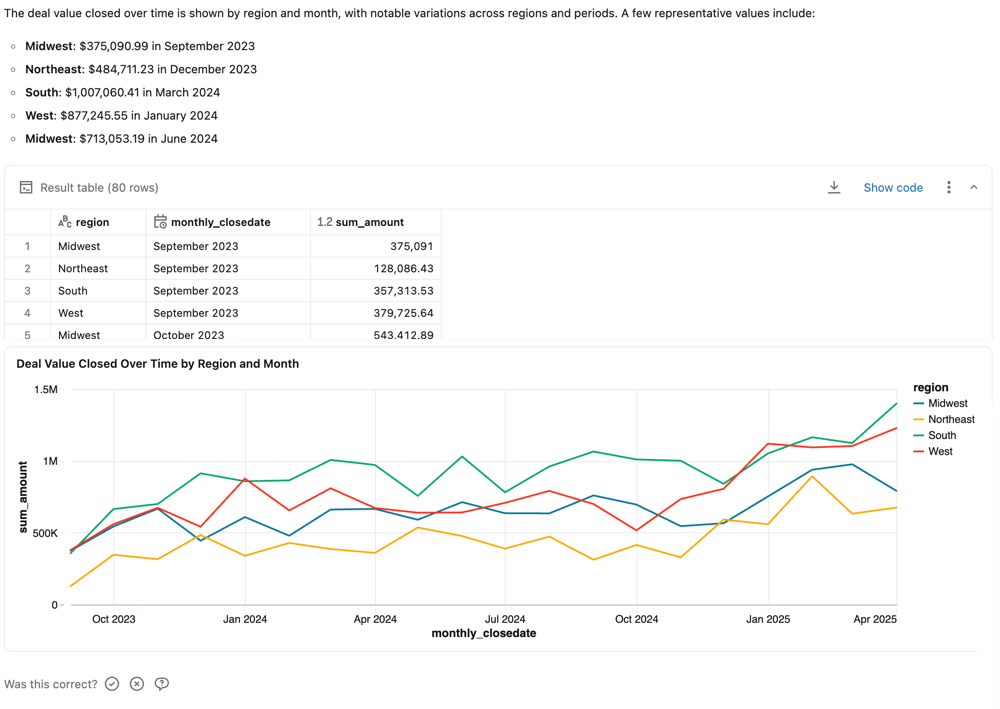
Like other large language models (LLMs), Genie can exhibit non-deterministic behaviors. This means that you might occasionally receive different outputs when submitting the same prompt multiple times. Providing example SQL queries that Genie can learn from can help make Genie more consistent. See Add example SQL queries and functions.
Response feedback
Each response prompts the user to answer Is this correct?. Users can respond in one of the following ways:
- Yes: Confirms the response appears accurate.
- Fix it: Flags the response as incorrect. Users can select from common issues or enter their own explanation. They can then:
- Click Submit and try again to regenerate the response using the provided feedback.
- Click Submit to send the feedback without regenerating the response.
- Request review: Flags the response for manual review. Users can add an optional comment to give you additional context.
As an editor, you can view feedback and flagged responses in the Genie interface. Your Genie Agent's behavior does not change based on user feedback alone. You should use feedback to identify improvement opportunities or respond directly to user questions. Databricks recommends encouraging users to provide feedback on the agent using this mechanism.
Business users can view updates to the questions they've marked for review on their Monitor page. Users with at least CAN MANAGE permission on the Genie Agent can review the specific exchange, comment on the request, and confirm or correct the response. They can access feedback and review requests on the monitoring page. Then you can use that feedback to tune responses and iterate on your agent. See Monitor the agent.
Other response actions
For responses that include generated SQL, additional options allow you to interact with the returned data.
-
Copy CSV: Agent users can download up to approximately 1GB of results data as a CSV. The final file download size might be slightly more or less than 1GB, as the 1GB limit is applied to an earlier step than the final file download. To download results, click the download icon in the response.
-
Show code: Click Show code to view the generated query. This can be useful for troubleshooting unreliable responses. See Edit and save queries.
-
The
 kebab menu: Access the following actions:
- Copy CSV: Copy the response CSV to your clipboard.
- Add as instruction: For interactions that might be useful for teaching Genie how to answer similar questions, click Add as instruction. This opens the UI for saving example SQL queries, populated with the question and generated SQL. You can leave the example as written, or edit and save to make changes. See Add example SQL queries and functions.
- Add as benchmark: Add the question as a benchmark question. See Benchmarks.
- Refresh data: Refresh the data by running the previously generated query.
- Regenerate response: Submit the question again and have Genie regenerate the response.
Edit and save queries
Genie's SQL queries can be reviewed for accuracy and edited as necessary. Genie Agent authors typically know the domain and data that allows them to recognize when Genie is generating an incorrect answer. Often, errors can be fixed with a small amount of manual tuning to the generated SQL query. Click Show generated code to inspect the query and view the generated SQL for any response.
You can edit the generated SQL statement to correct it if you have CAN EDIT or greater privileges on the Genie Agent. After you've made your corrections, run the query. Then, you can save it as an instruction to teach Genie how to answer in the future. To save your edited query, click Add as instruction.
Debug responses with Genie Code
When Genie returns an incorrect answer, use Genie Code to diagnose the problem and improve the agent's context:
- Open Genie Code from the response.
- Describe the problem and the behavior you want.
- Review the context changes that Genie Code proposes, and accept the ones you want to keep.
Tell Genie Code to do this for you:
The Genie Agent is using calendar quarters instead of our fiscal calendar. Update its context to use our fiscal quarters: Q1 is February through April, Q2 is May through July, Q3 is August through October, and Q4 is November through January.
You can also use Genie Code to save semantic context from a conversation. After users introduce new terms or correct Genie's behavior, ask Genie Code to capture what it learned. Review each suggestion and accept the context you want to add to the agent.
Monitor the agent
A Genie Agent can be thought of as a long-term collaboration tool between data teams and business users. It accumulates knowledge over time rather than serving as a one-time deployment. As users ask new questions, you can refine the agent to improve coverage and accuracy.
Use the Monitor tab to review individual questions and responses, view user feedback, and identify responses flagged for review.
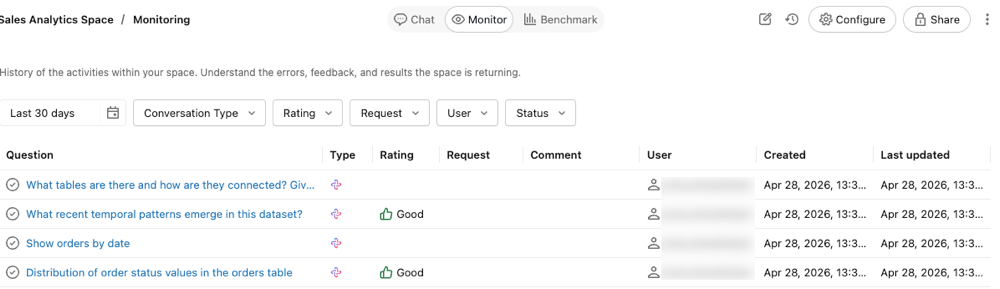
The monitor tab shows all of the questions and answers that have been asked in the agent. You can filter questions by time, rating, user, or status. By monitoring the agent, users with CAN MANAGE permissions can proactively understand the queries raised by business users and how the Genie Agent responded.
Identifying the questions that Genie struggles with can help you update the Genie Agent with specific instructions to improve its responses. Click a question to open the question and response text and view the complete chat thread.
Review usage and trends
Use the Weekly digest section of the Monitor tab to review weekly message volume, active users, and thumbs up/down feedback. To identify top usage trends and common issues, click Analyze Space Usage. This launches Genie Code, which reviews the user messages, feedback, and issues from the last seven days and reports on common topics, recurring issues, and suggested context improvements. Responses include citations that link back to the relevant conversations in your agent. Click a citation to open the conversation directly in the Genie Code thread.

Review conversations for quality
This feature is in Beta. To use it, a workspace admin must turn on Genie Chat Sharing from the Previews page. See Manage Databricks previews.
Genie Chat Sharing lets agent managers review the full conversations that business users have with a Genie Agent. When a conversation is set to Reviewable by space managers, users with the CAN MANAGE permission can open the conversation from the monitoring tab to review the full exchange. This allows you to assess Genie's response quality, respond to user feedback, and identify areas where additional instructions or example queries would improve accuracy. For conversations set to Private, agent managers can see user prompts in the monitoring tab but cannot view the full conversation or results. For more information, see Share a conversation.
Conversations created before the Beta was enabled remain Private. Conversations created after it was enabled default to Reviewable by space managers.
Delete a conversation
Users with CAN MANAGE permission on a Genie Agent can permanently delete any conversation in the agent from the monitoring page. This removes the conversation and its messages for all users.
- Open the Genie Agent and click the Monitor tab.
- Click a conversation to open the conversation drawer.
- Click Delete conversation.
- In the confirmation dialog, click Delete to permanently delete the conversation, or Cancel to close the dialog without deleting.
Benchmarks
Benchmarks allow you to create a set of test questions that you can run to assess Genie's overall response accuracy. A well-designed set of benchmarks covering the most frequently asked user questions helps evaluate the accuracy of your Genie Agent as you refine it. Each Genie Agent can contain up to 500 benchmark questions.
Benchmark questions run as new conversations. They do not carry the same context as a threaded Genie conversation. Each question is processed as a new query, using the instructions defined in the agent, including any provided example SQL and SQL functions.
Benchmark questions support two modes:
- Chat mode: The default mode. Genie assesses accuracy by comparing its SQL-generated results against a provided SQL answer.
- Agent mode: Executes benchmark questions using the same multi-step reasoning as Genie's Agent mode. An LLM judge grades the responses. You can provide an optional evaluation note to guide grading.
Add benchmark questions
Benchmark questions should reflect different ways of phrasing the common questions your users ask. You can use them to check Genie's response to variations in question phrasing or different question formats.
When creating a benchmark question, you can optionally include a SQL query whose result set is the correct answer. During benchmark runs, accuracy is assessed by comparing the result set from your SQL query to the one generated by Genie. You can also use Unity Catalog SQL functions as gold standard answers for benchmarks.
To add a benchmark question:
-
Near the top of the Genie Agent, click Benchmarks.
-
Click Add benchmark.
-
In the Question field, enter a benchmark question to test.
-
Select a mode: Chat or Agent.
- Chat mode: Genie assesses accuracy by comparing its results against a SQL answer you provide.
- Agent mode: Genie uses multi-step reasoning to answer the question. An LLM judge grades the responses.
-
(Chat mode only) Provide a SQL query that answers the question. You can write your own query by typing in the SQL Answer box, including Unity Catalog SQL functions. Alternatively, click Generate SQL to have Genie write the SQL query for you. Use a SQL statement that accurately answers the question you entered.
noteThis step is recommended. Only questions that include this example SQL statement can be automatically assessed for accuracy. Any questions that do not include a SQL Answer require manual review to be scored. If you use the Generate SQL button, review the statement to be sure that it's accurately answering the question.
-
(Agent mode only, optional) In the Evaluation note field, enter guidance on the correct answer or expected content. Genie passes the evaluation note to the LLM judge. The note can reference expected content in text reports that Agent mode generates.
-
(Chat mode only, optional) Click Run to run your query and view the results.
-
When you're finished editing, click Add benchmark.
-
To update a question after saving, click the
 pencil icon to open the Update question dialog.
Use benchmarks to test alternate question phrasings
When evaluating the accuracy of your Genie Agent, it's important to structure tests to reflect realistic scenarios. Users may ask the same question in different ways. Databricks recommends adding multiple phrasings of the same question and using the same example SQL in your benchmark tests to fully assess accuracy. Most Genie Agents should include between two and four phrasings of the same question.
Run benchmark questions
Users with at least CAN EDIT permissions in a Genie Agent can run a benchmark evaluation at any time. You can run all benchmark questions or select a subset of questions to test.
For each question, Genie interprets the input, generates SQL, and returns results. The generated SQL and results are then compared against the SQL Answer defined in the benchmark question.
To run all benchmark questions:
- Near the top of the Genie Agent, click Benchmarks.
- Click Run benchmarks to start the test run.
To run a subset of benchmark questions:
- Near the top of the Genie Agent, click Benchmarks.
- Select the checkboxes next to the questions you want to test.
- Click Run selected to start the test run on the selected questions.
You can also select a subset of questions from a previous benchmark result and rerun those specific questions to test improvements.
Benchmarks continue to run when you navigate away from the page. You can check the results on the Evaluation tab when the run is complete.
After a run completes, you can use Genie Code to review the results across the whole run and suggest context improvements. See Analyze a benchmark run with Genie Code.
Chat mode ratings
The following criteria determine how Genie rates Chat mode responses:
Condition | Rating |
|---|---|
Genie generates SQL that exactly matches the provided SQL Answer | Good |
Genie generates a result set that exactly matches the result set produced by the SQL Answer | Good |
Genie generates a result set with the same data as the SQL Answer but sorted differently | Good |
Genie generates a result set with numeric values that round to the same 4 significant digits as the SQL Answer | Good |
Genie generates SQL that produces an empty result set or returns an error | Bad |
Genie generates a result set that includes extra columns compared to the result set produced by the SQL Answer | Bad |
Genie generates a single cell result that's different from the single cell result produced by the SQL Answer | Bad |
Manual review needed: Responses are marked with this label when Genie cannot assess correctness or when Genie-generated query results do not contain an exact match with the results from the provided SQL Answer. Any benchmark questions that do not include a SQL Answer must be reviewed manually.
Agent mode ratings
An LLM judge grades Agent mode responses rather than using SQL comparison. If you provided an Evaluation note, the LLM judge uses it as guidance when assessing the response, including any expected content in the text report that Agent mode generates. The judge rates responses that satisfy the evaluation note criteria as Good.
Access benchmark evaluations
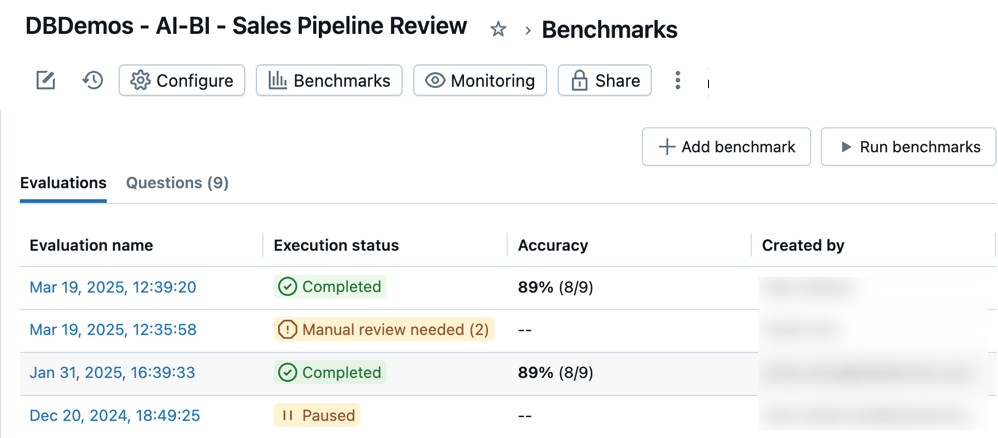
You can access all of your benchmark evaluations to track accuracy in your Genie Agent over time. When you open an agent's Benchmarks, a timestamped list of evaluation runs appears in the Evaluations tab. If no evaluation runs are found, see Add benchmark questions or Run benchmark questions.
The Evaluations tab shows an overview of evaluations and their performance reported in the following categories:
Evaluation name: A timestamp that indicates when an evaluation run occurred. Click the timestamp to see details for that evaluation. Execution status: Indicates if the evaluation is completed, paused, or unsuccessful. If an evaluation run includes benchmark questions that do not have predefined SQL answers, it is marked for review in this column. Accuracy: A numeric assessment of accuracy across all benchmark questions. For evaluation runs that require manual review, an accuracy measure appears only after those questions have been reviewed. Created by: Indicates the name of the user who ran the evaluation.
Review individual evaluations
You can review individual evaluations to get a detailed look at each response. You can edit the assessment for any question and update any items that need manual review.
To review individual evaluations:
-
Near the top of the Genie Agent, click Benchmark.
-
Click the timestamp for any evaluation in the Evaluation name column to open a detailed view of that test run.
-
Use the question list on the left side of the screen to see a detailed view of each question.
-
Review and compare the Model output response with the Ground truth response.
For results rated as incorrect, an explanation appears describing why the result was rated as Bad. This helps you understand specific differences between the generated output and the expected ground truth.
noteThe results of these responses appear in the evaluation details for one week. After one week, the results are no longer visible. The generated SQL statement and the example SQL statement remain.
-
Click Update ground truth to save the response as the new Ground truth for this question. This is useful if no ground truth exists, or if the response is better or more accurate than the existing ground truth statement.
-
Click the
on the label to edit the assessment.Mark each result as Good or Bad to get an accurate score for this evaluation.
Analyze a benchmark run with Genie Code
After a benchmark run completes, use Genie Code to review the results across the whole run instead of inspecting each question on its own. Launch Genie Code from the evaluation and ask it to analyze the run. Genie Code reviews the expected results, what your agent generated, and the agent's current context to find gaps, then suggests instruction and context improvements for you to review and save.