Configure OAuth for Smartsheet ingestion
This feature is in Beta.
Learn how to configure Smartsheet to enable authentication from Databricks. The managed Smartsheet connector in Lakeflow Connect uses OAuth 2.0 user-to-machine (U2M) authentication to ingest data into Databricks. Use the authentication details that you retrieve from the steps on this page to create a Unity Catalog connection in Databricks.
Register for Smartsheet Developer Tools
Smartsheet Developer Tools is the portal where you register applications that connect to Smartsheet using OAuth.
-
Designate a Smartsheet account to use for this integration.
-
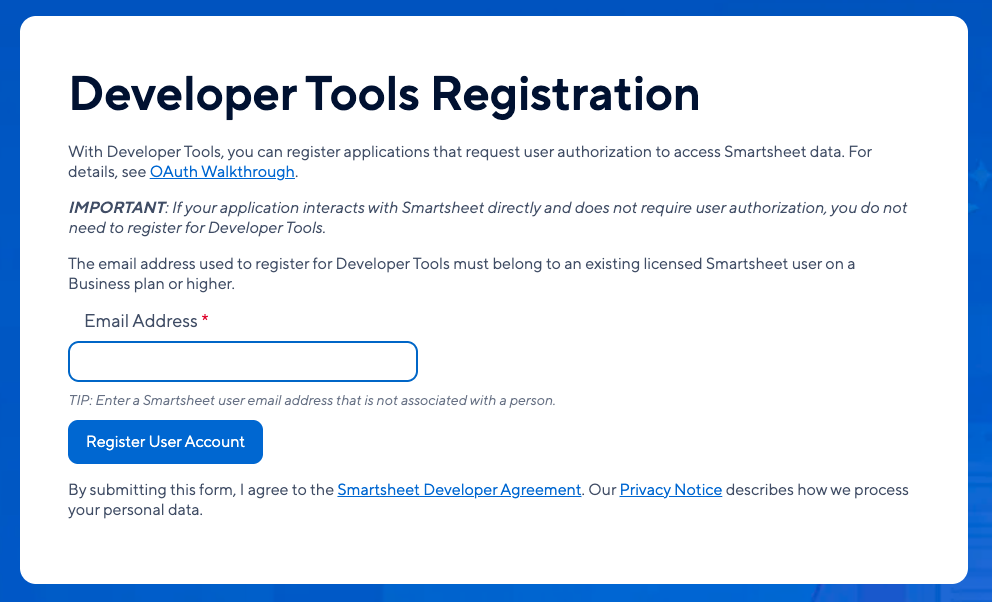
Go to the Smartsheet Developer Tools Registration page.
-
Enter the email address of the Smartsheet account you want to associate with this integration.
-
Review and accept the Smartsheet Developer Agreement, then click Register User Account.
After Smartsheet approves the request, Developer Tools is activated for that account. If Smartsheet denies the request, contact your Smartsheet Customer Success Manager.
Create a developer profile
You must create a developer profile before you can register an app.
-
Log in to Smartsheet using the account registered in the previous step.
-
Click the Account icon in the lower-left corner and select Developer Tools.
-
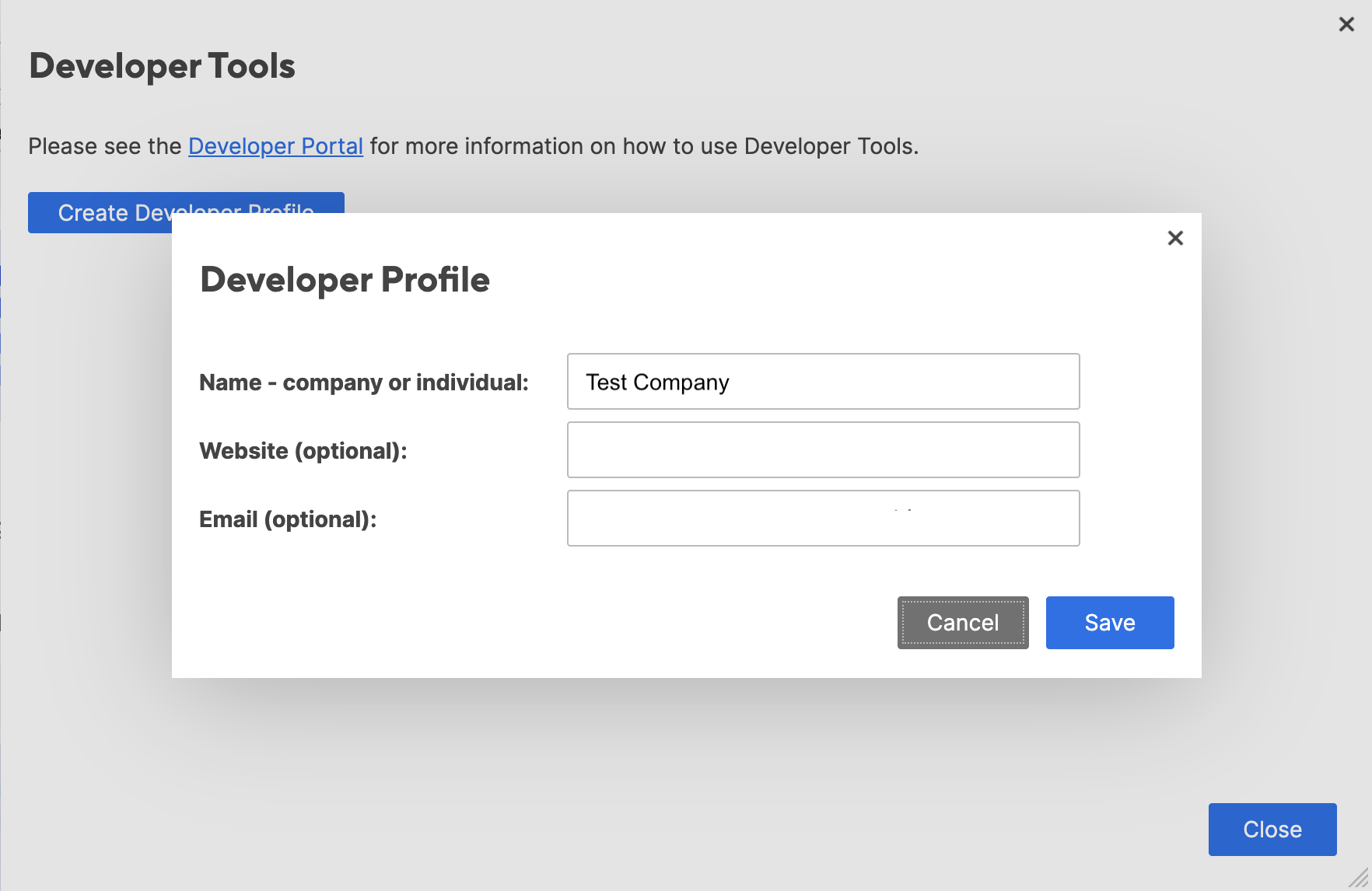
In the Developer Tools window, click Create Developer Profile.

-
Enter a name for your profile. Optionally, provide a website URL and contact email.
-
Save the profile.
Register an app and retrieve your client ID and secret
-
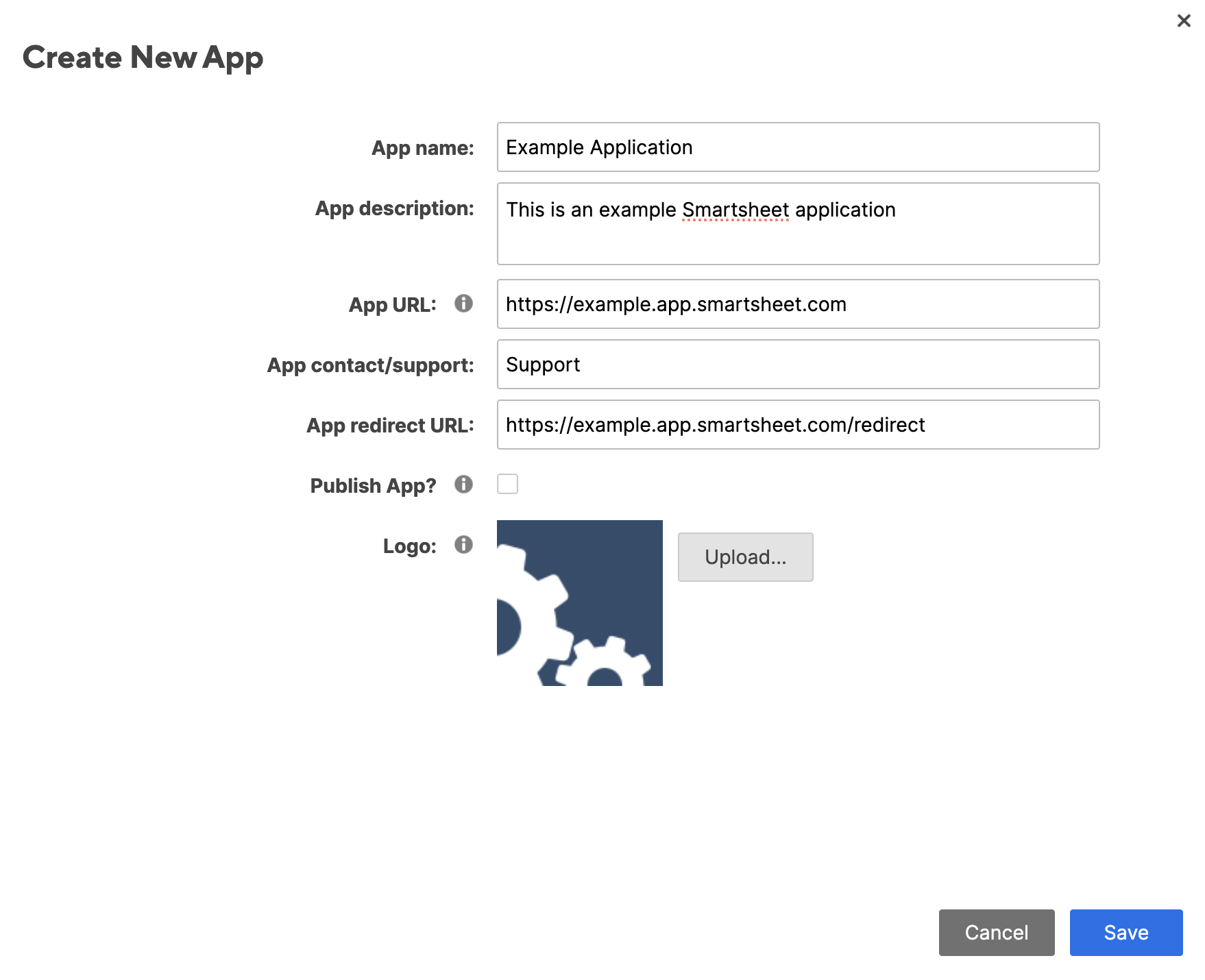
In the Developer Tools window, click Create New App.
-
Fill in the following fields:
Field
Description
App Name
A display name for your app (for example,
Databricks Smartsheet Connector)App Description
A brief description of what the app does
App URL
The URL that launches your app, or a relevant landing page
App Contact/Support
Support contact information
App Redirect URL
The callback URL that will receive OAuth credentials. Use
https://<your_workspace_domain>/login/oauth/lakehousefederation.html.Publish App?
Leave unchecked unless you want a public profile page for this app
Logo
Optional image to associate with the app
-
Click Save.
After saving, Smartsheet displays a confirmation window with your App Client ID and App Secret. Copy and store these values securely. You need them to create the connection in the next step.
Next steps
Use Catalog Explorer to create a connection so that any user with USE CONNECTION or ALL PRIVILEGES can create pipelines. See Create a Smartsheet connection.