Databricks Genie app in Microsoft Teams
This feature is in Public Preview. Account admins can manage access to this feature from the account console Previews page. See Manage account-level previews.
The Databricks Genie app in Microsoft Teams brings Genie into Microsoft Teams so users can ask data questions and get answers without leaving the Microsoft Teams workspace. Users can chat with the app in a direct message or mention @Databricks Genie in a Microsoft Teams channel or group chat. Questions are answered by Genie One or by a specific Genie Agent pinned in a direct message or channel for consistent, use-case-specific answers.
When a Genie Agent is pinned, new conversations go directly to that agent in Agent mode through the Agent mode API. Otherwise, the Databricks Genie app in Microsoft Teams uses the Genie One API. The app uses the same model providers and trust and safety guarantees as Genie. See Hosting provider used when partner-powered AI features setting is enabled and disabled and Databricks AI assistive features trust and safety.
This page describes how to download, set up, and use the Databricks Genie app in Microsoft Teams.
Databricks agents may generate inaccurate responses. Verify before acting on agent output.
Prerequisites
Before installing the Databricks Genie app in Microsoft Teams:
- An account admin must enable the Databricks Genie for Microsoft Teams preview in the account console.
- To upload files in direct messages, each user's Microsoft Teams account must have OneDrive for Business. See Upload files.
- To let users save documents as PDFs in direct messages, each user needs OneDrive and version 1.0.17 and above of the Databricks Genie app in Microsoft Teams. See Save documents as PDFs.
- If your workspace uses an IP access list, add the outbound IPs of the Databricks control plane in the East US 2 region. See the Outbound IPs in the Azure Databricks documentation.
- If your workspace uses Private Service Connect, an account admin must add a context-based ingress rule that allows the app. See Use with Private Service Connect workspaces.
Install the Databricks Genie app in Microsoft Teams
A Microsoft 365 admin installs the Databricks Genie app in Microsoft Teams from the Microsoft marketplace:
- In the Microsoft marketplace, search for and find Databricks Genie.
- Install the app.
- Approve the app permissions when prompted during installation.
For a list of required permissions, see Required app permissions on Microsoft.
After installation, users can start using the app.
Use the Databricks Genie app in Microsoft Teams
You can use the Databricks Genie app in Microsoft Teams through direct messages or in channel conversations on your Microsoft Teams workspace, or from Microsoft 365 Copilot.
Direct message
To directly message the Databricks Genie app in Microsoft Teams:
-
In Microsoft Teams, click Apps in the left sidebar and open the Databricks Genie app in Microsoft Teams.
-
Enter your question.
-
If you are not signed in, the Databricks Genie app in Microsoft Teams prompts you to sign in:
- Click Configure.
- Specify your Workspace URL. To find your workspace URL, see Workspace instance names, URLs, and IDs.
- Click Continue to log in to your Databricks account.
-
Your question is routed to the most appropriate Genie Agent and returns an answer with sources and suggested follow-up prompts.
To start a new conversation in a direct message, send newchat. This clears the current conversation context so that your next message starts a new Genie conversation. Your existing Microsoft Teams messages are not deleted.
To configure the workspace and Genie scope for all subsequent direct message conversations, open the Databricks Genie app in the Microsoft Teams home page and adjust the settings.
Schedule tasks from a direct message
You can create a scheduled task from a direct message with the Databricks Genie app in Microsoft Teams. Use either of the following methods:
- Ask Genie to schedule it. At any point in the conversation, type a request in natural language, for example: "Create a daily schedule that pulls the latest customer spend." Genie might ask clarifying questions, such as the time or time zone, then creates the task.
- Click the scheduling suggestion. When Genie suggests running an answer on a schedule, it shows a Want to run this analysis on a schedule? button below the answer. Click the button. Genie asks what the task should do and when it should run, then creates the task.
When the task runs, the Databricks Genie app in Microsoft Teams sends the results to you in a direct message. To continue the conversation about the results, click Ask a follow up.
Upload files
In a direct message, you can attach up to five PDF, Word, or CSV files of 20 MiB or smaller to a message, and Genie uses them as context when it answers. File upload is not available in channels, group chats, Microsoft 365 Copilot, or conversations with a pinned Genie Agent.
Microsoft Teams stores files that you attach in a chat in your OneDrive for Business, so your Microsoft Teams account must have OneDrive for Business to upload files.
To upload files:
- In a direct message with the Databricks Genie app in Microsoft Teams, attach up to five files to your message.
- Optionally, enter a question about the files.
- Send the message.
If your message includes a question, Genie uploads the files and then answers the question using them. If you send files without a question, Genie uploads them and confirms when they are ready. You can then ask questions about the files.
Uploaded files stay available for follow-up questions in the current conversation. After you send newchat, attach the files again to use them in the new conversation.
If you attach more than five files, Genie uploads the first five and lists the files it skipped. If a file can't be uploaded, Genie lists it with the reason. As long as at least one file uploads, Genie still answers your question.
If Genie replies that Databricks couldn't authorize the upload, reconnect Databricks and try again. If it still fails, ask a workspace admin to check your file upload permissions.
Save documents as PDFs
When Genie drafts a document in a direct message, the Databricks Genie app in Microsoft Teams offers the document as a PDF on a file card. To learn how to ask Genie to draft a document, see Documents in Genie One.
To save the PDF to your OneDrive, click Allow on the file card. The app replaces the card with the PDF in the chat. To dismiss the offer, click Decline.
To save PDFs, you need OneDrive and version 1.0.17 and above of the Databricks Genie app in Microsoft Teams. If clicking Allow fails because OneDrive is disabled for your account, open the document in Genie One instead.
- The PDF is named after the document's title.
- If a response includes more than one document, the app offers only the first one.
- The offer expires 15 minutes after the app posts it. If PDF delivery is busy or can't start, the card asks you to click Allow again. Do so before the offer expires. To get a PDF after the offer expires, ask Genie to generate the document again.
- PDFs larger than 20 MiB can't be saved. Open the document in Genie One instead.
Channel conversation
You can add the Databricks Genie app in Microsoft Teams to a channel. Using config, channel owners can configure settings for all members of a channel and individual users can configure personal settings. Channel owner configurations override personal configurations.
To configure the Databricks Genie app in Microsoft Teams in a channel:
-
In the desired channel, type
@Databricks Genie. -
If prompted, add the Databricks Genie app in Microsoft Teams to the channel.
-
Type
config. -
Select the connected workspace, the message visibility, and the Genie scope (Genie One or a specific Genie Agent).
If no Genie Agent is pinned, the channel defaults to Genie One.
-
After configuration, all
@Databricks Geniementions in the channel route to the configured agent and workspace.
Visualizations
When a Genie response includes a visualization, the chart appears as an image in the reply.
Approve tool actions
Genie can use connected external tools to answer questions and take actions. When a tool call requires approval, Genie shows an approval card in the reply. Click Allow to let Genie run the tool, or Deny to stop it. If the card includes a scope selector, choose whether the approval applies Once, Always in this chat, or Always. Only the user who asked the question can approve or deny the request.
Configuration levels and overrides
Run config in a channel to open the configuration window. The following settings are configurable:
- Workspace Selection: The Databricks workspace the Databricks Genie app in Microsoft Teams connects to for answering questions.
- Message visibility: Whether
@Databricks Genieresponses in channels are visible to all channel members or only to the user who asked. By default, responses are public. - Genie scope: Genie One or a specific Genie Agent. New conversations go directly to a pinned agent in Agent mode, and feedback on its answers goes to that agent. A pin in a direct message also applies in Microsoft 365 Copilot. In a channel or group chat, only a channel-wide pin (Save as channel-wide setting) routes conversations to the agent. A personal configuration in a channel uses Genie One.
Message visibility settings can be set at three levels. Higher levels override lower levels:
Level | How to set it | Applies to | Precedence |
|---|---|---|---|
Workspace | Databricks workspace admin configures from workspace security settings using the Allowed collaboration platforms and Allow public messages in collaboration platforms settings. When Allow public messages in collaboration platforms is off, all responses are private to the user who asked. | All channels in the Microsoft Teams workspace | Highest, overrides channel and personal configurations |
Channel | Channel owner sends | All members in that channel | Overrides personal configurations |
Personal | Individual user sends | That user's own | Used when no channel-wide configuration is set |
Workspace admin settings
From Settings > Security > External access, a workspace admin controls whether the Databricks Genie app in Microsoft Teams can connect to the workspace and whether its responses can be public:
- Allowed collaboration platforms: Which collaboration platforms can connect to the workspace. Select Allow all (the default), Allow Slack only, Allow Teams only, or Deny all. When Microsoft Teams isn't allowed, users can't connect the app to the workspace. Users who are already connected get a private message that connection to the workspace isn't allowed and are asked to change their workspace or contact a workspace admin.
- Allow public messages in collaboration platforms: When on, users and channel owners choose whether responses are public or private. When off, responses are visible only to the user who asked.
Changes to these settings can take up to an hour to take effect.
Data routing
Genie processes your questions in your workspace and stores conversation history in your workspace's region. Requests between Microsoft Teams and your workspace pass through a central Databricks service in the Databricks control plane. The central service runs in the East US 2 region, regardless of your workspace's region. The central service doesn't persist or log any request or answer content. It stores only the mapping between your Microsoft Teams tenant and your Databricks workspace.
Microsoft Teams needs a fixed endpoint to receive requests, so the app uses a central service.
When you ask a question in Microsoft Teams:
- Microsoft Teams sends your question to the central service.
- The central service forwards the request to your Databricks workspace.
- Genie processes the request and generates an answer in your workspace.
- The answer returns to Microsoft Teams through the central service.
When you save a document as a PDF, the app downloads the PDF from your workspace and uploads it to your OneDrive through East US 2. The app doesn't store the PDF.
Where LLM processing happens
The central service routes messages between Microsoft Teams and your workspace. Genie in your workspace calls the large language model (LLM), so your workspace's Geo and its cross-Geo processing setting determine where the LLM processes your content. For example, if your workspace is in the Europe Geo and cross-Geo processing isn't enabled, the LLM processes your content in Europe. See Databricks Designated Services.
Use with Private Service Connect workspaces
The Databricks Genie app in Microsoft Teams works with workspaces that use front-end Private Service Connect. Microsoft Teams doesn't support outbound Private Service Connect connections, so the app doesn't connect over Private Service Connect. Instead, you add a context-based ingress rule that lets only the app reach your workspace's Genie API. The rule doesn't change how your policy handles other traffic, and each request runs with the permissions of the user who asked.
You must be an account admin to complete these steps. Create the ingress policy before you enable public access, so that the workspace doesn't accept unrestricted public traffic at any point.
Step 1: Create an ingress policy for the app
A context-based ingress policy controls which requests can reach your workspace, based on the identity, request type, and network source of each request. See Context-based ingress control.
- In the account console, open or create the workspace network policy for your workspace. See Access network policies.
- On the Ingress tab, under Public network access, make sure Allow access from all public IPs is cleared. Public requests are then denied unless they match an allow rule.
- Add an Allow rule with the following settings:
- Access type: API, with the Genie API scope.
- Identity: All users and service principals, or Selected identities to limit who can use the app.
- Source: Partner Platforms > Databricks Teams App. See Allow partner platforms in context-based ingress policies.
- Save the policy and attach it to your workspace. See Attach a policy to workspaces. Changes can take up to 30 minutes to take effect.
Step 2: Enable public access on the workspace
When public access is disabled, all public requests, including requests from the app, are blocked before the ingress policy is evaluated. Enabling public access doesn't open the workspace to all public traffic. The ingress policy from step 1 still evaluates each public request and allows only requests that match an allow rule. Your existing private endpoints don't change.
In the workspace's private access settings object, set Public access enabled to True. To check the setting, in the account console, click Security > Private access settings. The Public Access column shows ENABLED when public access is on. To change the setting, see Update a private access settings object.
The setting applies to every workspace that uses the private access settings object. Make sure each of those workspaces has an ingress policy that restricts public access.

Verify the setup
After the policy takes effect, confirm that the workspace still blocks other public traffic and that the app can reach it:
- Disconnect from your VPN or any other network that routes to your private endpoints, so that your browser connects over the public internet.
- Open your workspace URL. Unless another allow rule in the policy covers your network, access is denied.
- In Microsoft Teams, mention
@Databricks Genieand ask a question. The app returns an answer.
To review denied requests, query the system.access.inbound_network system table, which records inbound requests that an ingress policy denies. The denied browser request from step 2 appears there. If the app can't reach your workspace, the table shows which rule denied its requests. Records are typically available within one hour. See Inbound network access events system table schema.
Monitor usage with audit logs
Account and workspace admins can use the audit log system table (system.access.audit) to monitor Genie usage that comes from Microsoft Teams. When a user sends a message through the Databricks Genie app in Microsoft Teams, Genie One logs a createGenieChatResponse event under the genieChat service, and the request_params.source field records teams as the origin. This lets you distinguish Microsoft Teams requests from requests made in the Databricks web UI (webapp) or through other integrations, such as Slack (slack).
The following sample query returns the Microsoft Teams-originated Genie requests from the last 5 days, including the user who asked and the conversation ID:
SELECT
  event_time,
  user_identity.email AS user_email,
  request_params.conversation_id AS conversation_id
FROM system.access.audit
WHERE service_name = 'genieChat'
  AND action_name = 'createGenieChatResponse'
  AND request_params.source = 'teams'
  AND event_date >= date_add(current_date(), -5)
ORDER BY event_time DESC
For the audit log table schema and more sample queries, see Audit log system table reference. For the full list of Genie One chat events, see Chat events in Genie One.
Required app permissions on Microsoft
When you install the Databricks Genie app in Microsoft Teams, it requests the following permissions. Entra ID permissions are tenant-wide Microsoft Graph permissions that a Microsoft 365 admin consents to for your organization. Resource-specific permissions are Teams resource-specific consent (RSC) permissions that apply only to the chat, channel, or team where the app is installed.
For more information about these permissions, see Resource-specific consent and Graph permissions in the Microsoft documentation.
Permission | Description | Type |
|---|---|---|
| Maintain access to data you have granted it access to. | Entra ID |
| Sign in and read the user profile. | Entra ID |
| Read the messages in this chat. | Resource-specific |
| Send messages to this chat. | Resource-specific |
| Create new notifications in the teamwork activity feeds of users in this chat. | Resource-specific |
| Send activity feed notifications to this user. | Resource-specific |
| Read the members of channels of a team. | Resource-specific |
| Read this team's channel messages. | Resource-specific |
| Read this team's channel names, descriptions, and settings. | Resource-specific |
Troubleshooting
"Need admin approval" message on log in
The following "Need admin approval" message appears when you log in to your Databricks workspace because the Microsoft Entra tenant is blocking user consent for the Databricks application. If administrator consent is not granted, Microsoft Entra ID continues to block the login flow even if you have direct workspace access.
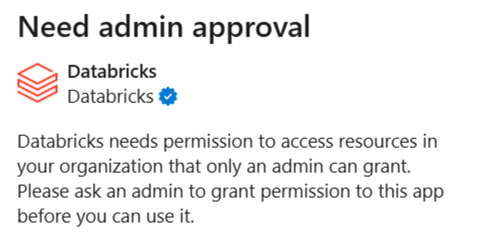
To resolve this, a Microsoft Entra user with appropriate administrator roles must grant tenant-wide administrator consent to the Databricks enterprise application.
Ask the Microsoft Entra admin to visit the following link. Replace {TENANT_ID} with your Microsoft Entra tenant ID:
https://login.microsoftonline.com/{TENANT_ID}/adminconsent?client_id=aaec40b0-c0ae-4211-a98b-6fc160abb71b
If the link fails, the admin can grant consent manually:
- In the Microsoft Entra admin center, go to Entra ID > Enterprise apps > All applications and find the Databricks enterprise application used for single sign-on. To identify the application, search for the Application ID
aaec40b0-c0ae-4211-a98b-6fc160abb71b. - Grant admin consent for the permissions requested by the Databricks enterprise app:
- Under Security, click Permissions.
- Click Grant admin consent.
For detailed instructions, see the Microsoft documentation.
Limitations
- You cannot specify which compute (SQL warehouse) the Databricks Genie app in Microsoft Teams uses. Databricks automatically selects a SQL warehouse that the user is authorized to access.
- Conversations that started on Genie One stay on Genie One after a Genie Agent is pinned. Only new conversations go to the pinned agent.
- File upload is supported only in direct messages without a pinned Genie Agent. In channels, group chats, and Microsoft 365 Copilot, Genie doesn't answer a message that includes attachments. Instead, it replies that uploads work only in a direct message. In a conversation with a pinned Genie Agent, it replies that file uploads aren't supported in conversations with a Genie Agent.
- File upload supports only PDF, Word (
.docx), and CSV files of 20 MiB or smaller, up to five files per message. - Saving documents as PDFs is available only in direct messages. Genie doesn't offer PDFs in channels, group chats, or Microsoft 365 Copilot. OneDrive and version 1.0.17 and above of the Databricks Genie app in Microsoft Teams are required. PDFs larger than 20 MiB can't be saved.
Additional resources
- Use Genie One
- Chat in Genie One
- Slack and Microsoft Teams Genie app destinations
- For support, see the Databricks help center.