Convert SQL with the Lakebridge Agentic Converter
This feature is in Beta. To use it, a workspace admin must turn on Lakebridge Agentic Converter from the Previews page. See Manage Databricks previews.
The Lakebridge Agentic Converter uses Genie Code to convert existing SQL from dialects such as T-SQL, Snowflake, Redshift, Oracle, BigQuery, and Teradata to ANSI SQL that runs on Databricks. You organize your work in a migration project, where the converter analyzes each source script, validates the converted output, and iteratively fixes errors before writing the results to a workspace folder.
Lakebridge is the Databricks AI-powered migration tool for moving workloads from existing data warehouses and ETL tools to Databricks. The Lakebridge Agentic Converter is its code-conversion component.
How it works
You start a conversion by creating a migration project in your workspace. The project tracks the state of each file and gives you a single place to manage the migration.
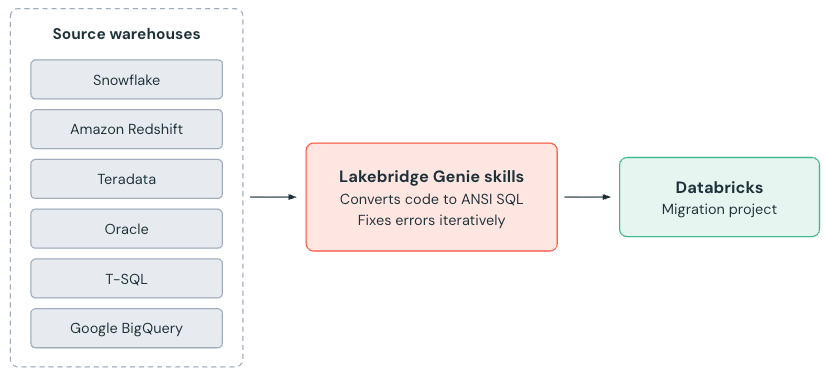
When you run a conversion, Genie Code invokes the Lakebridge skill and deploys subagents that convert files concurrently. Each subagent analyzes the source dialect, generates the ANSI SQL equivalent, validates the result, and retries sections that fail. Converted files are written directly to the workspace folder that you specify for the project.
You can also convert a single file or folder without a project by using the /migrate command in a Genie Code conversation.
Requirements
- A workspace enabled for the Lakebridge Agentic Converter Beta. A workspace admin enables the feature from the Previews page. See Manage Databricks previews.
- Your existing SQL files must be accessible in your workspace, either uploaded as workspace files or opened in the editor.
- Your workspace must meet the Genie Code requirements. See Genie Code.
Supported sources and limitations
The converter supports the following source dialects:
- T-SQL
- Snowflake SQL
- Redshift SQL
- Oracle
- BigQuery
- Teradata
The converter targets ANSI SQL. The following limits apply to each conversion:
- A batch can contain a maximum of 300 files.
- A script can contain a maximum of 1,000 lines.
- Teradata BTEQ scripts are not yet supported.
Convert existing SQL code
The following steps describe how to convert existing SQL in a migration project.
Step 1: Upload source files
Upload your existing SQL files (.sql) using the workspace file browser, or use the Databricks CLI to bulk-upload a directory of scripts.
Step 2: Create a migration project
Create a migration project from your workspace:
- Click
 > Migration project.
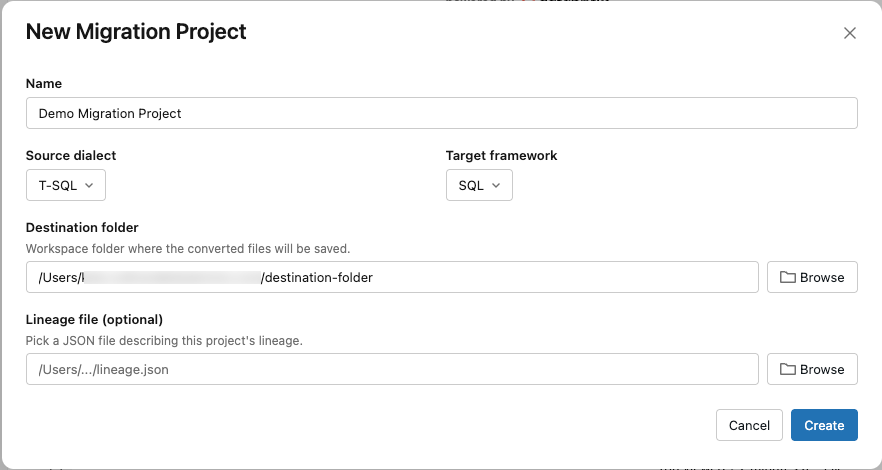
 - Enter a Name for the project.
- Use the drop-down selectors to choose a Source dialect and a Target framework.
- Enter the file path to the target Destination folder. Click Browse to choose a destination from a list of available workspace folders.
- (Optional) Enter the path to a Lineage file that describes the project's lineage. Click Browse to choose the file from a list of files in your workspace.
- Click Create.
Step 3: Add files to your project
In the new project:
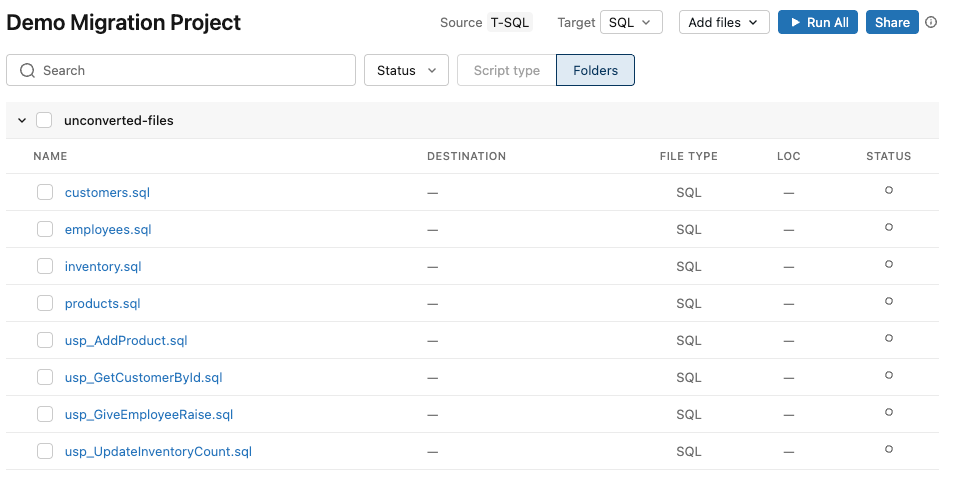
- Click Add files > + Add files.
- Select the source folder or a file from your workspace.
The project lists each file with its file type, line count, and conversion status.
Step 4: Review code complexity and lineage (optional)
If you have run the Lakebridge Analyzer, upload its JSON output to the project to review code complexity and lineage. Click a source file to open a complexity assessment, and click Lineage to open a dependency graph that shows interdependent files and tables that you must migrate together. For instructions on running the Analyzer, see the Lakebridge Analyzer guide.
Step 5: Run the conversion
Select the files to convert and click Run. Genie Code opens a conversation, invokes the Lakebridge skill, and deploys subagents to convert the files concurrently. Each converted file appears as a linked file in the project. The converter marks each file with a status:
- Green: Converted successfully
- Yellow: Needs review
- Red: Conversion failed
- Gray: In progress
Step 6: Review conversion results
Click a converted file to open a side-by-side diff in the SQL editor, with the source code next to the proposed Databricks SQL. Accept all suggested changes, or review and accept individual edits. For scripts that fail to convert, edit the code in the editor or ask Genie Code to re-validate or retry specific sections. After you are satisfied, run the converted SQL in a notebook or the SQL editor to confirm that it runs on Databricks.
Create a custom skill (optional)
Custom skills let you encode business rules that Genie Code applies automatically during every conversion. Use them to handle proprietary data types, enforce preferred target patterns, or capture corrections that you make repeatedly. A migration skill is a Genie Code skill, so you can create and manage it the same way as any other skill. For more details, see Extend Genie Code with agent skills.
You can create a skill from the Genie Code settings or from a Genie Code conversation. Use the settings path for complex skills that include detailed instructions, examples, or supporting files. Use the chat path for quick, single-rule skills.
- Genie Code settings
- Genie Code chat
Create the skill as a file so you can author detailed instructions and version it in a Git folder:
-
In the Genie Code panel, click
 Settings, then click
  Open skills folder.
 -
Create a folder for your skill under the workspace skills path,
Workspace/.assistant/skills/. For example,Workspace/.assistant/skills/sql-migration/. -
In the skill folder, create a
SKILL.mdfile with the required frontmatter and your conversion rules. For example:---
name: sql-migration
description: Conversion rules to apply when migrating legacy SQL to ANSI SQL.
---
Always convert the custom type MYDATE to TIMESTAMP_NTZ.
Genie Code picks up the skill the next time you run a conversion.
Describe the conversion rule that you want to encode, then ask Genie Code to save it:
Always convert our custom type MYDATE to TIMESTAMP_NTZ. Save this as a custom migration skill.
Genie Code creates and registers the skill and applies it on future conversions in the workspace.
To view active skills:
Show me my migration skills
To remove a skill:
Delete the migration skill for [description]
Workspace skills are stored at the workspace level and shared across all users in the workspace.
Tips for testing
As part of its agentic loop, the converter analyzes each source script, validates that the converted output is syntactically valid and semantically equivalent to the source, and iteratively fixes sections that fail before writing the results. The following tips help you review and gain confidence in the output:
- Batch conversion: Convert a small batch of two to five files in one session to verify that multi-file conversion works end to end.
- Syntax validation: After conversion, run the output in a Databricks SQL editor or notebook to confirm that it runs without errors.
- Edge cases: Include a script with dialect-specific constructs, such as T-SQL window functions, Snowflake
QUALIFY, or RedshiftLISTAGG, to see how the converter handles non-trivial patterns. - Semantic correctness: Run the original and converted queries against equivalent test data and compare the results. Confirm that the output is semantically correct, not only syntactically valid.