Evaluation dataset reference
Evaluation datasets in MLflow define the structured test data used to evaluate your agent: inputs, optional ground-truth expectations, and lineage fields such as source and tags. This page documents the dataset schema and links to the most frequently used SDK methods and classes.
For general information and examples of how to use evaluation datasets, see Evaluate your agent.
Evaluation dataset schema
Evaluation datasets must use the schema described in this section.
Core fields
The following fields are used in both the evaluation dataset abstraction or if you pass data directly.
Column | Data Type | Description | Required |
|---|---|---|---|
|
| Inputs for your app (e.g., user question, context), stored as a JSON-seralizable | Yes |
|
| Ground truth labels, stored as a JSON-seralizable | Optional |
expectations reserved keys
expectations has several reserved keys that are used by built-in LLM judges: guidelines, expected_facts, and expected_response.
Field | Used by | Description |
|---|---|---|
|
| List of facts that should appear |
|
| Exact or similar expected output |
|
| Natural language rules to follow |
|
| Documents that should be retrieved |
Additional fields
The following fields are used by the evaluation dataset abstraction to track lineage and version history.
Column | Data Type | Description | Required |
|---|---|---|---|
| string | The unique identifier for the record. | Automatically set if not provided. |
| timestamp | The time when the record was created. | Automatically set when inserting or updating. |
| string | The user who created the record. | Automatically set when inserting or updating. |
| timestamp | The time when the record was last updated. | Automatically set when inserting or updating. |
| string | The user who last updated the record. | Automatically set when inserting or updating. |
| struct | The source of the dataset record. See Source field. | Optional |
| dict[str, Any] | Key-value tags for the dataset record. | Optional |
Source field
The source field tracks where a dataset record came from. Each record can have only one source type.
Human source: Record created manually by a person
{
    "source": {
        "human": {
            "user_name": "jane.doe@company.com"  # user who created the record
        }
    }
}
Document source: Record synthesized from a document
{
    "source": {
        "document": {
            "doc_uri": "s3://bucket/docs/product-manual.pdf",  # URI or path to the source document
            "content": "The first 500 chars of the document..."  # Optional, excerpt or full content from the document
        }
    }
}
Trace source: Record created from a production trace
{
    "source": {
        "trace": {
            "trace_id": "tr-abc123def456"  # unique identifier of the source trace
        }
    }
}
MLflow evaluation dataset UI
The Datasets tab in the MLflow experiment page provides a visual interface for managing your evaluation datasets and their records. The page uses a split-pane layout: the left pane lists all evaluation datasets associated with the experiment, and the right pane shows the records for the selected dataset. You can search, sort, create, edit, and delete datasets and records directly from the UI without writing any code.
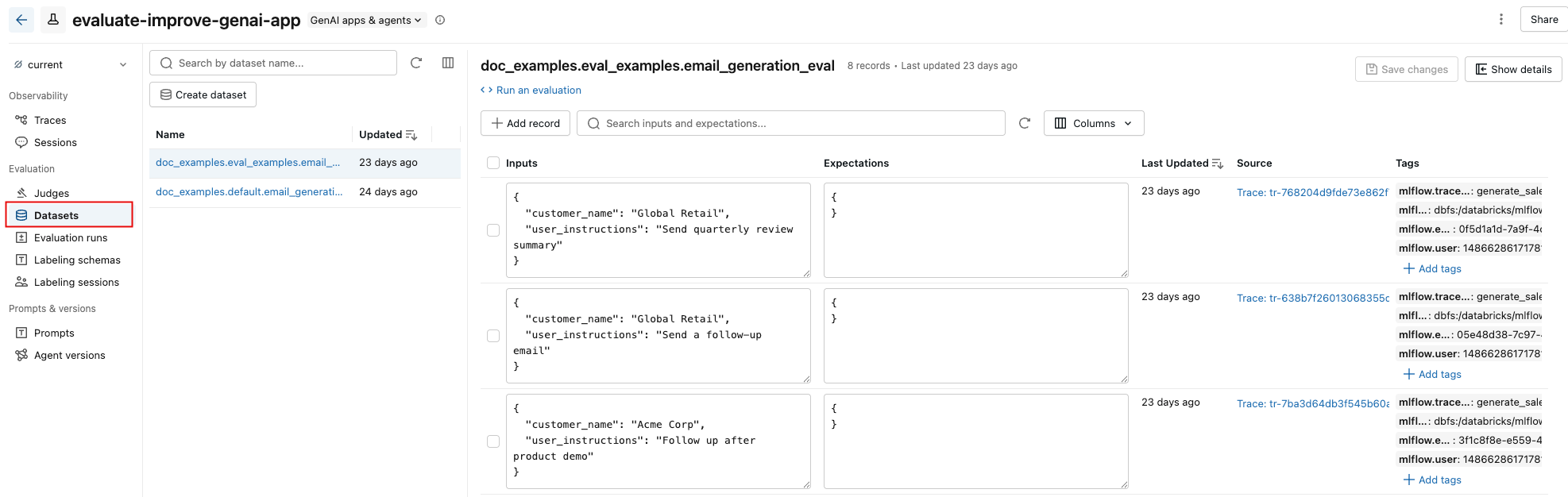
From the right pane, you can edit record inputs and expectations inline, add tags to individual records, view the source trace for records created from production traces, and get a ready-to-use Python code snippet for running an evaluation against the dataset.
Evaluation dataset UI overview
-
In the sidebar, click Experiments and open your experiment.
-
Click the Datasets tab. The left pane shows all evaluation datasets for this experiment. By default, datasets are sorted by last updated time. Use the search bar to filter by dataset name.
-
Click a dataset name to view its records in the right pane. You might need to scroll right and left to view all columns.
-
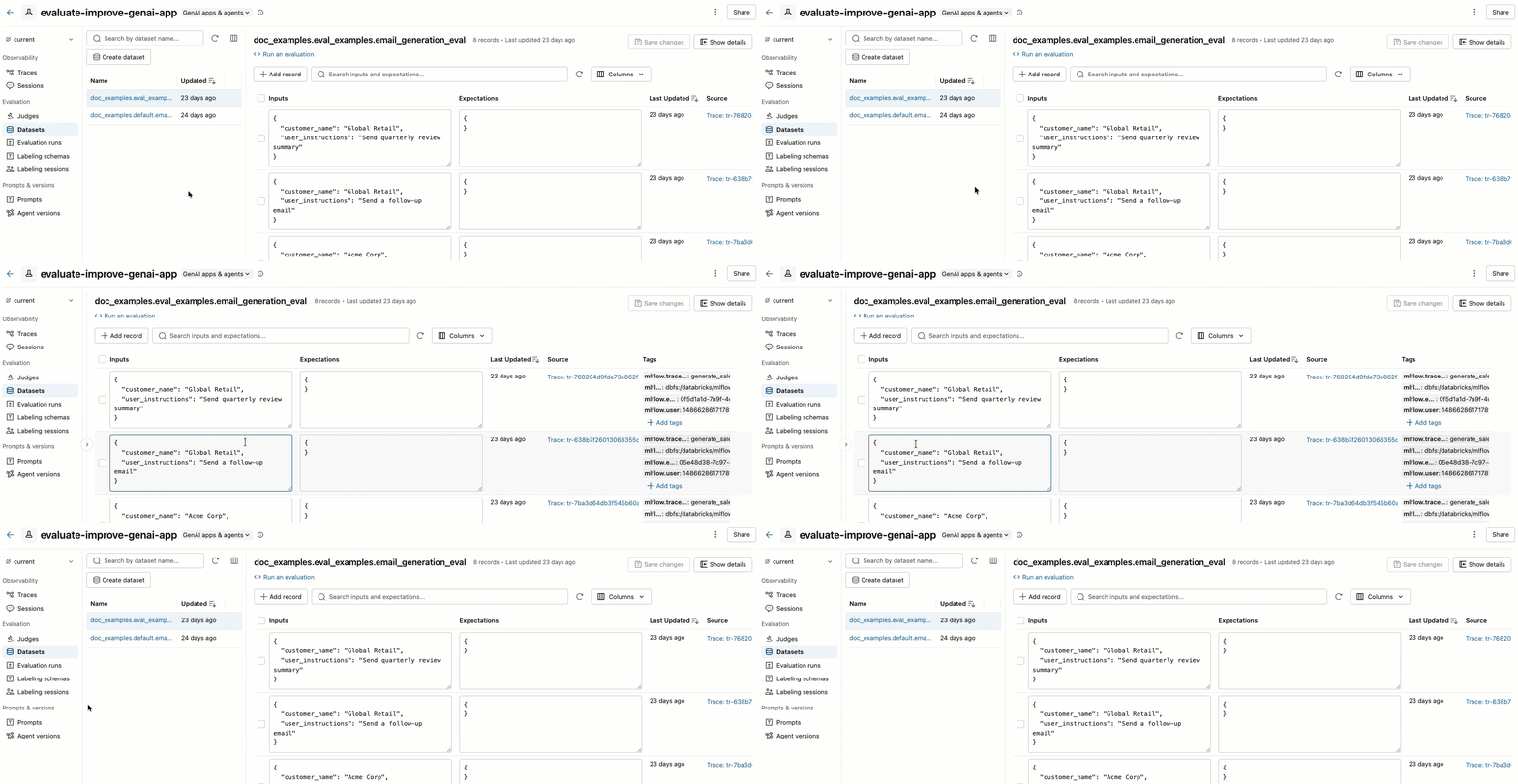
To enlarge the right pane, hover over the pane separator and click the left-pointing arrow. Click the arrow again to return to the default view.
-
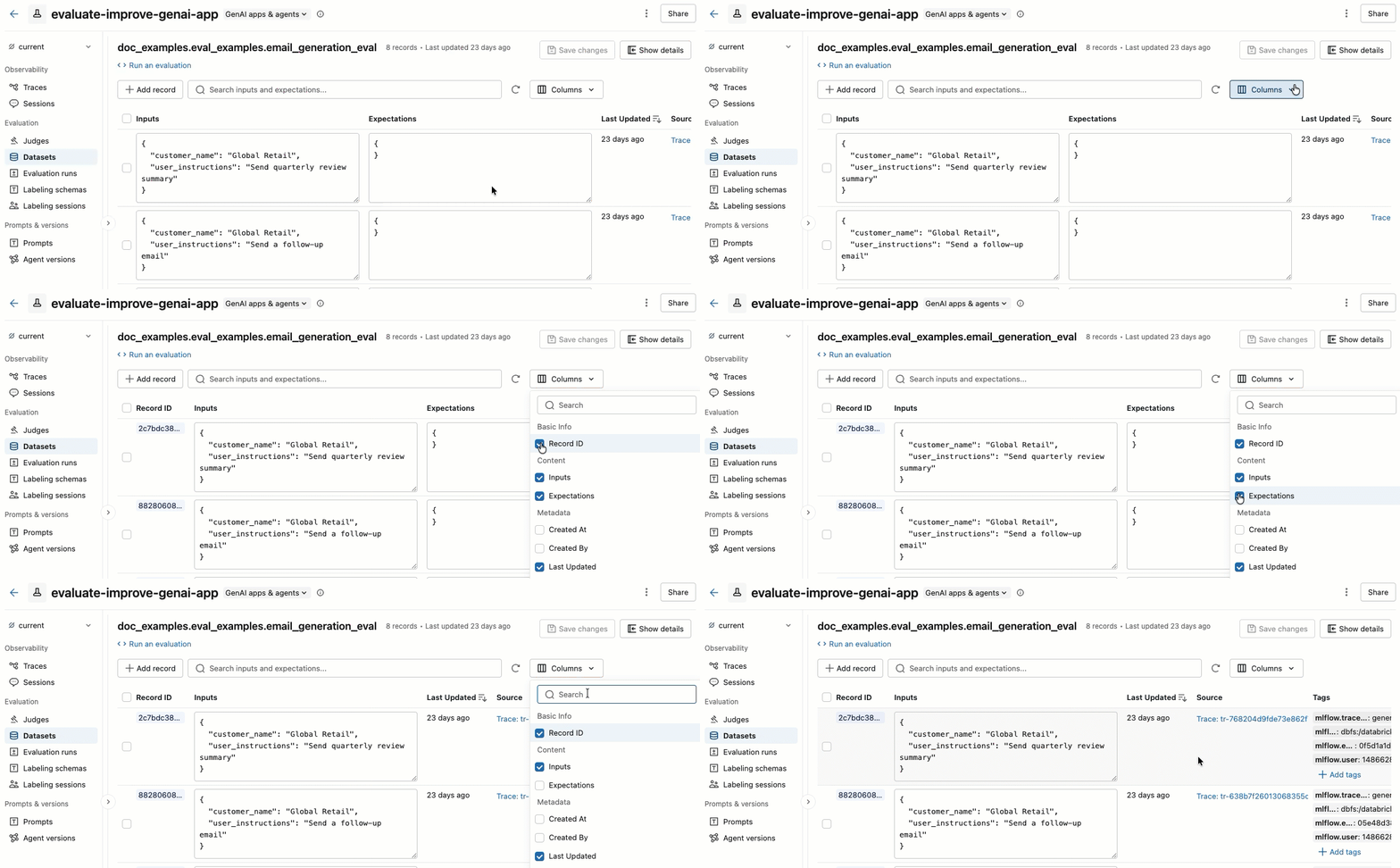
To select the columns that appear, click the Columns button. Select or deselect the checkboxes. When you're done, click anywhere off the drop-down menu.
Create an evaluation dataset
-
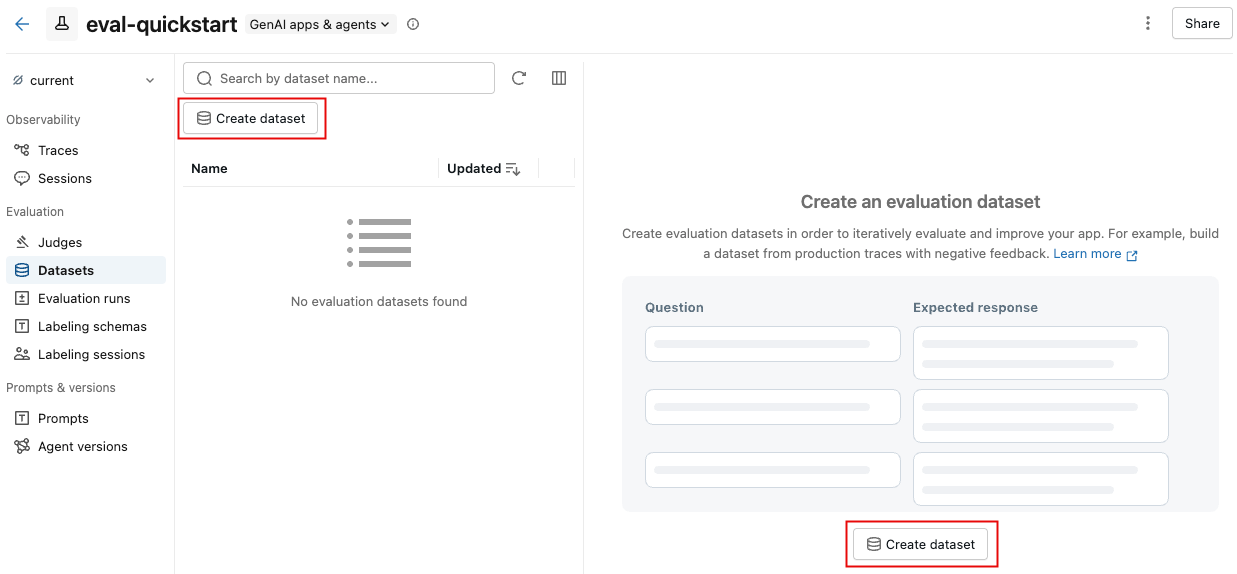
On the Datasets tab, click Create dataset.
-
In the dialog, click Select schema to choose a Unity Catalog schema where you have
CREATE TABLEpermissions. -
Enter a table name for the dataset. A preview of the full dataset name (
catalog.schema.table_name) appears below the input. -
Click Create Dataset.
Add dataset records
To add existing traces to an evaluation dataset, see Create a dataset using the UI.
Edit dataset records
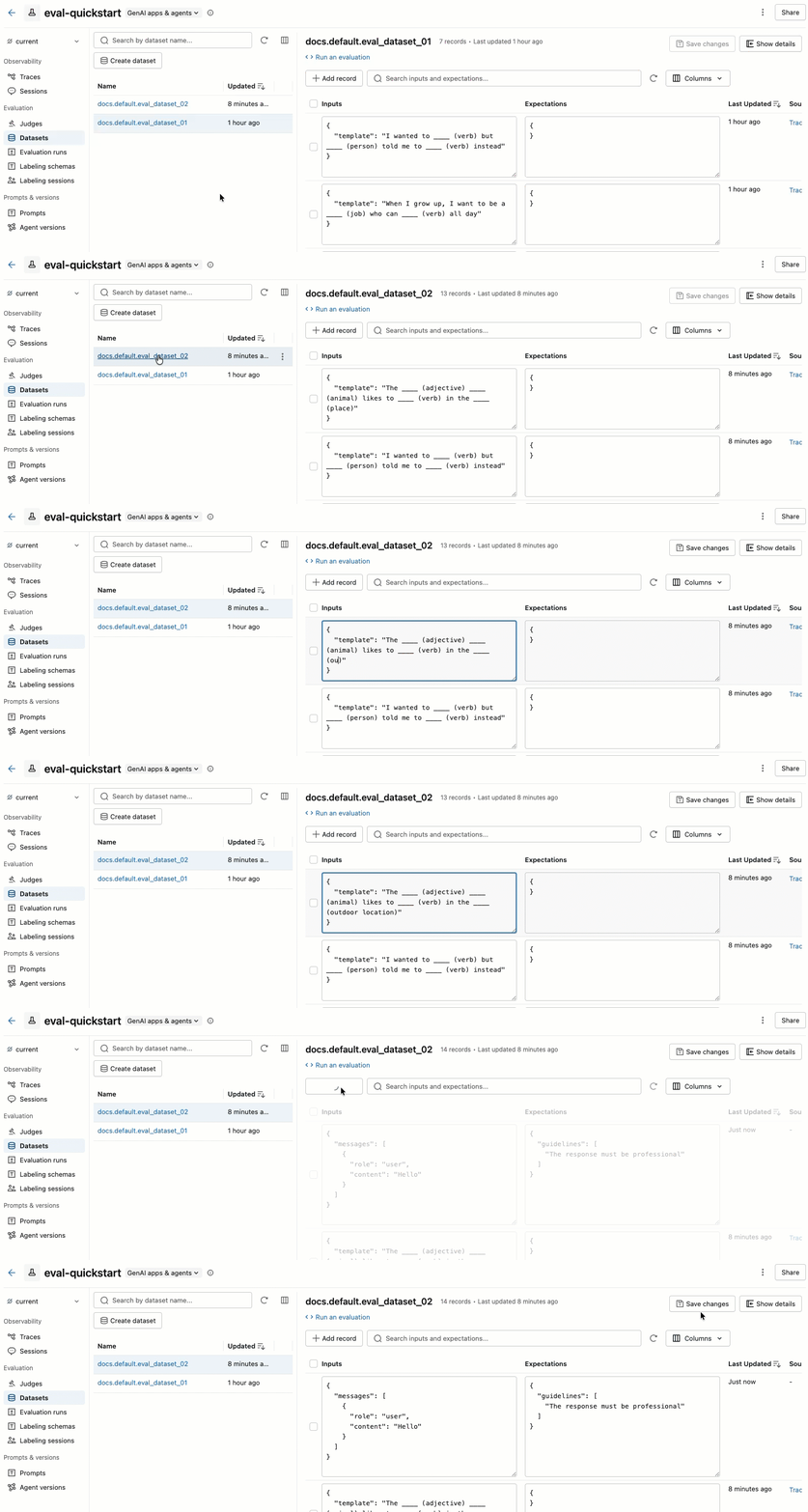
The video shows the following steps:
- Select a dataset in the left pane to view its records.
- You can edit the Inputs and Expectations fields directly in the table. These fields accept JSON and validate your input as you type.
- To add a new row, click Add record. A new row with default values appears at the top of the table.
- To save all pending edits, click Save changes at the upper right.
Delete records or datasets
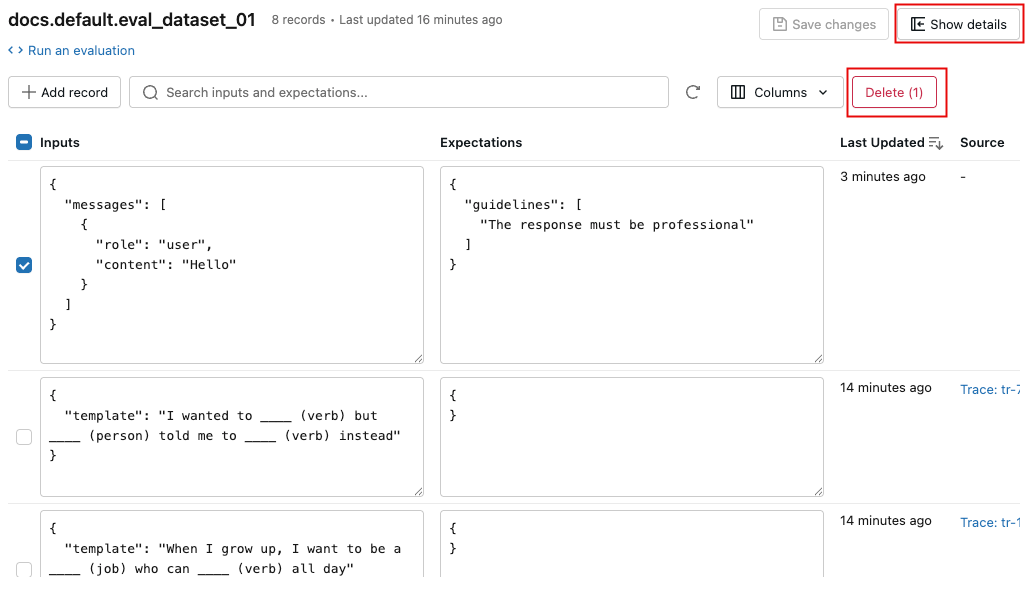
- To delete records, use the checkboxes to select one or more records, then click Delete (N).
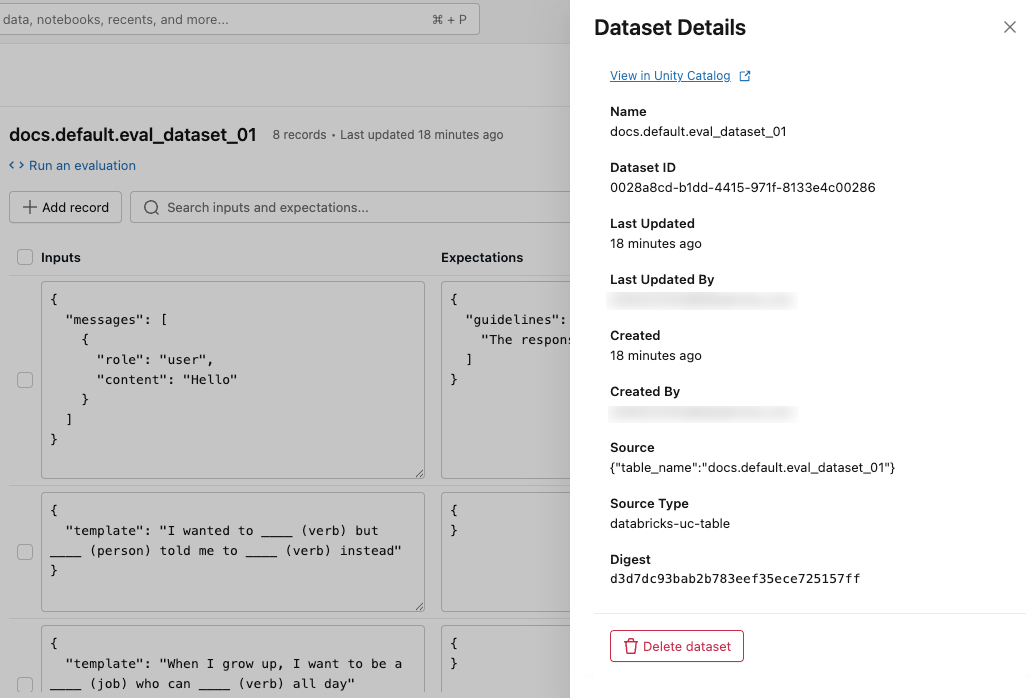
- To delete a dataset, click Show details to open the details pane, then click Delete dataset at the bottom of the pane. You can also delete a dataset from the kebab menu
 in the dataset list.
View dataset details
To view metadata for the dataset, click Show details at the upper right. A pane opens, including the dataset name, ID, creation time, last update, source, and a link to view the dataset in Unity Catalog.
Add and delete tags
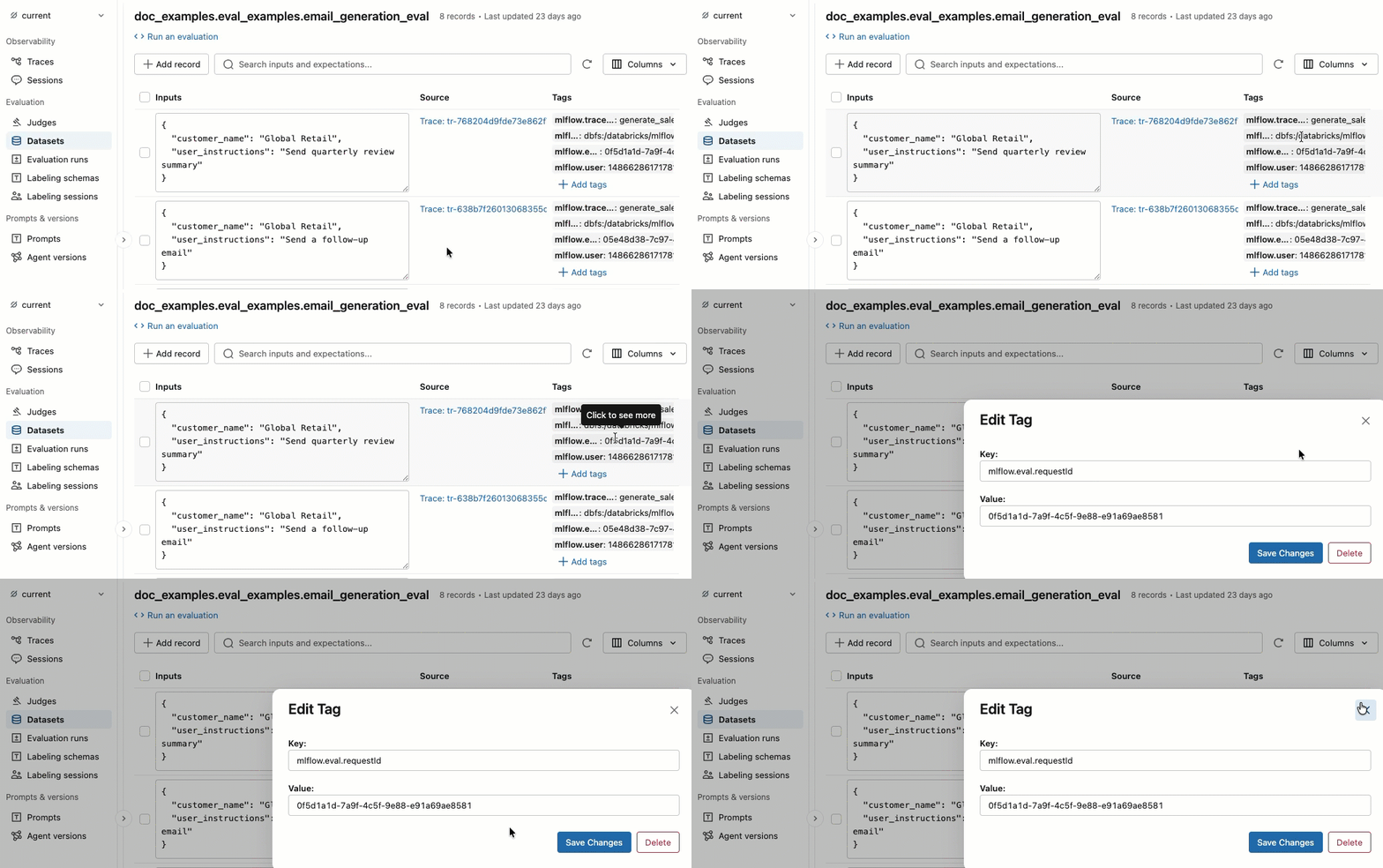
In the Tags column, click a tag to edit it, or click Add tags to add a new tag.
View source trace
In the Source column, click the trace to open an interactive window showing the full trace and assessments.
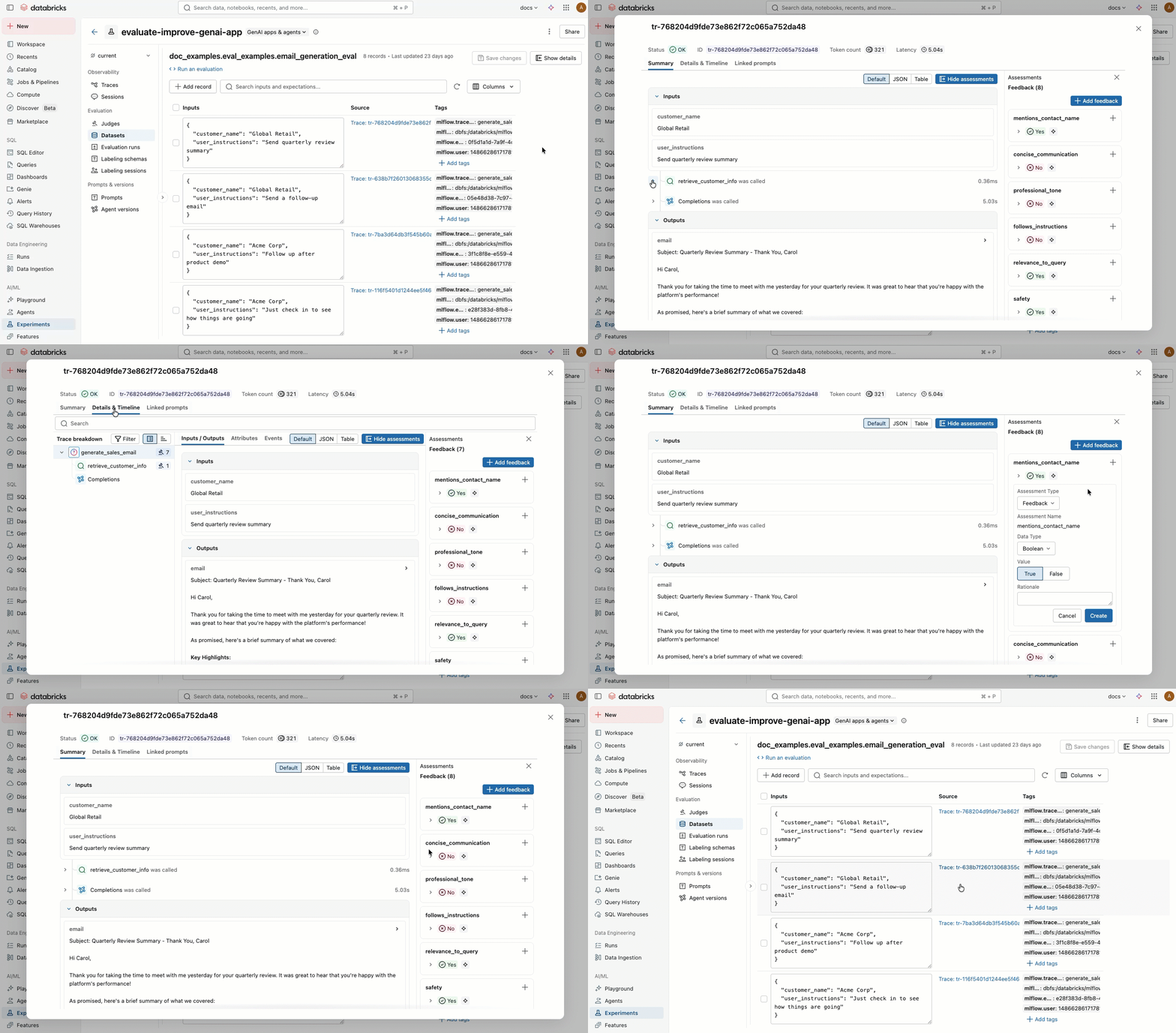
Run an evaluation using the dataset
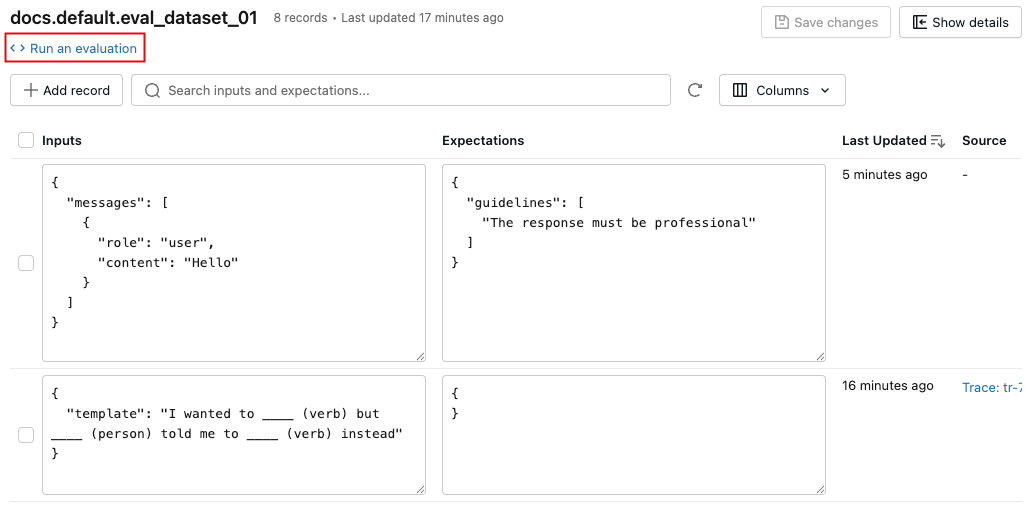
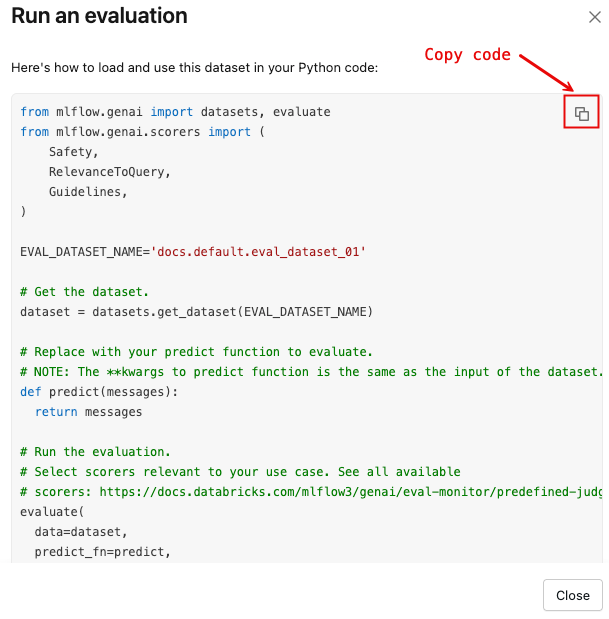
To open a dialog with a Python code template that loads the dataset and runs mlflow.genai.evaluate() with a default set of scorers:
-
Click Run an evaluation.
-
Click the copy icon, shown in the following image, to copy the snippet to your clipboard.
MLflow evaluation dataset SDK reference
The evaluation datasets SDK provides programmatic access to create, manage, and use datasets for agent evaluation. For details, see the API reference: mlflow.genai.datasets. Some of the most frequently used methods and classes are the following:
mlflow.genai.datasets.create_datasetmlflow.genai.datasets.get_datasetmlflow.genai.datasets.delete_datasetEvaluationDataset. This class provides methods to interact with and modify evaluation datasets.
Next step: Evaluate and improve