Share data behind a firewall with SecureConnect
SecureConnect simplifies networking for data sharing, allowing data providers to share to different recipients without allowlisting each recipient in their storage networking rules. Additionally, SecureConnect allows providers to share from cloud storage behind a private endpoint.
How SecureConnect works
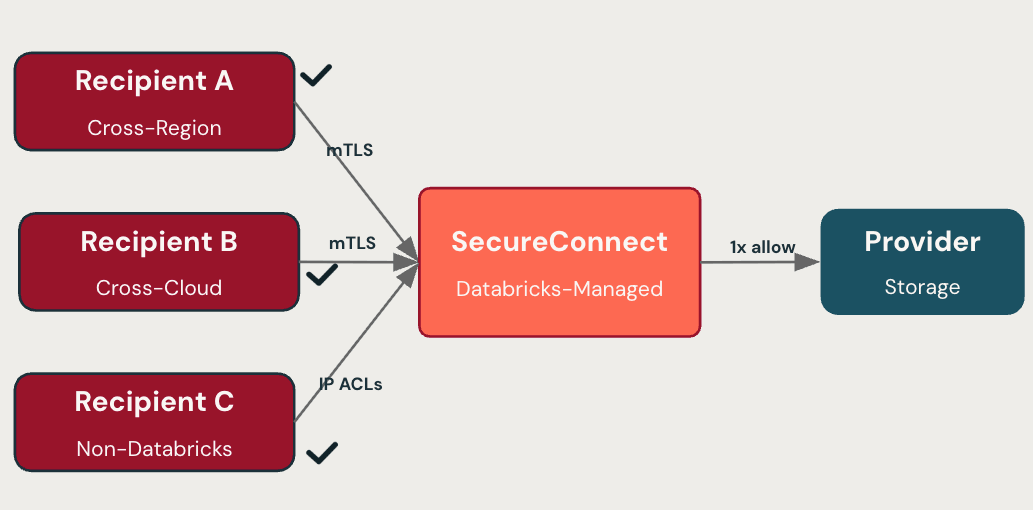
To use SecureConnect, a provider makes a one-time configuration that allows Databricks recipients to access the provider's storage behind a firewall or private endpoint. Databricks then routes recipient requests through a managed proxy, so the provider does not need to update their storage firewall when adding a new recipient.
Recipients access shared data using their existing OpenSharing setup:
- Databricks recipients on serverless compute access shares with no per-provider firewall changes.
- Databricks recipients on classic compute and open recipients allowlist a single set of Databricks control plane IPs for the provider's region.
To optimize performance, recipients on serverless compute in the same region as the provider's storage read from the storage directly, rather than through the managed proxy. Cross-region and cross-cloud recipients, and recipients on classic compute, read through the managed proxy. This difference affects how networking usage is billed. See Billing.
Without SecureConnect, a provider must add each recipient's network identifier to their storage firewall, coordinating with the recipient and a cloud platform administrator for every new recipient.
SecureConnect also applies to data products shared through Databricks Marketplace and to data shared into clean rooms, because both are built on OpenSharing.
Set up SecureConnect as a provider
Setting up SecureConnect involves configuring your storage firewall to allow access and enabling SecureConnect for your metastores and recipients.
Step 1: Configure your storage firewall
The following instructions assume that your shared assets and provider metastore are in the same region. For the lowest networking costs, keep the region of your shared assets the same as your provider metastore region.
SecureConnect accesses your storage from the serverless data plane over your cloud provider's network, not the public internet.
How you configure access depends on whether your Google Cloud Storage (GCS) bucket is protected by a firewall or VPC Service Controls.
Option 1: GCS bucket without a firewall or VPC Service Controls
If your GCS bucket is not protected by a firewall or VPC Service Controls, no configuration is required.
Option 2: GCS bucket behind a firewall or VPC Service Controls
This option is in Private Preview.
If your GCS bucket is protected by VPC Service Controls (VPC-SC), add the Databricks serverless project numbers to your VPC-SC ingress rules so that only Databricks serverless compute projects can access your storage. As part of SecureConnect enrollment, your Databricks account team provides the serverless project numbers to add. For configuration instructions, see Configure access using serverless project numbers.
In addition, add the control plane VPC host project number for your region to your VPC-SC ingress rules. Find it under Control plane VPC host project # in Private Service Connect (PSC) attachment URIs and project numbers.
Step 2: Enable SecureConnect on a metastore
A metastore administrator can configure the metastore so new recipients automatically use SecureConnect. By default, new and existing recipients are not enrolled in SecureConnect. You must configure existing recipients separately. See Step 3: Enable SecureConnect for individual recipients.
To enable SecureConnect on a metastore:
-
In your Databricks workspace, click
 Catalog to open Catalog Explorer.
 -
At the top of the Catalog pane, click the
 gear icon and select OpenSharing.
Alternatively, in the upper-right corner, click Share > OpenSharing.
-
Click Settings in the upper-right corner.
-
Turn on the setting for Enable SecureConnect for new recipients.
-
Click Save.
Step 3: Enable SecureConnect for individual recipients
Recipient owners, and users with the USE_RECIPIENT privilege, toggle SecureConnect on or off for each recipient. SecureConnect is disabled on a recipient by default, unless the metastore was set to enable it for all new recipients when the recipient was created.
To configure SecureConnect on a recipient:
-
In your Databricks workspace, click
Catalog. -
At the top of the Catalog pane, click the
gear icon and select OpenSharing.Alternatively, in the upper-right corner, click Share > OpenSharing.
-
On the Shared by me tab, click the Recipients tab.
-
Turn on SecureConnect for each desired recipient.
(Optional) Step 4: Restrict open recipient access with IP ACLs
For open recipients, you can restrict which client IP addresses are allowed to reach SecureConnect using IP access lists. IP ACLs apply only to open recipients.
With SecureConnect, IP ACLs apply to both OpenSharing endpoint access and storage access. Without SecureConnect, IP ACLs restrict only OpenSharing endpoint access; storage URLs remain reachable from any client IP.
For setup instructions, see Restrict OpenSharing recipient access using IP access lists (Databricks-to-Open sharing).
IP ACL changes for SecureConnect-enabled open recipients can take up to 10 minutes to take effect.
Supported sharing scenarios
Any unsupported feature falls back to direct access from the recipient compute to the storage. The provider must manually grant access to recipient IPs in their storage firewall. See What is the OpenSharing Databricks-to-Databricks protocol? or What is the Databricks-to-Open sharing protocol?.
SecureConnect supports sharing to recipients regardless of the cloud they run on, for both Databricks-to-Databricks and Databricks-to-open sharing.
mTLS to SecureConnect is supported for only Databricks recipients using serverless compute to access the shared data.
Feature support
Feature | D2O (token) | D2O (OIDC)* | D2O (Iceberg) | D2D (serverless) | D2D (classic) |
|---|---|---|---|---|---|
Tables with history and without partitions | ✓ | ✓ | ✗ | ✓ ** | ✓ ** |
Tables without history or with partitions | ✓ | ✓ | ✗ | ✓ | ✓ |
Views | ✓ | ✓ | ✗ | ✓ *** | ✓ |
Foreign tables | ✓ | ✓ | ✗ | ✓ | ✓ |
Materialized views | ✓ | ✓ | ✗ | ✓ *** | ✓ |
Streaming tables | ✓ | ✓ | ✗ | ✓ *** | ✓ |
Volumes | ✗ | ✗ | ✗ | ✗ | ✗ |
Notebooks | ✗ | ✗ | ✗ | ✗ | ✗ |
AI models | ✗ | ✗ | ✗ | ✗ | ✗ |
* OIDC sharing does not currently work when the recipient is also on Databricks.
** Cloud token optimization is not available for SecureConnect.
*** These assets are materialized and filtered on the provider side. See Do recipients have direct access to the underlying data in shared views, materialized views, and streaming tables?.
Limitations
- Your assets can't be backed by Cloudflare R2 storage.
- SecureConnect can't be used with recipients that read shared data using SAP HANA, because SAP HANA does not support the Databricks pre-signed URLs that SecureConnect uses to deliver shared data.
For recipient-side limitations, such as mTLS support and Databricks-to-Open sharing restrictions, see Limitations.
Billing
Databricks is implementing SecureConnect networking billing so providers are not charged for data transfer (egress) when recipients access shared data through SecureConnect. To understand how you might be billed, see Expanded networking billing for OpenSharing SecureConnect.