Connect your Git provider to Databricks
This page explains how to configure a user's Git credentials in Databricks so you can connect remote repositories using Git folders. Choose your Git provider below and follow the authentication steps.
You can also configure Git credentials for a Databricks service principal. Service principals are the recommended choice for jobs, CI/CD pipelines, and other automated workflows that shouldn't be associated with a user.
To authorize a Databricks service principal to access your workspace's Git folders, see Authorize a service principal to access Git folders.
GitHub
This section covers GitHub and GitHub Advanced Enterprise.
Databricks GitHub app (recommended)
For hosted GitHub accounts, Databricks recommends using the Databricks GitHub app for authentication instead of personal access tokens (PATs). The GitHub app uses OAuth 2.0 with encrypted repository traffic, renews tokens automatically, and lets you scope access to specific repositories.
- GitHub Enterprise Server doesn't support linking your GitHub account. Use a personal access token instead.
- Enterprise Managed Users can't install GitHub Apps on their user accounts. Use a personal access token instead, which works with both organization and personal repositories.
To link your GitHub account with the Databricks GitHub app:
-
Click your user icon and select Settings.
-
Click the Linked accounts tab.
-
Click Add Git credential.
-
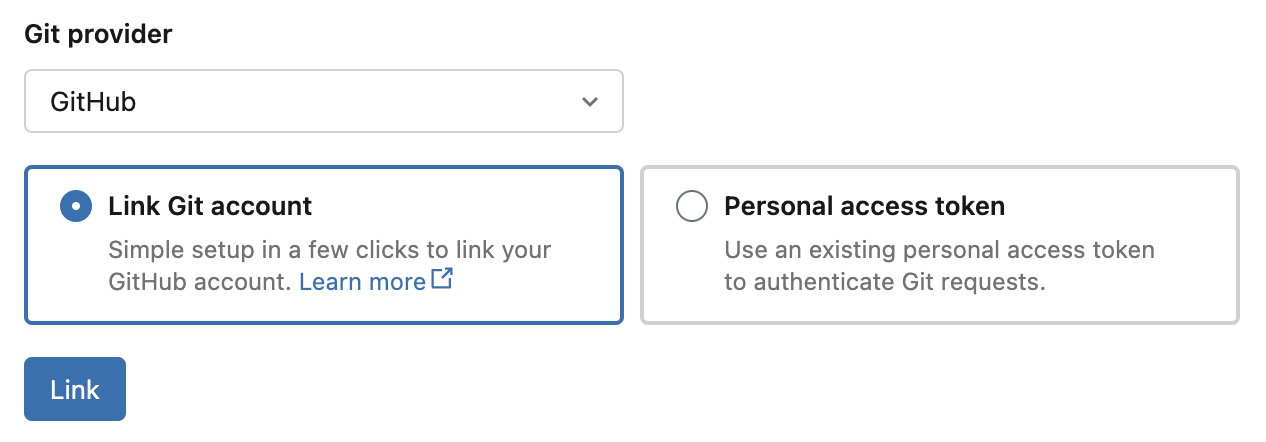
Set your provider to GitHub, select Link Git account, and click Link.
-
On the Databricks GitHub app authorization page, click Authorize Databricks to authorize the app. This allows Databricks to perform Git operations on your behalf, such as cloning repositories. See Authorizing GitHub Apps in the GitHub documentation.
-
Install the Databricks GitHub app on repositories that you want to access from Git folders:
- Open the Databricks GitHub app installation page. To install the app, you must be an organization owner, or a repository admin for the repositories you want to access. On a personal account, you must be the account owner.
- Select the account that owns the repositories you want to access.
- Optionally, choose Only select repositories to limit access to specific repositories.
- Click Install.
For more information, see About installing GitHub Apps.
Databricks stores your access and refresh tokens following standard OAuth 2.0 integration. GitHub manages all other access control. Access tokens expire after 8 hours. Refresh tokens expire after 6 months of inactivity, requiring you to reconfigure your credentials. You can optionally encrypt tokens using customer-managed keys.
Classic personal access token
To create a classic personal access token in GitHub:
- Click your user icon, then click Settings.
- Click Developer settings.
- Click Personal access tokens > Tokens (classic).
- Click Generate new token (classic).
- Enter a note to indicate the purpose of the token.
- Select the repo scope. If your repository uses GitHub Action workflows, also select the workflow scope.
- Click Generate token.
- Copy the token and enter it in Databricks under Settings > Linked accounts.
For single sign-on, see Authorizing a personal access token for use with single sign-on.
Fine-grained personal access token
Fine-grained PATs grant access only to the specific resources you need. To create one in GitHub:
-
Click your user icon, then click Settings.
-
Click Developer settings.
-
Click Personal access tokens > Fine-grained tokens.
-
Click Generate new token.
-
Configure the token:
- Token name: Enter a unique, memorable name.
- Description: Describe the token's purpose.
- Resource owner: Select the GitHub organization that owns the repositories you'll access.
- Expiration: Choose an expiration period (default is 30 days).
- Repository access: Select only the repositories needed for Git folder version control.
- Permissions: Click Add permissions and set Contents to Read and write. See GitHub's documentation on the Contents scope and Permissions required for fine-grained personal access tokens.
-
Click Generate token.
-
Copy the token and enter it in Databricks under Settings > Linked accounts.
GitLab
These instructions apply to both GitLab.com and GitLab Self-Managed (formerly GitLab Enterprise Edition).
To create a personal access token in GitLab:
- Click your user icon and select Preferences.
- Click Personal access tokens in the sidebar.
- Click Add new token.
- Enter a name for the token.
- Select the scopes for your desired permission levels. See Personal access token scopes in the GitLab documentation.
- Click Create token.
- Copy the token and enter it in Databricks under Settings > Linked accounts.
For fine-grained access to a specific project, use project access tokens.
AWS CodeCommit
To create HTTPS Git credentials in AWS CodeCommit:
- Create HTTPS Git credentials following the AWS CodeCommit documentation. The associated IAM user must have read and write permissions for the repository.
- Copy the password and enter it in Databricks under Settings > Linked accounts.
Azure DevOps Services
Personal access token
Use a personal access token when your Databricks and Azure DevOps repositories aren't in the same Microsoft Entra ID tenancy.
The Microsoft Entra ID service endpoint must be accessible from both the private and public subnets of the Databricks workspace. For more information, see Enable Private Service Connect for your workspace.
To create a personal access token in Azure DevOps:
- Go to dev.azure.com and sign in to the DevOps organization containing your repository.
- Click the user settings icon and select Personal Access Tokens.
- Click + New Token.
- Configure the token:
- Enter a name for the token.
- Select the organization (repository name).
- Set an expiration date.
- Choose the required scope, such as Full access.
- Copy the access token.
- In Databricks, go to Settings > Linked accounts and enter the token.
- In Git provider username or email, enter the email address you use to sign in to the DevOps organization.
For more information about Azure DevOps personal access tokens, see the Azure DevOps documentation.
Bitbucket
Databricks supports both Bitbucket Cloud and Bitbucket Data Center (formerly Bitbucket Server).
For Bitbucket Cloud, Databricks supports authentication using API tokens, access tokens, and app passwords. Databricks recommends using API tokens for users and access tokens for service principals.
For Bitbucket Data Center, use a personal access token with repository read and write permissions. See the Bitbucket Data Center documentation.
API token (recommended)
To generate a scoped Bitbucket API token, follow the Bitbucket documentation.
The token must have read:repository:bitbucket and write:repository:bitbucket scopes.
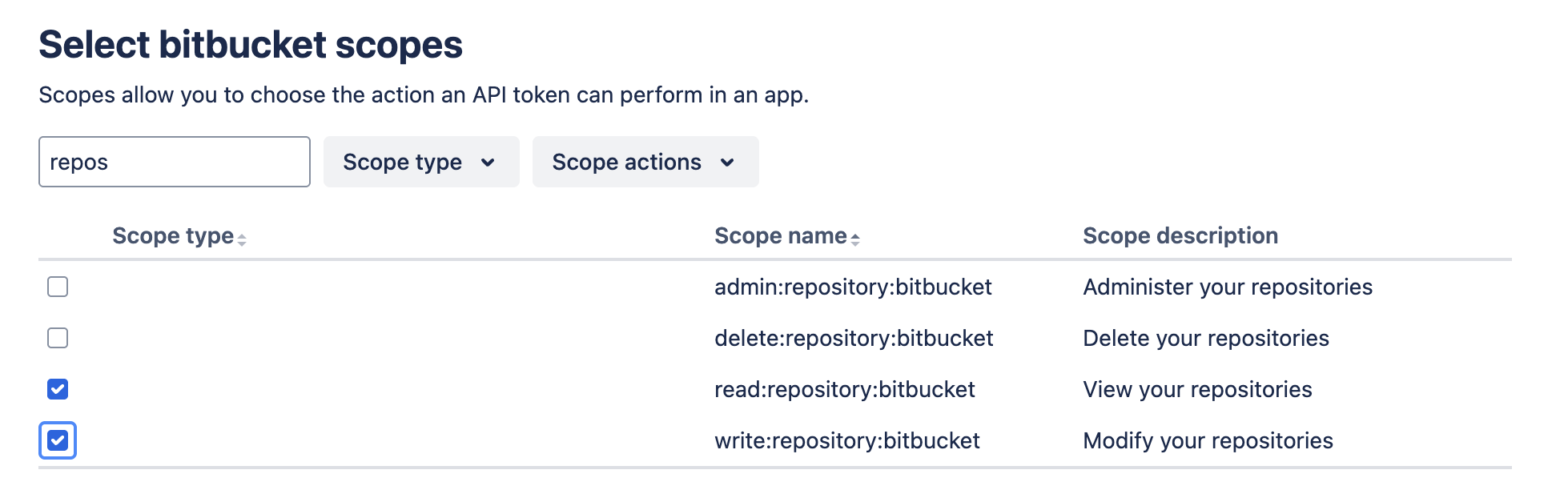
Add the token in Databricks under Settings > Linked accounts.
Access token
Bitbucket access tokens provide scoped authentication to repositories, projects, or workspaces. They're designed for CI/CD and are recommended for service principals. To create an access token, see the Bitbucket documentation on access tokens.
To configure access tokens for a Databricks service principal, see Authorize a service principal to access Git folders.
App password
Atlassian is deprecating app passwords for Bitbucket, with full deprecation scheduled for June 9, 2026. After this date, app passwords won't work. Databricks recommends migrating to API tokens, which provide enhanced security and admin control. For more information, see Bitbucket Cloud transitions to API tokens.
When adding an app password in Databricks, you must enter your Bitbucket username in the Git provider username field under Settings > Linked accounts.
Other Git providers
If your Git provider isn't listed, try selecting GitHub and entering the PAT from your provider. This approach often works but isn't guaranteed.