Migrate workspace entitlement control
Migrate workspace entitlement control to select each principal's entitlements when you add them, instead of having principals inherit permissions automatically from the users system group. This gives you precise control over workspace access and lets you add consumer-only users without granting authoring permissions. This will become the default behavior for all workspaces. You can migrate early to test it on your own schedule.
The migration changes how the users and admins system groups work and moves existing entitlements to a new group so principals keep their current access. This page covers the new behavior, migration steps, and required pre-migration actions.
Overview
Every workspace has two system groups: users, which includes all principals granted access to the workspace, and admins, which includes the workspace admins. Today, every principal added to a workspace inherits the entitlements granted to users. By default, these entitlements are:
- Workspace access: Create and use notebooks, jobs, pipelines, apps, and more.
- Databricks SQL access: Create and use dashboards, Genie Agents, alerts, and more.
After the change:
-
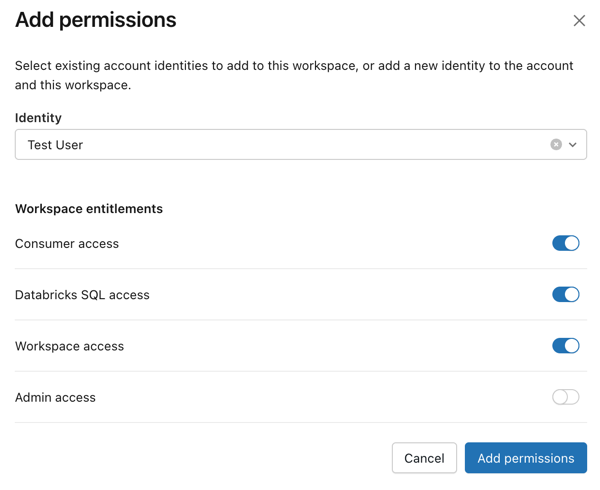
You select each principal's entitlements when you add them. You can add principals at any access level, including consumer-only users, without them automatically inheriting authoring permissions.
-
The
usersgroup has no entitlements, and theadminsgroup has all workspace entitlements. Neither can be changed. -
You can't nest the
usersandadminsgroups as members of other groups.
Existing principals retain their current level of access. Databricks automatically migrates the entitlements previously granted to users to a new, workspace-local clone group with a default name of users-clone-<TIMESTAMP>, where <TIMESTAMP> is the time of migration. You can rename the group during migration and manage it like any other workspace-local group. The admins group doesn't require migration because it's granted all workspace entitlements automatically.
Timeline
This will become the default behavior for all workspaces. The change happens in three phases:
- June 15, 2026 – Opt-in available. Migrate a workspace early to test the new behavior.
- July 27, 2026 – Auto-enabled for workspaces that haven't opted in or out. You can still opt out temporarily until enforcement.
- September 14, 2026 – Enforced for all workspaces. Opt-out is no longer available.
For more information, see Upcoming behavior change: Choose entitlements when adding principals to workspaces.
Before you begin
You must be a workspace admin to migrate a workspace and manage the new behavior.
Take the following actions before the new behavior is enabled in your workspace:
- Automation: If you manage system group entitlements through Terraform, Workspace SCIM APIs, or custom scripts, update your workflows to target account groups, not system groups. After Databricks enables the new behavior, attempts to modify system group entitlements fail.
- Nested system groups: If
usersoradminsis nested as a member of another group, remove the nesting. The new behavior doesn't permit nesting. - SCIM sync: If your SCIM sync deletes workspace groups it doesn't recognize, update its configuration to preserve the migration clone group (
users-clone-<TIMESTAMP>). If the sync removes the clone group, principals migrated to it lose their entitlements.
Migrate a workspace
You manage the new behavior from the New behavior: Choose entitlements when adding principals to workspaces setting in your workspace settings.
To migrate a workspace to the new behavior:
-
As a workspace admin, log in to the Databricks workspace.
-
Click your username in the top bar and select Settings.
-
Click the Advanced tab.
-
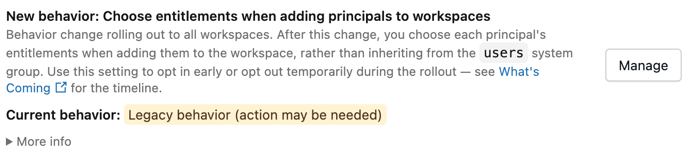
Under Access control, find New behavior: Choose entitlements when adding principals to workspaces. The status shows Legacy behavior (action might be needed).
-
Click Manage.
-
In the dialog, review the current entitlement grants for the
usersandadminsgroups. In Behavior for this workspace, select Use new behavior. -
In Clone group name, enter a name for the group that receives the entitlements granted to
users, or keep the default. This group preserves the entitlements of your existing principals.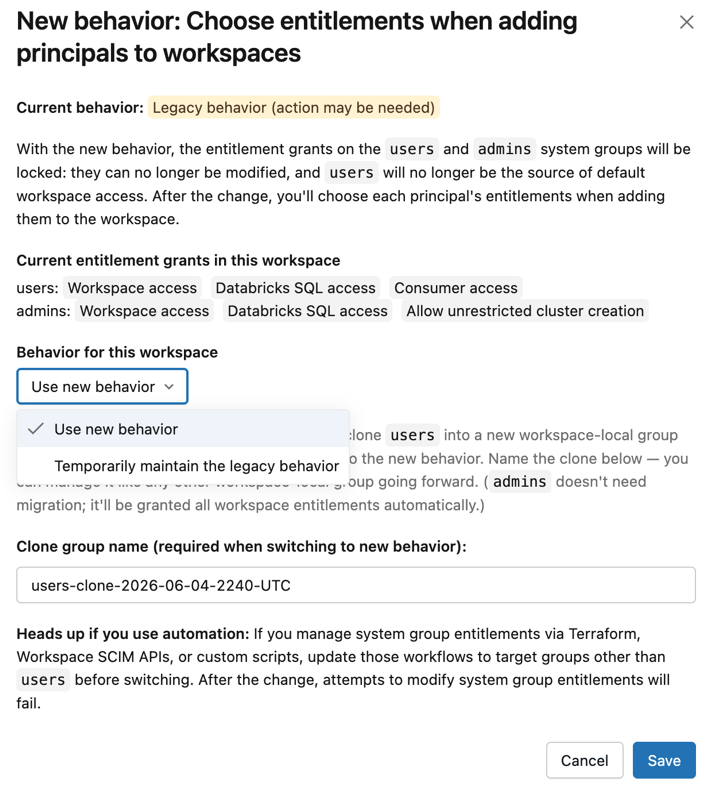
-
Click Save.
Databricks migrates the entitlements on
usersto the clone group. The principals directly assigned to the workspace are added to the clone group so they retain their access. These principals include directly added users and service principals, plus any account groups assigned to the workspace.
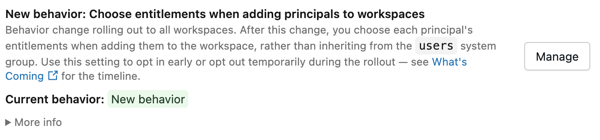
After the migration completes, the setting shows that the workspace is on the new behavior.
Verify the changes
After you complete the migration, verify that the changes applied correctly:
- As a workspace administrator, log in to the Databricks workspace.
- Click your username in the top bar and select Settings.
- Click the Identity and access tab.
- Next to Groups, click Manage.
- Verify the following:
- The clone group exists and has the entitlements that the
usersgroup had before migration. - The clone group contains the principals that were directly added to the workspace through
users, including directly added users, service principals, and any account groups assigned to the workspace. - The
usersgroup has no entitlements, and theadminsgroup has all workspace entitlements.
- The clone group exists and has the entitlements that the
The clone group contains only direct members, so it might show fewer members than the users group, which includes everyone added through account group memberships. This doesn't mean anyone lost access. Principals who joined the workspace through an account group remain covered because that account group is added to the clone group. Workspace-local groups aren't copied because they don't grant workspace membership.
Considerations and best practices
Consider the following when you migrate a workspace:
- Adding principals after migration: After the new behavior is enabled, you select each principal's entitlements when you add them to the workspace. To grant authoring permissions, select Workspace access or Databricks SQL access. To add a view-only consumer, grant only Consumer access. For more information, see What is consumer access? and Use Genie One.
- Managing the clone group: The
users-clone-<TIMESTAMP>group is a standard workspace-local group. Manage its membership and entitlements like any other group. See Manage groups. - Opting out: If you opt out after migrating, the
users-clone-<TIMESTAMP>group remains. You can keep and manage it, or delete it manually. - Coordination with identity providers: If you use SCIM provisioning to sync users and groups, coordinate this change with your identity management processes so the clone group is preserved. See Sync users and groups from your identity provider using SCIM.
What's next
After migrating a workspace, you might want to:
- Manage group membership to grant authoring permissions to principals by adding them to the clone group. See Manage groups.
- Review and adjust entitlements for individual principals or groups. See Manage entitlements.
- Learn more about the consumer access experience. See What is consumer access? and Use Genie One.
- Configure data governance controls for consumer users. See Row filters and column masks.