SSO to Databricks with AWS IAM Identity Center
This feature is in Public Preview.
This page shows how to configure AWS IAM Identity Center as the identity provider for single sign-on (SSO) in your Databricks account. You can configure SSO with AWS IAM Identity Center using SAML 2.0. AWS IAM Identity Center support for OIDC is not compatible with Databricks.
Enable AWS IAM Identity Center SSO using SAML
-
In a new browser tab, log in to the AWS Management Console and navigate to IAM Identity Center. You might need to enable IAM Identity Center in your AWS account.
-
In the IAM Identity Center console, go to Applications.
-
Click Add application.
-
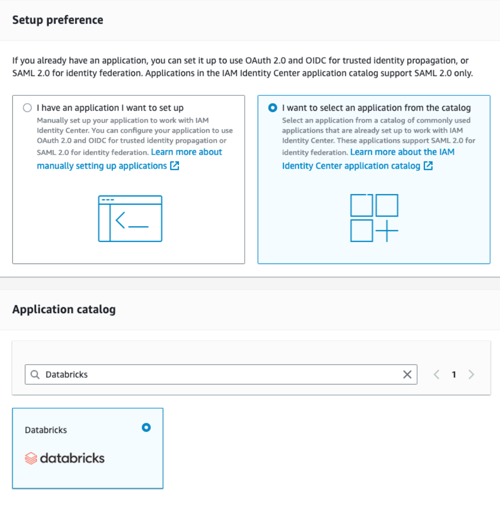
In Setup preference, select I want to select an application from the catalog.
-
Search for and select Databricks and click Next.
-
Copy and save the IAM Identity Center sign-in URL value.
-
Download the public certificate from the IAM Identity Center Certificate link.
-
-
In a new browser tab, log in to the Databricks account console and click Security.
- Click the Identity provider setup tab.
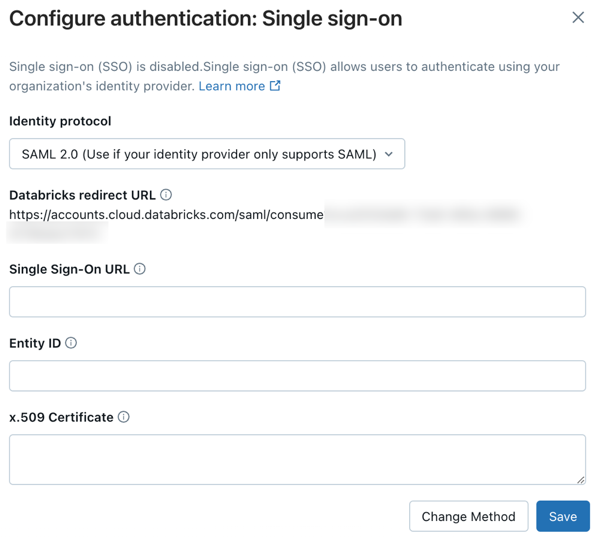
- In the Authentication section, configure single sign-on to open the SSO configuration dialog.
- On the Add details step, under Identity protocol, select SAML 2.0.
- Set Single Sign-On URL and the Identity Provider Entity ID both to the IAM Identity Center sign-in URL that you copied.
- Set x.509 Certificate to the text from the IAM Identity Center Certificate you downloaded. Paste the entire certificate, including the markers for the beginning and ending of the certificate.
- Copy the Databricks redirect URL.
-
Go back to the AWS IAM Identity center browser tab.
-
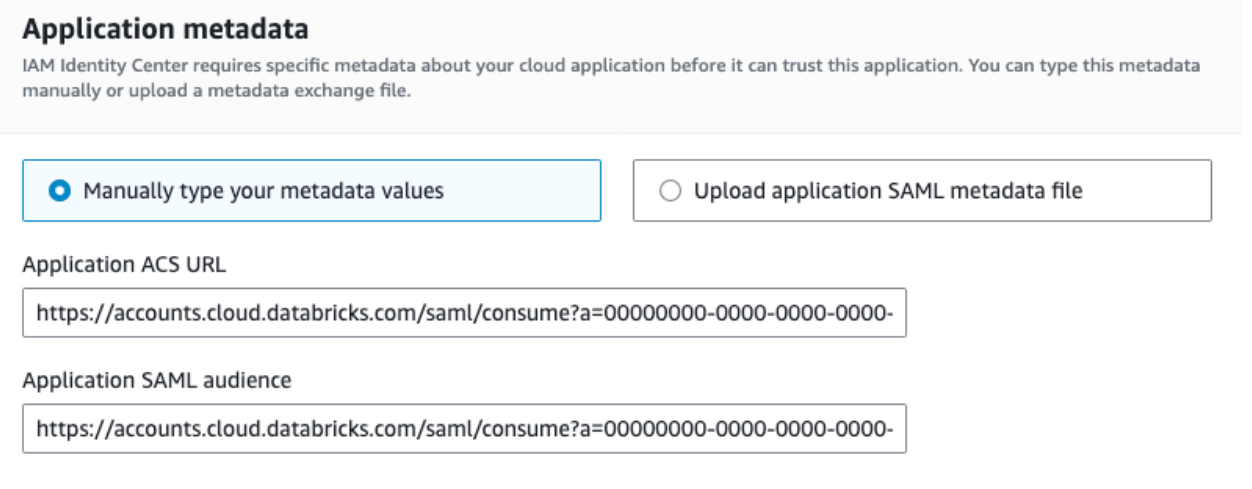
Under Application metadata, select Manually type your metadata values.
-
In both Application ACS URL and Application SAML audience, paste the value for the Databricks redirect URL that you copied.
-
Click Submit.
-
-
Go back to the Databricks browser tab.
- On the Enable SSO step, click Enable SSO. Databricks saves the configuration in a disabled state and runs a connection test. You are redirected to complete a sign-in with AWS IAM Identity Center. If the test succeeds, SSO is enabled automatically. If the test fails, Databricks reports that it couldn't validate the configuration. Review the values you entered and try again.
- After SSO is enabled, to create user accounts the first time a user signs in, enable just-in-time (JIT) provisioning using the Create new identities during first-time signup toggle in the next-steps card. See Automatically provision users (JIT).
For detailed post-setup testing guidance, including workspace login testing, see Test your SSO configuration.
Add users to Databricks
After you configure SSO, add users to your account. Databricks recommends syncing users from your identity provider using automatic identity management, which syncs users and groups automatically from your identity provider to your Databricks account. See Configure Microsoft Entra ID for automatic identity management. Alternatively, if your identity provider does not support automatic identity management, you can configure SCIM provisioning. See Sync users and groups from your identity provider using SCIM.
Just-in-time (JIT) provisioning, which automatically adds users to Databricks when they first log in using SSO, is on by default for accounts created after February 2, 2026. See Automatically provision users (JIT).