Configure inbound Private Service Connect for workspaces
This page covers configuration steps for inbound private connectivity between users and their Databricks workspaces. Inbound private connectivity routes user traffic to the Databricks web application and REST APIs through a private endpoint instead of the public internet.
- For an overview of private connectivity at Databricks, see Private Service Connect concepts.
- To enable classic compute plane private connectivity to Databricks, see Enable Private Service Connect for your workspace.
Establish secure, private connections from your Google Cloud VPCs or on-premises networks to Databricks services using inbound Private Service Connect, which routes traffic through a Private Service Connect endpoint instead of the public internet.
An inbound endpoint originates from your transit VPC, typically serving as the source for user web application access. If you use classic compute, this can be a separate VPC from the workspace's compute plane VPC, and it can be connected to an on-premises network.
With inbound Private Service Connect to workspaces:
- Configure private access: Configure inbound Private Service Connect connections to the Databricks web application, REST API, and Databricks Connect API.
- Enforce private connectivity: Configure private connectivity from users to Databricks.
- Control private access with context-based ingress (Beta): Allow or deny access from specific registered endpoints, combined with identity and request type conditions. See Configure private access policy.
Requirements and limitations
-
Your Databricks account is on the Enterprise plan.
-
You must have all necessary Google Cloud permissions to create subnets and Private Service Connect endpoints in your transit VPC.
-
Quotas: The endpoint limit is per host project, not per VPC. You can configure up to ten Private Service Connect endpoints of each type per region, per host project. Inbound Private Service Connect uses the General Access endpoint; classic compute plane Private Service Connect adds a secure cluster connectivity (SCC) relay endpoint, which has its own limit of ten. Multiple Databricks workspaces in the same VPC and region share these endpoints because Private Service Connect endpoints are region-specific resources. If this quota presents a limitation for your setup, contact your account team.
-
No cross-region connectivity: Private Service Connect workspace components must be in the same region including:
- Transit VPC network and subnets.
- Compute plane VPC network and subnets.
- Databricks workspace.
- Private Service Connect endpoints.
- Private Service Connect endpoint subnets.
If you allowlist a General Access endpoint with a context-based ingress private access policy, the endpoint and its transit VPC don't have to be in the same region as the workspace. A General Access endpoint in any region can serve workspaces in any region. See Configure private access policy.
Multiple options for network topology
When you deploy a private Databricks workspace, you must choose one of the following network configuration options:
- Host Databricks users (clients) and the Databricks classic compute plane on the same network: In this option, the transit VPC and compute plane VPC refer to the same underlying VPC network. If you choose this topology, all access to any Databricks workspace from that VPC must go over the inbound Private Service Connect connection for that VPC. See Requirements and limitations.
- Host Databricks users (clients) and the Databricks classic compute plane on separate networks: In this option, the user or application client can access different Databricks workspaces using different network paths. Optionally allow a user on the transit VPC to access a private workspace over a Private Service Connect connection and also allow users on the public internet to access the workspace.
You cannot mix workspaces that use inbound Private Service Connect with those that do not within the same transit VPC. Although you can share one transit VPC across multiple workspaces, all workspaces in the transit VPC must be of the same type, either all using inbound Private Service Connect, or none using it. This requirement is due to the specifics of DNS resolution on Google Cloud.
Regional service attachments reference
To enable inbound Private Service Connect, you need the service attachment URI for the General Access endpoint for your region. The URI ends with the suffix plproxy-psc-endpoint-all-ports. This endpoint has a dual role. It is used by inbound Private Service Connect to connect your transit VPC to the workspace web application and REST APIs, and it is also used by classic compute plane Private Service Connect to connect to the control plane for REST APIs.
To find the service attachment URI for your region, use the General Access value in Private Service Connect (PSC) attachment URIs and project numbers.
Set up inbound Private Service Connect
Create a subnet
In the transit VPC network, create a subnet specifically for the inbound Private Service Connect endpoint. This is the network where your Databricks clients originate. Create a transit VPC network first if you don't already have one. The following instructions assume that you're using the Google Cloud console, but you can also use the gcloud CLI to perform similar tasks.
To create a subnet:
-
In the Google Cloud console, go to the VPC list page.
-
Click Add subnet.
-
Set the name, description, and region.
-
If the Purpose field is visible (it might not be visible), choose None.
-
Set a private IP range for the subnet, such as
10.0.0.0/28. You must allocate enough IP addresses to host your Private Service Connect endpoint.importantVerify that your users have access to VMs or compute resources on this subnet.
-
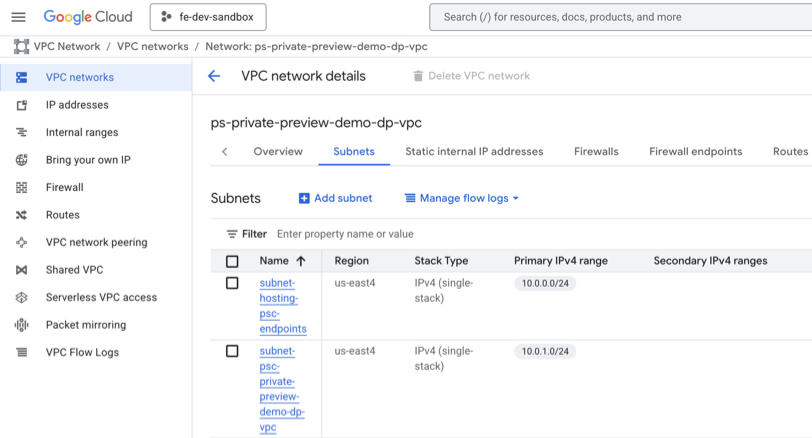
Confirm that your subnet was added to the VPC view in the Google Cloud console for your VPC:
Create a VPC endpoint
For workspace private access with context-based ingress, you can reuse a General Access VPC endpoint that you already created for another workspace. The region of this endpoint does not have to match the region of your workspace. A General Access endpoint in any region can serve workspaces in any region.
Create a General Access VPC endpoint from the transit VPC subnet you created to the plproxy-psc-endpoint-all-ports service attachment. When naming the endpoint, Databricks recommends including general-access, such as databricks-general-access-psc.
To get the full service attachment name for your region, see Private Service Connect (PSC) attachment URIs and project numbers.
Register VPC endpoints
After you create your VPC endpoint in the Google Cloud console, register it with Databricks. You can also use the VPC Endpoint Configurations API.
- Go to the Databricks account console.
- Click Security in the sidebar.
- Click Private endpoints.
- Click Register a private endpoint.
- For each of your Private Service Connect endpoints, fill in the required fields to register a new VPC endpoint:
- VPC endpoint name: A human-readable name to identify the VPC endpoint. Databricks recommends using the same name as your Private Service Connect endpoint ID, but it is not required that these match.
- Region: The Google Cloud region where this Private Service Connect endpoint is defined.
- Google Cloud VPC network project ID: The Google Cloud project ID where this endpoint is defined. This is the project ID of the VPC where user connections originate, which is sometimes referred to as a transit VPC.
- Google Cloud Private Service Connect (PSC) endpoint ID: The ID of the PSC endpoint you created in Google Cloud.
The following table shows the information you need for the endpoint.
Field | Example |
|---|---|
VPC endpoint name |
|
Region |
|
Google Cloud VPC network project ID |
|
Google Cloud Private Service Connect (PSC) endpoint ID |
|
When you are done, use the Private endpoints list in the account console to review the list of endpoints and confirm the information.
Configure private access policy
After you register your General Access VPC endpoint, there are two ways to configure a private access policy for your workspace: with context-based ingress, or with private access settings. Using the context-based ingress approach lets you configure fine-grained access by combining identity, request type, and network source conditions. Context-based ingress private access policies are also not region-bound: you can allowlist an endpoint in any region to serve a workspace in a different region. See Context-based ingress control. Private access settings are all-or-nothing, region-bound policies.
For traffic to be allowed, both the private access settings and context-based ingress must permit the endpoint. By default, context-based ingress is set to Allow access from all private endpoints, which defers the access decision to the workspace's private access settings. To use context-based private access policies, attach a private access settings object that allows all registered private endpoints (see the last step of Method 1). This defers the access decision to your workspace's context-based ingress policy.
- Method 1: Context-based ingress
- Method 2: Private access settings
To configure private access to workspaces using context-based ingress, an account admin must turn on Context-Based Ingress: Workspace Private Access Policies from the account console Previews page. See Manage account-level previews.
-
In the account console, click Security in the sidebar.
-
Click Context-based ingress & egress control in the sidebar.
-
Under Workspace level policies, click New workspace policy.
-
Under Ingress > Private Network Access, define your private access policy.
- By default, all registered endpoints are allowed: Allow access from all private endpoints. If this is acceptable, proceed to the next step. This default includes only the first 200 registered VPC endpoints. If your policy requires more, contact your account team for an increase.
- To allowlist specific registered endpoints while denying all other endpoints, uncheck Allow access from all private endpoints and add an allow rule.
- Select the identities and workspace destinations you want to allow access to. By default, all identities and destinations are allowed.
- For Source type, select Selected private endpoints, and select the General Access VPC endpoints you registered. The region of these endpoints does not have to match the region of your workspace.
- Click Confirm.
- Optionally, add Deny rules to your policy to define exceptions to your allow rules.
-
Configure your public access policy in Ingress > Public Network Access. To disable all public IP access, uncheck Allow access from all public IPs. Databricks recommends keeping public access enabled while testing your DNS configuration, then disabling it after DNS is finalized to enforce exclusive private connectivity.
-
Test your ingress policy in Dry run mode before switching it to Enforced. Dry run mode access denials are logged in the
system.access.inbound_networksystem table but don't block access. -
Make sure your Egress policy is correct.
-
Attach your network policy to your workspaces.
-
Save your network policy. Context-based ingress policy updates typically take effect in under 10 minutes.
-
Attach an "allow all access" private access settings object to your workspace. Workspaces with no private access settings object attached have all private access denied, regardless of network policy.
- In the account console, click Security in the sidebar.
- Click Private access settings.
- Click Add private access settings.
- Enter a name for your new private access settings object.
- Select the same region as your workspace.
- Set Public access enabled to True. Use your context-based ingress policy to restrict public access.
- Set Private Access Level to Account.
- Click Add private access settings.
- In the account console, click Workspaces, and then click your workspace.
- Click Advanced configurations.
- In the Private connectivity field, choose the private access settings object that you created.
- Click Save.
If multiple workspaces share the same ingress and egress policies, they can share the same network policy, so you can define it one time and attach it anywhere.
You can reuse the same "allow all access" private access settings object across any workspace in the same region.
You can also use the Private Access Settings API.
-
In the account console, click Security in the sidebar.
-
Click Private access settings.
-
Click Add private access settings.
-
Enter a name for your new private access settings object.
-
Select the same region as your workspace.
-
Configure the Public access enabled field:
- False (default): The inbound connection is accessible exclusively through Private Service Connect, blocking public internet access.
- True: The inbound connection is accessible through both Private Service Connect and the public internet. Use IP access lists to restrict public access.
Databricks recommends starting with True while testing your DNS configuration, then changing to False during a maintenance window to enforce exclusive private connectivity. IP access lists can't block private traffic from Private Service Connect because they only control access from the public internet.
-
Select a Private Access Level:
- Account: Limit connections to VPC endpoints registered in your Databricks account.
- Endpoint: Limit connections to an explicit set of VPC endpoints. Include your inbound VPC endpoint registration.
-
Click Add private access settings.
-
In the account console, click Workspaces, and then click your workspace.
-
Click Advanced configurations.
-
In the Private connectivity field, choose the private access settings object that you created.
-
Click Save.
To change these settings later, see Update a private access settings object.
Configure DNS
Configure a Cloud DNS private zone in your transit VPC that resolves the workspace URL, the data plane URL, and the browser authentication URL to your inbound Private Service Connect endpoint's private IP.
For detailed instructions, including the Cloud DNS zone setup, A records, verification with nslookup, and a best practice for consistent DNS resolution across classic compute plane Private Service Connect, see Configure DNS for Google Cloud inbound Private Service Connect.
A transit VPC can contain only workspaces that use inbound Private Service Connect or only workspaces that do not. Google Cloud DNS resolution does not support mixing both types in a single transit VPC.
Configure VPC Service Controls (optional)
Enhance your private connectivity to Databricks by implementing VPC Service Controls alongside Private Service Connect which provides an additional layer of security to keep traffic private. This combined approach effectively mitigates data exfiltration risks by isolating your Google Cloud resources and controlling access to your VPC networks.
Configure classic compute plane private access from the compute plane VPC to Cloud Storage
Configure Private Google Access or Private Service Connect to privately access cloud storage resources from your compute plane VPC.
Add your compute plane projects to a VPC Service Controls Service Perimeter
For each Databricks workspace, add the following Google Cloud projects to a VPC Service Controls service perimeter:
- Compute plane VPC host project
- Project containing the workspace storage bucket
- Service projects containing the compute resources of the workspace
With this configuration, you must grant access to both of the following:
- The compute resources and workspace storage bucket from the Databricks control plane
- Databricks-managed storage buckets from the compute plane VPC
Grant the above access with the following ingress and egress rules on the above VPC Service Controls service perimeter.
To get the project numbers for these ingress and egress rules, see IP addresses and domains for Databricks services and assets.
Ingress rule
You must add an ingress rule to grant access to your VPC Service Controls Service Perimeter from the Databricks control plane VPC. The following is an example ingress rule:
From:
      Identities: ANY_IDENTITY
      Source > Projects =
        <us-central1-control-plane-vpc-host-project-numbers> # Only required for workspace creation
        <regional-control-plane-vpc-host-project-numbers>
        <regional-control-plane-uc-project-number>
        <regional-control-plane-audit-log-delivery-project-number>
To:
      Projects =
         <list of compute plane Project Ids>
      Services =
         Service name: storage.googleapis.com
         Service methods: All actions
         Service name: compute.googleapis.com
         Service methods: All actions
         Service name: container.googleapis.com
         Service methods: All actions
         Service name: logging.googleapis.com
         Service methods: All actions
         Service name: cloudresourcemanager.googleapis.com
         Service methods: All actions
         Service name: iam.googleapis.com
         Service methods: All actions
To get the project numbers for your ingress rules, see Private Service Connect (PSC) attachment URIs and project numbers.
Egress rule
You must add an egress rule to grant access to Databricks-managed storage buckets from the compute plane VPC. The following is an example egress rule:
From:
      Identities: ANY_IDENTITY
To:
      Projects =
        <regional-control-plane-asset-project-number>
        <regional-control-plane-vpc-host-project-numbers>
      Services =
        Service name: storage.googleapis.com
        Service methods: All actions
        Service name: artifactregistry.googleapis.com
        Service methods:
           artifactregistry.googleapis.com/DockerRead'
To get the project numbers for your egress rules, see Private Service Connect (PSC) attachment URIs and project numbers.
Access data lake storage buckets secured by VPC Service Controls
Add the Google Cloud projects containing the data lake storage buckets to a VPC Service Controls Service Perimeter.
You do not require any additional ingress or egress rules if the data lake storage buckets and the Databricks workspace projects are in the same VPC Service Controls Service Perimeter.
If the data lake storage buckets are in a separate VPC Service Controls Service Perimeter, you must configure the following:
- Ingress rules on data lake Service Perimeter:
- Allow access to Cloud Storage from the Databricks compute plane VPC
- Allow access to Cloud Storage from the Databricks control plane VPC using the project IDs documented on the regions page. This access is required as Databricks introduces new data governance features such as Unity Catalog.
- Egress rules on Databricks compute plane Service Perimeter:
- Allow egress to Cloud Storage on data lake Projects
Additional resources
-
- Enable Private Service Connect for your workspace
- Learn how to secure a workspace with private connectivity and mitigate data exfiltration risks by enabling Google Private Service Connect.
-
- Configure IP access lists for workspaces
- Learn how to limit Databricks workspace access to the authorized IP addresses only.