Export workspace data
This page provides an overview of the tools and approaches for exporting data and configuration from your Databricks workspace. You can export workspace assets for compliance requirements, data portability, backup purposes, or workspace migration.
Overview
Databricks workspaces contain a variety of assets including workspace configuration, managed tables, AI and ML objects, and data stored in cloud storage. When you need to export workspace data, you can use a combination of built-in tools and APIs to extract these assets systematically.
Common reasons to export workspace data include:
- Compliance requirements: Meeting data portability obligations under regulations like GDPR and CCPA.
- Backup and disaster recovery: Creating copies of critical workspace assets for business continuity.
- Workspace migration: Moving assets between workspaces or cloud providers.
- Audit and archival: Preserving historical records of workspace configuration and data.
Plan your export
Before you begin exporting workspace data, create an inventory of the assets you need to export and understand the dependencies between them.
Understand workspace assets
Your Databricks workspace contains several categories of assets that you can export:
- Workspace configuration: Notebooks, folders, repos, secrets, users, groups, access control lists (ACLs), cluster configurations, and job definitions.
- Data assets: Managed tables, databases, Databricks File System files, and data stored in cloud storage.
- Compute resources: Cluster configurations, policies, and instance pool definitions.
- AI and ML assets: MLflow experiments, runs, models, Feature Store tables, AI Search indexes, and Unity Catalog models.
- Unity Catalog objects: Metastore configuration, catalogs, schemas, tables, volumes, and permissions.
Scope your export
Create a checklist of assets to export based on your requirements. Consider these questions:
- Do you need to export all assets or only specific categories?
- Are there compliance or security requirements that dictate which assets you must export?
- Do you need to preserve relationships between assets (for example, jobs that reference notebooks)?
- Do you need to recreate the workspace configuration in another environment?
Planning your export scope helps you choose the right tools and avoid missing critical dependencies.
Export workspace configuration
The Terraform exporter is the primary tool for exporting workspace configuration. It generates Terraform configuration files that represent your workspace assets as code.
Use Terraform exporter
The Terraform exporter is built into the Databricks Terraform provider and generates Terraform configuration files for workspace resources including notebooks, jobs, clusters, users, groups, secrets, and access control lists. The exporter must be run separately for each workspace. See Databricks Terraform provider.
Prerequisites:
- Terraform installed on your machine
- Databricks authentication configured
- Admin privileges on the workspace you want to export
To export workspace resources:
-
Review the example usage video for a walkthrough of the exporter.
-
Download and install the Terraform provider with the exporter tool:
Bashwget -q -O terraform-provider-databricks.zip $(curl -s https://api.github.com/repos/databricks/terraform-provider-databricks/releases/latest|grep browser_download_url|grep linux_amd64|sed -e 's|.*: "\([^"]*\)".*$|\1|')
unzip -d terraform-provider-databricks terraform-provider-databricks.zipnoteThe download command targets Linux (
linux_amd64) and useswget. On macOS or Windows, download the matching build (darwin_arm64,darwin_amd64, orwindows_amd64) from the releases page, and usecurlor PowerShellInvoke-WebRequestinstead ofwget. On macOS, if Gatekeeper blocks the binary, clear the quarantine attribute by runningxattr -d com.apple.quarantine <binary>. -
Set up authentication environment variables for your workspace:
Bashexport DATABRICKS_HOST=https://your-workspace-url
export DATABRICKS_TOKEN=your-tokenTo reuse an existing configuration profile instead of setting the host and token, set the
DATABRICKS_CONFIG_PROFILEenvironment variable to your profile name. -
Run the exporter to generate Terraform configuration files:
Bashterraform-provider-databricks exporter \
-directory ./exported-workspace \
-listing notebooks,jobs,compute,users,groups,secrets \
-skip-interactiveCommon exporter options:
-listing: Specify resource types to export (comma-separated)-services: Alternative to listing for filtering resources-directory: Output directory for generated.tffiles-incremental: Run in incremental mode for staged migrations
-
Review the generated
.tffiles in the output directory. The exporter creates one file for each resource type.
The Terraform exporter focuses on workspace configuration and metadata. It doesn't export the actual data stored in tables or Databricks File System. You must export data separately using the approaches described in the following sections.
Export specific asset types
For assets not fully covered by the Terraform exporter, use these approaches:
- Notebooks: Download notebooks individually from the workspace UI or use the Workspace API to export notebooks programmatically. See Manage workspace objects.
- Secrets: Secrets can't be exported directly for security reasons. You must manually recreate secrets in the target environment. Document secret names and scopes for reference.
- MLflow objects: Use the mlflow-export-import tool to export experiments, runs, and models. See the ML assets section below.
Export data
Customer data typically lives in your cloud account storage, not in Databricks. You don't need to export data that's already in your cloud storage. However, you do need to export data stored in Databricks-managed locations.
Export managed tables
Although managed tables live within your cloud storage, they're stored in a UUID-based hierarchy that can be difficult to parse. You can use the DEEP CLONE command to rewrite managed tables as external tables in a specified location, making them easier to work with.
Example DEEP CLONE commands:
CREATE TABLE delta.`gs://bucket/path/to/storage/`
DEEP CLONE my_catalog.my_schema.my_table
For a complete script to clone all tables within a list of catalogs, see the example script below.
Export Databricks default storage
For serverless workspaces, Databricks offers default storage, which is a fully-managed storage solution within the Databricks account. Data in default storage must be exported into customer-owned storage containers prior to workspace deletion or decommissioning. For more information on serverless workspaces, see Create a serverless workspace.
For tables in default storage, use DEEP CLONE to write data into a customer-owned storage container. For volumes and arbitrary files, follow the same patterns described in the DBFS root export section below.
Export Databricks File System root
For new workflows, Databricks recommends storing data in Unity Catalog volumes or Workspace File System instead of Databricks File System. This page documents Databricks File System export for users with existing Databricks File System data.
Databricks File System root is the legacy storage location in your workspace storage bucket that might contain customer-owned assets, user uploads, init scripts, libraries, and tables. Although Databricks File System root is a deprecated storage pattern, legacy workspaces may still have data stored in this location that needs to be exported. For more information about workspace storage architecture, see Workspace storage.
Export Databricks File System root bucket:
GCP is similar to AWS in that the root bucket can be copied directly using the gcloud storage CLI. Copy the GCS root bucket, which contains user-generated data, query results, and other workspace data. The system GCS bucket contains workspace-specific data managed by Databricks.
# Export from DBFS root bucket to export bucket
gcloud storage rsync gs://databricks-workspace-root-bucket/ gs://export-bucket/dbfs-export/ \
  --recursive \
  --exclude=".Trash/**" \
  --exclude="tmp/**"
Exporting large volumes of data from cloud storage can incur significant data transfer and storage costs. Review your cloud provider's pricing before initiating large exports.
Common export challenges
Secrets:
Secrets cannot be exported directly for security reasons. When using the Terraform exporter with the -export-secrets option, the exporter generates a variable in vars.tf with the same name as the secret. You must manually update this file with the actual secret values or run the Terraform exporter with the -export-secrets option (only for Databricks-managed secrets).
Export AI and ML assets
Some AI and ML assets require different tools and approaches for export. Unity Catalog models are exported as part of the Terraform exporter.
MLflow objects
MLflow is not covered by the Terraform exporter due to gaps in the API and difficulty with serialization. To export MLflow experiments, runs, models, and artifacts, use the mlflow-export-import tool. This open-source tool provides semi-complete coverage of MLflow migration.
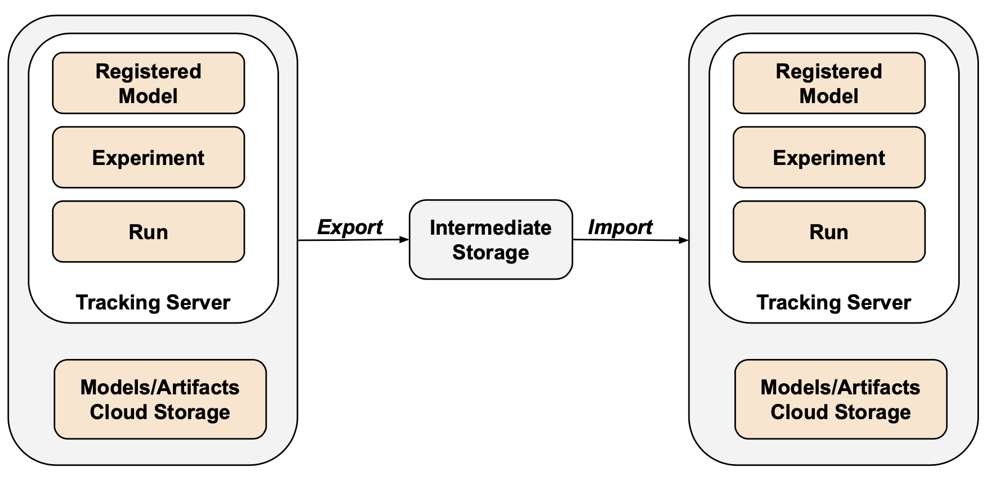
For export-only scenarios, you can store all MLflow assets within a customer-owned bucket without needing to perform the import step. For more information about MLflow management, see Manage model lifecycle in Unity Catalog.
Feature Store and AI Search
AI Search indexes: AI Search indexes are not in scope of EU data export procedures. If you would still like to export them, they must be written to a standard table and then exported using DEEP CLONE.
Feature Store tables: The Feature Store should be treated similarly to AI Search indexes. Using SQL, select relevant data and write it to a standard table, then export using DEEP CLONE.
Validate exported data
After exporting workspace data, validate that jobs, users, notebooks, and other resources were exported correctly before decommissioning the old environment. Use the checklist you created during the scoping and planning phase to verify that everything you expected to export was successfully exported.
Verification checklist
Use this checklist to verify your export:
- Configuration files generated: Terraform configuration files are created for all required workspace resources.
- Notebooks exported: All notebooks are exported with their content and metadata intact.
- Tables cloned: Managed tables are successfully cloned to the export location.
- Data files copied: Cloud storage data is copied completely without errors.
- MLflow objects exported: Experiments, runs, and models are exported with their artifacts.
- Permissions documented: Access control lists and permissions are captured in the Terraform configuration.
- Dependencies identified: Relationships between assets (for example, jobs referencing notebooks) are preserved in the export.
Post-export best practices
Validation and acceptance testing is largely driven by your requirements and may vary widely. However, these general best practices apply:
- Define a testbed: Create a testbed of jobs or notebooks that validate that secrets, data, mounts, connectors, and other dependencies are working correctly in the exported environment.
- Start with dev environments: If moving in a staged fashion, begin with the dev environment and work up to production. This surfaces major issues early and avoids production impacts.
- Leverage Git folders: When possible, use Git folders since they live in an external Git repository. This avoids manual export and ensures code is identical across environments.
- Document the export process: Record the tools used, commands executed, and any issues encountered.
- Secure exported data: Ensure exported data is stored securely with appropriate access controls, especially if it contains sensitive or personally identifiable information.
- Maintain compliance: If exporting for compliance purposes, verify that the export meets regulatory requirements and retention policies.
Example scripts and automation
You can automate workspace exports using scripts and scheduled jobs.
Deep Clone export script
The following script exports Unity Catalog managed tables using DEEP CLONE. This code should be run in the source workspace to export a given catalog to an intermediate bucket. Update the catalogs_to_copy and dest_bucket variables.
import pandas as pd

# define catalogs and destination bucket
catalogs_to_copy = ["my_catalog_name"]
dest_bucket = "<cloud-storage-path>://my-intermediate-bucket"
manifest_name = "manifest"

# initialize vars
system_info = sql("SELECT * FROM system.information_schema.tables")
copied_table_names = []
copied_table_types = []
copied_table_schemas = []
copied_table_catalogs = []
copied_table_locations = []

# loop through all catalogs to copy, then copy all non-system tables
# note: this would likely be parallelized using thread pooling in prod
for catalog in catalogs_to_copy:
  filtered_tables = system_info.filter((system_info.table_catalog == catalog) & (system_info.table_schema != "information_schema"))
  for table in filtered_tables.collect():
    schema = table['table_schema']
    table_name = table['table_name']
    table_type = table['table_type']
    print(f"Copying table {schema}.{table_name}...")
    target_location = f"{dest_bucket}/{catalog}_{schema}_{table_name}"
    sqlstring = f"CREATE TABLE delta.`{target_location}` DEEP CLONE {catalog}.{schema}.{table_name}"
    sql(sqlstring)

    # lists used to create manifest table DF
    copied_table_names.append(table_name)
    copied_table_types.append(table_type)
    copied_table_schemas.append(schema)
    copied_table_catalogs.append(catalog)
    copied_table_locations.append(target_location)

# create the manifest as a df and write to a table in dr target
# this contains catalog, schema, table and location
manifest_df = pd.DataFrame({"catalog": copied_table_catalogs,
                            "schema": copied_table_schemas,
                            "table": copied_table_names,
                            "location": copied_table_locations,
    "type": copied_table_types})

spark.createDataFrame(manifest_df).write.mode("overwrite").format("delta").save(f"{dest_bucket}/{manifest_name}")
display(manifest_df)
Automation considerations
When automating exports:
- Use scheduled jobs: Create Databricks jobs that run export scripts on a regular schedule.
- Monitor export jobs: Configure alerts to notify you if exports fail or take longer than expected.
- Manage credentials: Store cloud storage credentials and API tokens securely using Databricks secrets. See Secret management.
- Version exports: Use timestamps or version numbers in export paths to maintain historical exports.
- Clean up old exports: Implement retention policies to delete old exports and manage storage costs.
- Incremental exports: For large workspaces, consider implementing incremental exports that only export changed data since the last export.