Query tags
Query tags are custom key-value pairs you apply to SQL workloads so you can group, filter, and track costs on Databricks SQL warehouses and Lakehouse Real-Time (Lakehouse//RT) compute.
Use them to group queries by business context, track warehouse costs, and identify sources of long-running queries.
Tags appear in the system.query.history table and on the Query History page of the Databricks UI. The ListQueries API also returns tags when they are present. For example, you might tag queries with team:marketing to track marketing workload costs, or filter on the automatically applied @@dbt_model_name tag to identify queries generated by a specific dbt model.
Tag data is stored as plain text and might be replicated globally. Do not include passwords, personally identifiable information, or other sensitive data in tag keys or values.
Requirements
To use query tags, you must have the following:
-
You must have access to the
query_tagscolumn in thesystem.query.historytable. If you don't have access, contact your account admin. See Query history system table reference. -
Your connector or driver must meet a minimum version requirement. See the specific tool or connector section in Set query tags from tools and connectors for version details.
-
Databricks SDK for Python: Minimum version 0.86.0 for query tag support.
How query tags work
Query tags are scoped to Databricks SQL sessions. You can set them at session level or statement level:
- Session-level tags apply to all subsequent statements in the session. Set them when creating a session using a configuration parameter, or within a session using the
SET QUERY_TAGSSQL statement. - Statement-level tags apply to a single statement only. Subsequent statements revert to the session-level tags. Statement-level tags are available in the Python Connector (v4.2.6 or above), Node.js Connector (v1.12.0 or above), Go Connector (v1.9.0 or above), and the Statement Execution API.
Session configuration parameter syntax
Several tools and connectors accept query tags as a session configuration parameter called query_tags (or ssp_query_tags for Simba-based drivers). The value is a serialized string of key-value pairs, with a colon (:) separating keys and values and a comma (,) separating pairs.
If a key or value contains a colon (:), comma (,), or backslash (\), escape it with a leading backslash.
The following example specifies tags team:eng, cost_center:701, a key-only tag exp, and a metadata tag with a JSON value.
Unescaped intent:
team:eng, cost_center:701, exp, metadata:{"foo":"bar","baz":1}
Escaped configuration string:
query_tags = team:eng,cost_center:701,exp,metadata:{"foo"\\:"bar"\\,"baz"\\:1}
SQL statements
Use the SET QUERY_TAGS statement to set, read, or remove query tags for the current session. You can use this statement anywhere you can submit SQL to a warehouse, including the SQL editor, notebooks, and dashboards.
For syntax, parameters, and examples, see SET QUERY_TAGS.
Set query tags from tools and connectors
The following sections describe how to set query tags from each supported tool, connector, and driver.
The connectors and drivers in this section describe setup for Databricks SQL warehouses. For the connection methods supported on Lakehouse Real-Time (Lakehouse//RT), see Connectivity.
Databricks SQL Statement Execution API (SEA)
Include the query_tags field in the request body of POST /api/2.0/sql/statements to apply statement-level tags. Tags set this way apply only to that statement execution.
curl -X POST "https://${DATABRICKS_HOST}/api/2.0/sql/statements" \
  -H "Authorization: Bearer ${DATABRICKS_TOKEN}" \
  -H "Content-Type: application/json" \
  -d '{
    "warehouse_id": "abc123",
    "statement": "SELECT * FROM samples.nyctaxi.trips LIMIT 10",
    "query_tags": [
        { "key": "team", "value": "engineering" },
        { "key": "env", "value": "prod" }
      ]
  }'
dbt
Minimum version: dbt-databricks 1.11.0
The following reserved query tag keys are set automatically for all dbt runs and can't be overridden:
{
  "@@dbt_model_name": "my_model",
  "@@dbt_core_version": "1.10.7",
  "@@dbt_databricks_version": "1.11.0",
  "@@dbt_materialized": "incremental"
}
Default tags are subject to syntax limitations. Model names that include unescaped colons or commas result in tag_invalid: true in the system table.
You can add custom query tags at both project and model levels. Model configuration takes priority over connection configuration.
Project-level tag
File: ~/.dbt/profiles.yml
your_profile_name:
  target: dev
  outputs:
    dev:
      query_tags: '{"team": "marketing", "cost_center": "3000"}'
Model-level tag
File: ~/.dbt/dbt_project.yml
name: 'your_project'
version: '1.0.0'
config-version: 2
models:
  your_model:
    +query_tags: '{"team": "content-marketing"}'
Result with both configurations
When both project-level and model-level tags are set, the tags are merged. Model-level values override project-level values for the same key.
  "team": "content-marketing",
  "cost_center": "3000",
  "@@dbt_model_name": "model.dev.your_model",
  "@@dbt_core_version": "1.10.7",
  "@@dbt_databricks_version": "1.11.0",
  "@@dbt_materialized": "incremental"
}
Power BI
Minimum version: October 2025 release
- Configure the connection to the warehouse.
- Go to the Databricks settings dialog.
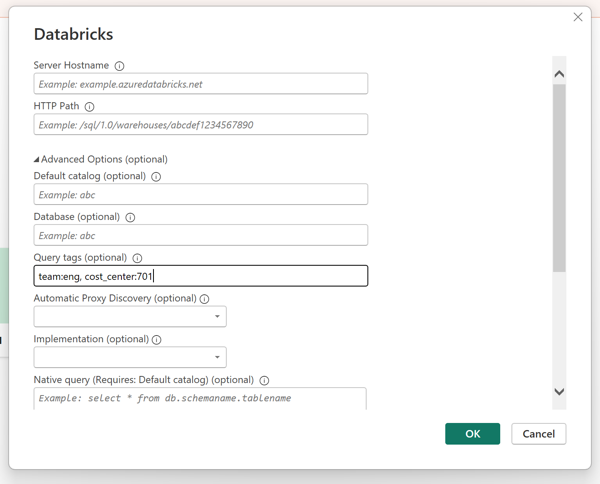
- In the Query tags text box, enter query tags using the session configuration parameter syntax.
- Click OK.
Changing query tags and clicking OK starts a new session. Previously set tags are discarded.
Auto query tags
Auto query tags automatically attach Power BI context metadata to queries sent to Databricks warehouses. As of the July 2026 Power BI service release, auto query tags are enabled automatically—no configuration is required to turn them on. Auto query tags are only available when using the Arrow Database Connectivity (ADBC) driver. They are not supported with the ODBC driver.
Power BI automatically attaches the following reserved tags (prefixed with @@) to queries. The tags available depend on the Power BI connection mode:
Tag key | DirectQuery | Import |
|---|---|---|
| Yes | Yes |
| Yes | Yes |
| Yes | Yes |
| Yes | No |
| Yes | No |
| Yes | No |
Auto query tags are not attached to metadata queries (such as catalog or schema discovery queries) in any mode.
Turn off auto query tags
Auto query tags are on by default. To turn them off, modify the M query in the Power Query Editor to include EnableAutoQueryTags="false" in the connector call options.
let
    Source = DatabricksMultiCloud.Catalogs(
        "myworkspace.cloud.databricks.com",
        "/sql/1.0/warehouses/abc123",
        [Catalog=null, Database=null, EnableAutoQueryTags="false",
         EnableAutomaticProxyDiscovery=null, Implementation="2.0"]),
    samples_Database = Source{[Name="samples",Kind="Database"]}[Data],
    nyctaxi_Schema = samples_Database{[Name="nyctaxi",Kind="Schema"]}[Data],
    trips_Table = nyctaxi_Schema{[Name="trips",Kind="Table"]}[Data]
in
    trips_Table
Tableau
Set query tags in Tableau using the Initial SQL feature.
- Configure the connection to the warehouse.
- Navigate to the Initial SQL tab.
- Enter query tags using the SET QUERY_TAGS. You can include Tableau parameters in the key or value.
- Click Sign In to save and authenticate.
Changing the Initial SQL and clicking Sign In starts a new session. Previously set tags are discarded.
Python Connector
Minimum version: v4.1.3 (session-level), v4.2.6 (statement-level)
Session-level tags
Pass the query_tags parameter when creating a connection. All statements in the session inherit these tags.
from databricks import sql
import os

with sql.connect(
    server_hostname = os.getenv("DATABRICKS_SERVER_HOSTNAME"),
    http_path       = os.getenv("DATABRICKS_HTTP_PATH"),
    access_token    = os.getenv("DATABRICKS_TOKEN"),
    query_tags = {"team": "engineering", "dashboard": "abc123"}
) as connection:
    with connection.cursor() as cursor:
        cursor.execute("SELECT * FROM samples.nyctaxi.trips LIMIT 10")
        result = cursor.fetchall()
Statement-level tags
Pass query_tags to cursor.execute() to tag a single statement. Subsequent statements revert to the session-level tags.
from databricks import sql
import os

with sql.connect(
    server_hostname = os.getenv("DATABRICKS_SERVER_HOSTNAME"),
    http_path       = os.getenv("DATABRICKS_HTTP_PATH"),
    access_token    = os.getenv("DATABRICKS_TOKEN"),
) as connection:
    with connection.cursor() as cursor:
        cursor.execute(
            "SELECT * FROM samples.nyctaxi.trips LIMIT 10",
            query_tags={"team": "engineering", "dashboard": "abc123"}
        )
        result = cursor.fetchall()
Node.js Connector
Minimum version: v1.12.0
Session-level tags
Pass queryTags when opening a session. All statements in the session inherit these tags.
const { DBSQLClient } = require('@databricks/sql');
const client = new DBSQLClient();

client
  .connect({
    host: process.env.DATABRICKS_SERVER_HOSTNAME,
    path: process.env.DATABRICKS_HTTP_PATH,
    token: process.env.DATABRICKS_TOKEN,
  })
  .then(async (client) => {
    const session = await client.openSession({
      queryTags: {
        team: 'engineering',
        env: 'prod',
      },
    });

    const queryOperation = await session.executeStatement('SELECT * FROM samples.nyctaxi.trips LIMIT 10');
    const result = await queryOperation.fetchAll();

    await queryOperation.close();
    await session.close();
    await client.close();
  })
  .catch((error) => {
    console.error(error);
  });
Statement-level tags
Pass queryTags to executeStatement() to tag a single statement. Subsequent statements revert to the session-level tags.
const { DBSQLClient } = require('@databricks/sql');
const client = new DBSQLClient();

client
  .connect({
    host: process.env.DATABRICKS_SERVER_HOSTNAME,
    path: process.env.DATABRICKS_HTTP_PATH,
    token: process.env.DATABRICKS_TOKEN,
  })
  .then(async (client) => {
    const session = await client.openSession();

    const queryOperation = await session.executeStatement('SELECT * FROM samples.nyctaxi.trips LIMIT 10', {
      queryTags: {
        team: 'engineering',
        request_id: 'abc-123',
      },
    });
    const result = await queryOperation.fetchAll();

    await queryOperation.close();
    await session.close();
    await client.close();
  })
  .catch((error) => {
    console.error(error);
  });
Go Connector
Minimum version: v1.9.0
DSN connection string
Include query_tags as a query parameter in the DSN string.
package main
    "database/sql"
    "fmt"
    _ "github.com/databricks/databricks-sql-go"
)

func main() {
    dsn := "token:dapi1234@myworkspace.cloud.databricks.com:443/sql/1.0/endpoints/abc123?query_tags=team:engineering,env:prod"

    db, err := sql.Open("databricks", dsn)
    if err != nil {
        panic(err)
    }
    defer db.Close()

    rows, err := db.Query("SELECT * FROM samples.nyctaxi.trips LIMIT 10")
    if err != nil {
        panic(err)
    }
    defer rows.Close()
}
NewConnector with WithQueryTags
Use WithQueryTags to set session-level tags from a map. The connector handles serialization automatically.
package main

import (
    "database/sql"
    "os"
    dbsql "github.com/databricks/databricks-sql-go"
)

func main() {
    connector, err := dbsql.NewConnector(
        dbsql.WithAccessToken(os.Getenv("DATABRICKS_ACCESS_TOKEN")),
        dbsql.WithServerHostname(os.Getenv("DATABRICKS_HOST")),
        dbsql.WithPort(443),
        dbsql.WithHTTPPath(os.Getenv("DATABRICKS_HTTP_PATH")),
        dbsql.WithQueryTags(map[string]string{
            "team": "engineering",
            "env":  "prod",
        }),
    )
    if err != nil {
        panic(err)
    }

    db := sql.OpenDB(connector)
    defer db.Close()

    rows, err := db.Query("SELECT * FROM samples.nyctaxi.trips LIMIT 10")
    if err != nil {
        panic(err)
    }
    defer rows.Close()
}
Statement-level tags
Use driverctx.NewContextWithQueryTags to attach tags to a single statement. Pass the resulting context to QueryContext or ExecContext.
package main

import (
    "context"
    "database/sql"
    "os"
    dbsql "github.com/databricks/databricks-sql-go"
    "github.com/databricks/databricks-sql-go/driverctx"
)

func main() {
    connector, err := dbsql.NewConnector(
        dbsql.WithAccessToken(os.Getenv("DATABRICKS_ACCESS_TOKEN")),
        dbsql.WithServerHostname(os.Getenv("DATABRICKS_HOST")),
        dbsql.WithPort(443),
        dbsql.WithHTTPPath(os.Getenv("DATABRICKS_HTTP_PATH")),
    )
    if err != nil {
        panic(err)
    }

    db := sql.OpenDB(connector)
    defer db.Close()

    ctx := driverctx.NewContextWithQueryTags(context.Background(), map[string]string{
        "team":        "data-eng",
        "application": "etl-pipeline",
    })

    rows, err := db.QueryContext(ctx, "SELECT * FROM samples.nyctaxi.trips LIMIT 10")
    if err != nil {
        panic(err)
    }
    defer rows.Close()
}
JDBC driver (OSS)
Minimum version: v3.0.3
Connection URL
Include query_tags directly in the JDBC connection URL string.
String url = "jdbc:databricks://myworkspace.cloud.databricks.com:443/default;" +
             "httpPath=/sql/1.0/endpoints/abc123;" +
             "query_tags=team:engineering,env:prod;" +
             "AuthMech=3;UID=token;PWD=dapi1234";
Statement stmt = conn.createStatement();
ResultSet rs = stmt.executeQuery("SELECT * FROM samples.nyctaxi.trips LIMIT 10");
Properties object
You can also set query_tags using a Properties object.
String url = "jdbc:databricks://myworkspace.cloud.databricks.com:443/default";
Properties properties = new Properties();
properties.put("httpPath", "/sql/1.0/endpoints/abc123");
properties.put("query_tags", "team:engineering,env:prod");
properties.put("UID", "token");
properties.put("PWD", "dapi1234");

Connection conn = DriverManager.getConnection(url, properties);
Statement stmt = conn.createStatement();
ResultSet rs = stmt.executeQuery("SELECT * FROM samples.nyctaxi.trips LIMIT 10");
JDBC driver (Simba)
The Simba driver uses the parameter name ssp_query_tags instead of query_tags.
Connection URL
Include ssp_query_tags in the JDBC connection URL string.
String url = "jdbc:databricks://myworkspace.cloud.databricks.com:443;" +
             "httpPath=/sql/1.0/endpoints/abc123;" +
             "ssp_query_tags=team:engineering,env:prod;" +
             "AuthMech=3;UID=token;PWD=dapi1234";

Connection conn = DriverManager.getConnection(url);
Statement stmt = conn.createStatement();
ResultSet rs = stmt.executeQuery("SELECT * FROM samples.nyctaxi.trips LIMIT 10");
Properties object
You can also set ssp_query_tags using a Properties object.
String url = "jdbc:databricks://myworkspace.cloud.databricks.com:443";
Properties properties = new Properties();
properties.put("httpPath", "/sql/1.0/endpoints/abc123");
properties.put("ssp_query_tags", "team:engineering,env:prod");
properties.put("AuthMech", "3");
properties.put("UID", "token");
properties.put("PWD", "dapi1234");

Connection conn = DriverManager.getConnection(url, properties);
Statement stmt = conn.createStatement();
ResultSet rs = stmt.executeQuery("SELECT * FROM samples.nyctaxi.trips LIMIT 10");
ODBC driver
Include the ssp_query_tags parameter in your ODBC connection configuration. You must also set ApplySSPWithQueries=0 in the connection configuration.
View query tags
Query the system.query.history table to view query tags. You can group and filter by key or key-value pair.
SELECT statement_id, query_tags, executed_by, start_time
FROM system.query.history
WHERE MAP_CONTAINS_KEY(query_tags, 'team')
  AND query_tags['team'] = 'engineering'
ORDER BY start_time DESC
LIMIT 100;
Key-only tags appear with a null value. To filter for a key-only tag:
WHERE MAP_CONTAINS_KEY(query_tags, 'key') AND query_tags['key'] IS NULL
For more information, see Query history system table reference.
Limitations
The following limits apply to query tags.
General limits
The following limits apply to all query tags regardless of how they are set.
- Query tags are supported on Databricks SQL warehouses and Lakehouse Real-Time (Lakehouse//RT) compute. The
query_tagscolumn is not populated for other compute types. - Query tags are limited to 10 KB per session. If the total size exceeds this limit, incoming tags are dropped and a
tags_dropped: truesentinel tag is added. - Each query supports a maximum of 20 user-specified tags.
- Tag keys and values must not exceed 128 characters.
- Tag keys must not contain the characters
,,:,-,/,=, or.. - Keys starting with
@@are reserved for internal use.
Session configuration parameter behavior
When you set tags using session configuration parameters (not SQL), the following additional behavior applies:
- Tags that exceed the 20-tag maximum are discarded and a
tag_truncated: truesentinel tag is added. - Tags with keys or values that exceed 128 characters, or keys that contain invalid characters, are discarded and a
tag_invalid: truesentinel tag is added.
When you set tags using SQL statements, invalid tag keys cause the statement to fail with an error at execution time.