Work with parameter widgets
When you add a named parameter marker to a query, Databricks displays a parameter widget in the UI. Widgets let users set parameter values without editing the query directly. You can configure each widget's type, title, and default value.
Parameter widgets are supported in the SQL editor, notebooks, AI/BI dashboards, and Genie Agents, but behave differently across these surfaces. This page describes parameter widgets in the SQL editor. For other surfaces, see:
- Work with dashboard parameters for dashboards
- Add query parameters for Genie Agents
- Databricks widgets for notebooks
In the SQL editor, any parameter type (String, Integer, Decimal, Date, Timestamp) can use any widget type.
Parameter syntax in the new SQL editor
The new SQL editor uses named parameter syntax, the same syntax used by other Databricks tools like AI/BI dashboards, Genie Agents, and notebooks. Named parameters are prefixed with a colon, for example :parameter_name. See Named parameter markers for the SQL reference documentation.
You must modify queries written in the legacy SQL editor that use double curly braces ({{}}) to mark parameters before they can run in the new SQL editor. See Named parameter syntax examples for examples of converting parameter syntax from the legacy SQL editor to named parameter markers.
Configure a parameter widget
-
Add a named parameter marker to your query. A widget appears in the UI.
-
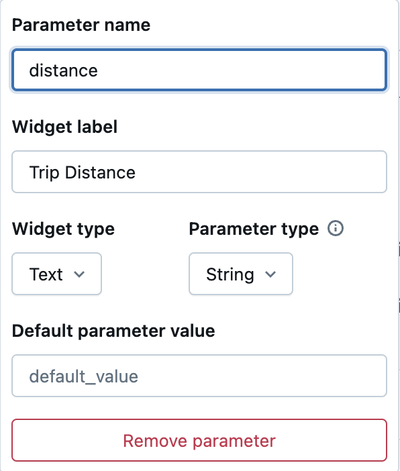
Click the gear icon beside the widget to open the widget dialog.
-
Set the following fields:
- Parameter name: The parameter name as it appears in the query. If you change the parameter name, in the widget dialog, you must also change it in the query.
- Widget label: A string that described the widget
- Widget type: Controls how users input the value. See Widget types below.
- Parameter type: The parameter data type. See Parameter types.
-
Click away from the widget dialog to save your changes.
Edit, remove, and reorder widgets
Edit: Click the gear icon beside the widget to reopen the settings pane.
Remove: Delete the parameter marker from the query. The widget is removed automatically.
Reorder: Use the drag handle to the left of a widget to reorder.
Widget types
Databricks supports the following widget types for query parameters:
Widget type | Description |
|---|---|
Users must choose from a predefined list. | |
Users can choose from a predefined list or type a custom value. | |
Accepts any free-form value with no suggestions. | |
Users can select more than one value from a predefined list. | |
Populates choices from a saved query instead of a static list. | |
Defines a start and end range using |
Text input
Accepts a free-form value directly from the user. Use this widget when no predefined options are needed.
SELECT * FROM samples.tpch.region WHERE r_name = :region_param
Dropdown
Presents a predefined list of values. Users must select from the list — free-form entry is not allowed. Enter allowed values in the settings pane, one per line.
SELECT * FROM samples.tpch.orders WHERE o_orderstatus = :status_param
To create a dropdown widget type:
- Click the gear icon beside the
:status_paramwidget. - Set Widget type to Dropdown.
- Set Parameter type to String.
- Enter values into the Choices for parameter value text entry field. Click Add or press enter between each value.
Combobox
Presents a predefined list of suggested values but also allows users to type a custom value not in the list. Use a combobox when common options are useful for convenience but you want to allow free-form input.
SELECT * FROM samples.tpch.part WHERE p_brand = :brand_param
Multiselect
Allows users to select more than one value from a predefined list. The selected values are passed to the query as a collection.
SELECT * FROM samples.nyctaxi.trips WHERE
  array_contains(
    TRANSFORM(SPLIT(:list_parameter, ','), s -> TRIM(s)),
    CAST(dropoff_zip AS STRING)
  )
To add options for a multiselect dropdown list:
- Click the gear icon beside the
list_parameterwidget. - Set Widget type to Multiselect.
- Set Parameter type to String.
- Enter values into the Choices for parameter value text entry field. Click Add or press enter between each value.
Dynamic dropdown
Dynamic dropdown widgets are available in the SQL editor only, not in notebooks.
Populates the list of choices from a saved query instead of a static list. As the underlying data changes, the available options update automatically.
To use a dynamic dropdown:
-
Create and save a query that returns the values you want in the dropdown:
SQLSELECT DISTINCT c_mktsegment FROM samples.tpch.customer ORDER BY c_mktsegment -
In a new or existing query, add a named parameter marker:
SQLSELECT c_custkey, c_name, c_acctbal
FROM samples.tpch.customer
WHERE c_mktsegment = :segment_param -
Click the gear icon beside the
segment_paramwidget. -
Set Widget type to Dynamic dropdown.
-
Click the Query field to open the Select existing query dialog. Select the saved query from step 1, then click Select.
-
Choose a Default parameter value.
-
Click Apply Changes.
A dynamic dropdown displays a maximum of 1,024 values. If the saved query returns more than 1,024 values, the widget shows only the first 1,024 and does not display the rest.
Date and Timestamp range
Date and Timestamp parameters support a Range widget type. When selected, Databricks creates two parameters using .min and .max suffixes to define the start and end of the range.
SELECT * FROM samples.nyctaxi.trips
WHERE tpep_pickup_datetime
BETWEEN CAST(:date_range_min AS TIMESTAMP) AND CAST(:date_range_max AS TIMESTAMP)
Click the blue lightning bolt icon to select dynamic values such as today, yesterday, this week, last week, last month, or last year. These values update automatically.
Dynamic date values are not compatible with scheduled queries.