Pages
This feature is in Beta. Account admins can control access to this feature from the account console Previews page. See Manage Databricks previews.
A Page is a governed, authoritative definition of a business concept, such as a critical term, entity, or acronym. Pages are built into the Discover page and organized by domain and subdomain. Each domain and subdomain has its own set of Pages, and users with access to a domain can create and govern them.
Pages are part of Unity Catalog semantics: the business context that you define and govern explicitly, forming the human-modeled layer of the Genie Ontology. When Genie One answers a question about a concept you've defined in a Page, it prioritizes the Page's definition over context it infers automatically, and cites the Page so users can confirm the source. See How Genie One uses Pages.
What's in a Page
A Page contains the following fields:
Field | Description |
|---|---|
Domain | The domain or subdomain the Page belongs to. |
Owner | The user responsible for the Page. The creator is the owner by default. |
Synonyms | Alternative names for the concept. |
Description | A short summary of the concept. |
Page body | Freeform, rich-text content that supports links, images, tables, and inline |
Related assets | A list of Databricks assets (workspace and Unity Catalog objects) that logically connect to, depend on, or contextualize the Page, such as parent and child Pages, dependent metrics, or associated tables. |
Sources | A list of Databricks and external assets (workspace and Unity Catalog objects, links) that serve as the origin of the Page content. |
An asset can appear under both Related assets and Sources on the same Page.
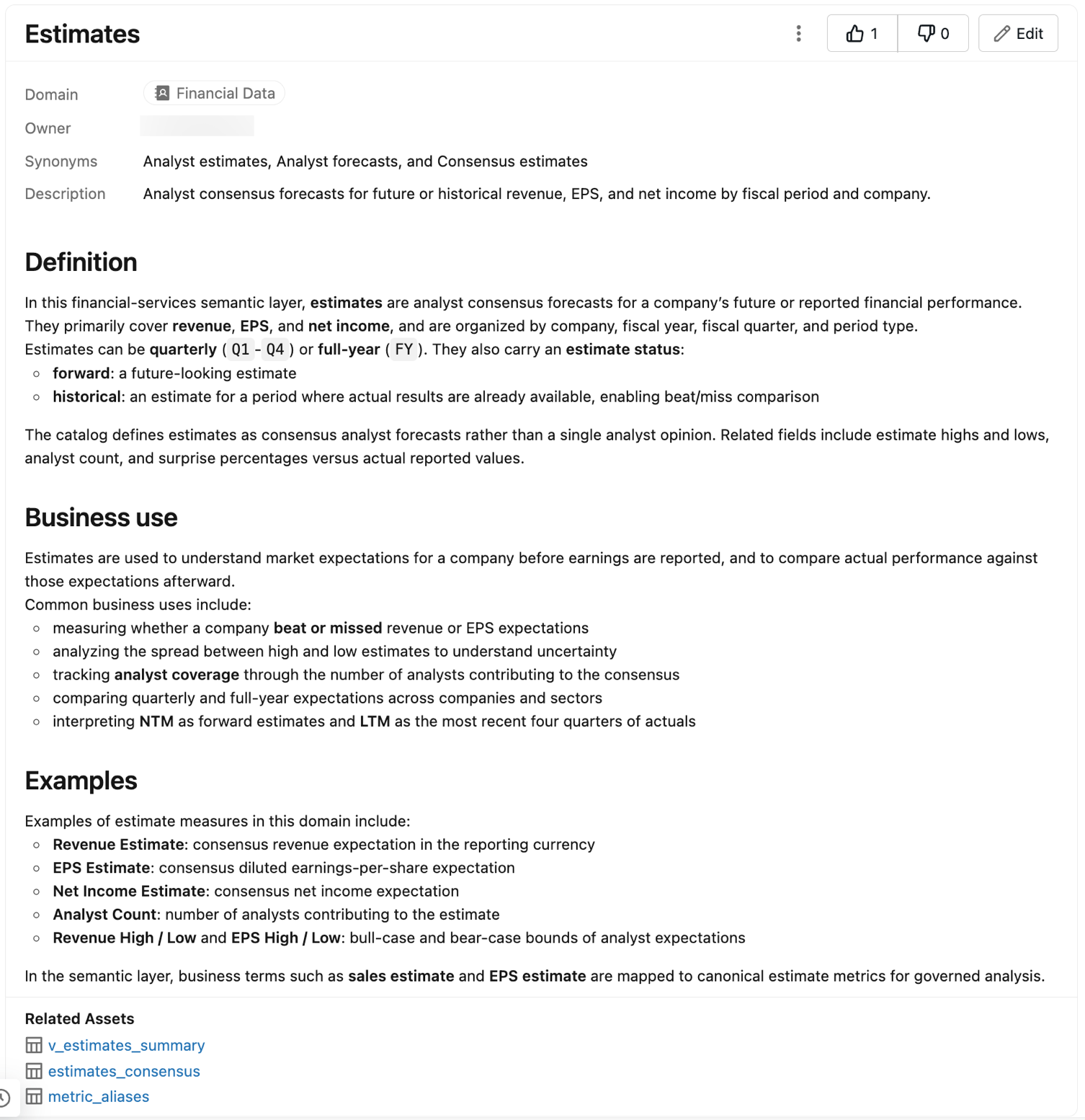
Example: an Estimates Page
The following example defines an Estimates term in the Financial Data domain. It leads with a precise definition of the concept, explains how the business uses it, and lists examples of its usage.
Permissions
A Page inherits access from the domain or subdomain it belongs to: anyone who can access the domain can read its published Pages. You don't grant permissions on a Page directly. What a user can do with a domain's Pages depends on their persona:
Persona | Access |
|---|---|
Consumers can create and publish Pages. They can also view, comment on, and suggest edits to published Pages that they don't own. Consumer is the baseline persona for anyone with Discover access. By default, a consumer who creates a Page becomes its Page owner. | |
Page owner | A Page owner can edit their own draft and published Pages directly, accept or reject suggestions, delete comments on their Pages, change the Page owner, and unpublish their Pages. |
Curators can do everything a Page owner can do, on any Page in the domains and subdomains where they hold curator permissions ( |
Account admins and workspace admins automatically hold account-level MANAGE DISCOVER and act as curators over every domain and Page. Account admins can grant MANAGE DISCOVER to others at the account level, or MANAGE on a specific domain or subdomain. See Curator permissions.
Create a Page
Every Page is attached to a domain or subdomain, so you need at least one domain set up before you can create Pages. See Create a domain.
You can author a Page manually or generate one with Genie Code from source material.
Page data does not support customer-managed key (CMK) encryption and is stored in plain text that may be replicated globally. Do not use page names, descriptions, synonyms, and body text that can compromise the security of your resources. For example, do not include PII, regulated data, or other sensitive information in Page data.
-
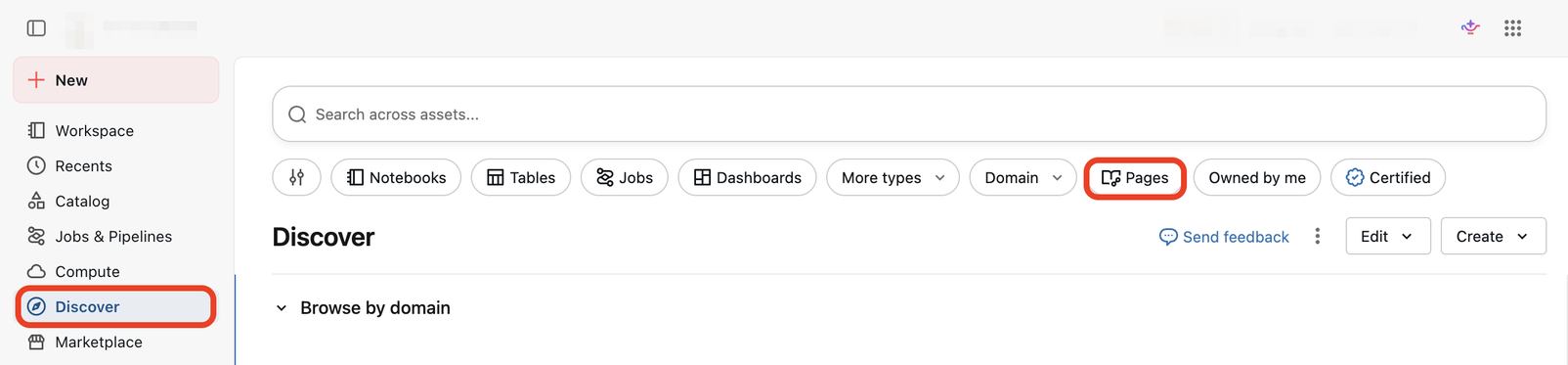
To access Pages, click Discover, then click Pages.
-
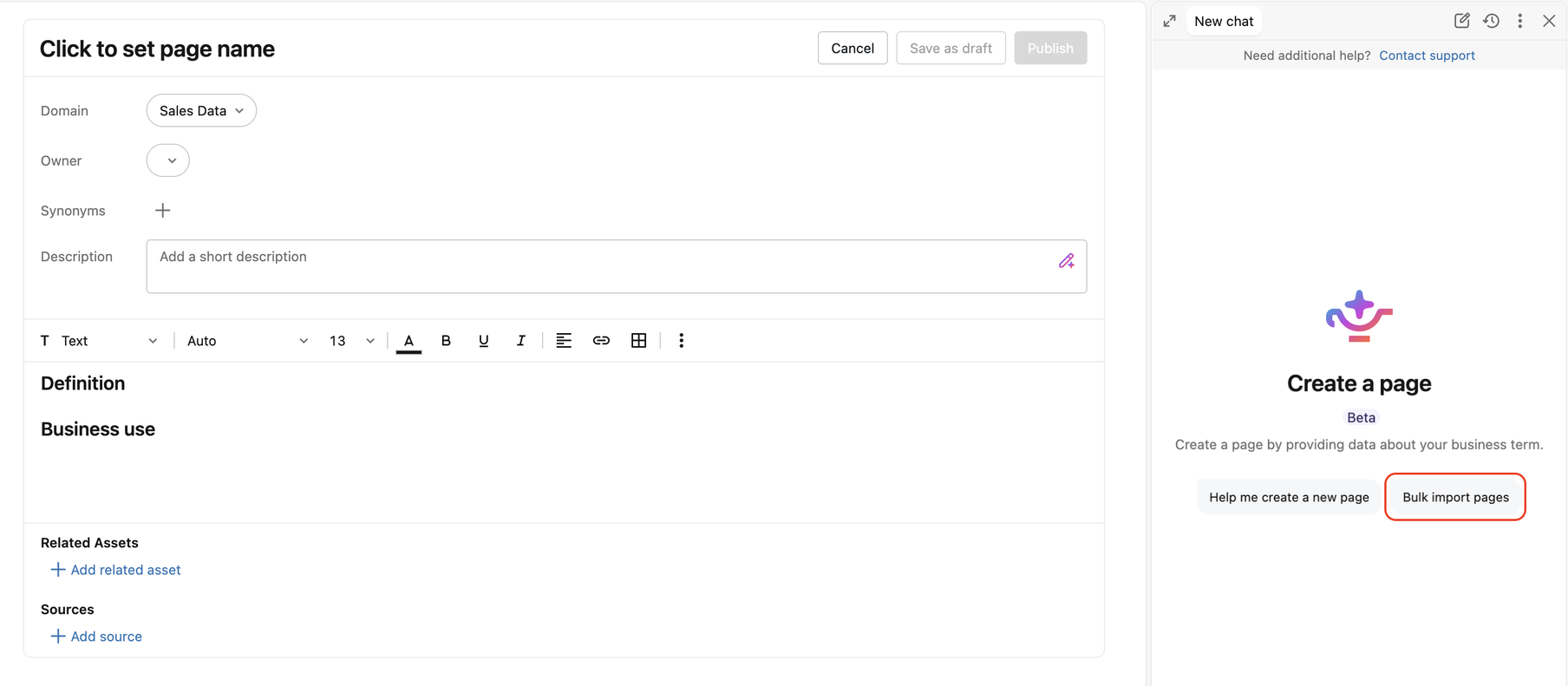
Click Create page to open the Page editor.

-
Confirm or select the Domain. The domain is filled in automatically if you opened the editor from within a domain, and left empty otherwise.
-
Add the Page content:
- To author manually, fill in the structured fields and Page body.
- To generate the Page with Genie Code, use the Genie Code pane in the Page editor. You can also open the pane from the Discover page or a specific domain page. Attach source material in the pane, which can include external content accessible through MCP connections, public links, files, and Unity Catalog and workspace assets. After Genie Code drafts the structured fields and Page body, attach the appropriate source material under Sources and Related assets.
-
Save your work as a draft anytime by clicking Save as draft. To publish the Page, click Publish.
Bulk import Pages
If your organization already documents its terms somewhere else, you can create Pages from those documents instead of writing each one by hand. Genie Code reads the documents you attach, extracts the terms it finds, and returns a set of proposed Pages. You review and edit the proposed Pages before any of them are created.
-
To access Pages, click Discover, then click Pages.
-
Click Create page to open the Page editor.
-
If the Genie Code pane isn't already open, click
 in the upper-right corner of the page to open it.
 -
In the Genie Code pane, click Bulk import pages.
-
Follow the prompts. Tell Genie Code which domains you want to add Pages to, and what knowledge sources to use. To attach source material, click
 in the chat box, then use any of the following:
- Attach files: Files from your local machine.
- Add context: Unity Catalog and workspace objects.
- Connections: External content accessible through MCP connections. You also manage your connections from here.
You can also paste public links directly into the chat box.

-
Genie Code processes the sources and returns a deduplicated set of proposed Pages for review. You can resolve flags such as conflicts, duplicates, and low-confidence terms, edit the content, and exclude Pages you don't want.
-
When you finish reviewing, Genie Code creates all of the Pages at once as drafts. You can then review, edit, and publish them under their domains. See Edit and publish Pages in draft.
Edit and publish Pages in draft
Only the Page owner or a curator can edit or publish a draft.
-
Click Discover, then click Pages.
-
Click State, then click Draft to view all Pages currently in draft.

-
Click the Page you want to edit or publish.
-
Make edits to the Page by clicking Edit, or publish the Page by clicking Publish.
You can unpublish and republish a Page at any time. To unpublish a Page, click any published Page and click Unpublish.
Collaborate on a Page
Consumers can collaborate on published Pages:
- Comment: Ask a follow-up question or flag context for the owner. You can edit or delete your own comments. The owner and curator can delete anyone's comments.
- Suggest edits: Suggest changes to a published Page's body. Each time you click Suggestion, edit the body, and click Save, your edits are grouped into a single batch. There are no inline suggestions. The owner or curator accepts or rejects the entire batch at once. Accepting a batch clears every other pending batch on the Page, including batches from other users, and this can't be undone.
- React: Upvote or downvote a Page to signal whether it answered your question.
The owner or curator can also edit a published Page's content directly, bypassing the suggestion workflow.
How Genie One uses Pages
After you create Pages, Genie One retrieves them and uses the context you defined when it answers questions.
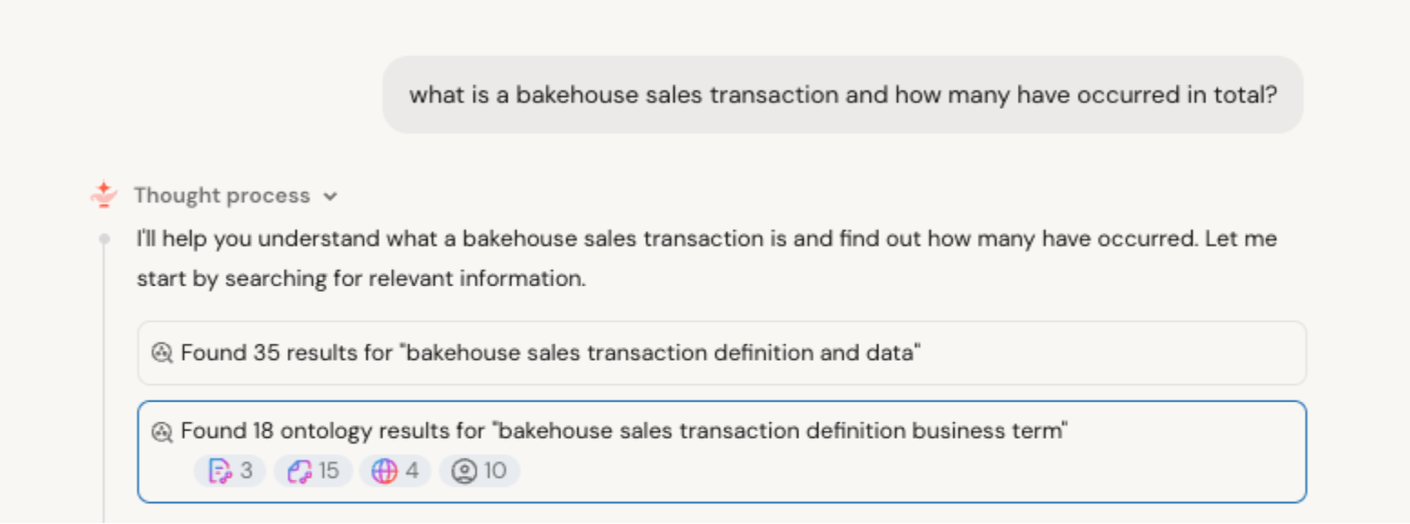
When a user asks Genie One a question involving a business term or concept you've defined in a Page, Genie One checks the Genie Ontology for matching context. It prioritizes usage of the human-modeled context in your Pages over context it infers automatically to generate answers to your questions. Genie One then answers using the Page's definition and surfaces the Page as a citation in its response. Users can click the citation to open the full Page and verify the information.
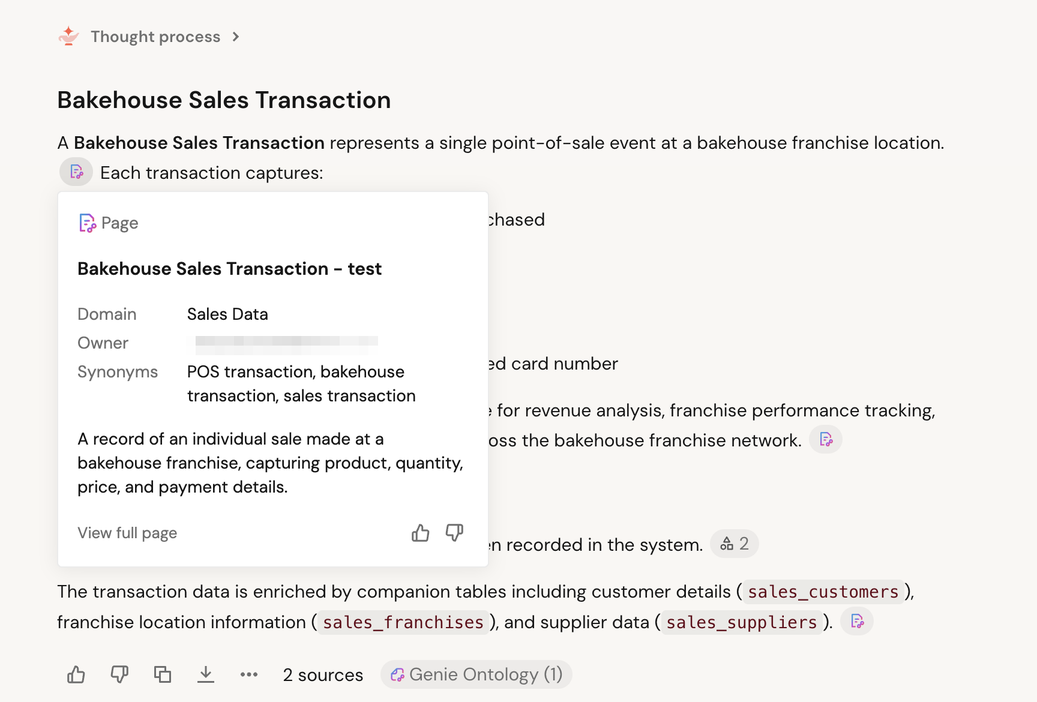
Which Pages Genie One can retrieve depends on their state:
- Published Pages are available in all Genie One conversations.
- Draft Pages are only available in Genie One conversations with the Page owner.
Track Page audit events
Admins can use the audit log system table (system.access.audit) to monitor activity on Pages, such as when users create, update, delete, or view Pages and when they link assets to Pages. Pages events are logged at the account level under the pages service. For the full list of events and their request parameters, see Pages events.