Account-level Genie
Account-level Genie is a unified analytics view across all workspaces in your Databricks account. Business users can discover and interact with shared assets (such as AI/BI dashboards, Genie Spaces, and Databricks Apps) from multiple workspaces in a single entry point.
Unlike the workspace-level Genie experience, which is scoped to a single workspace, account-level Genie lets users view and navigate assets from any workspace they have access to in the account.
Features
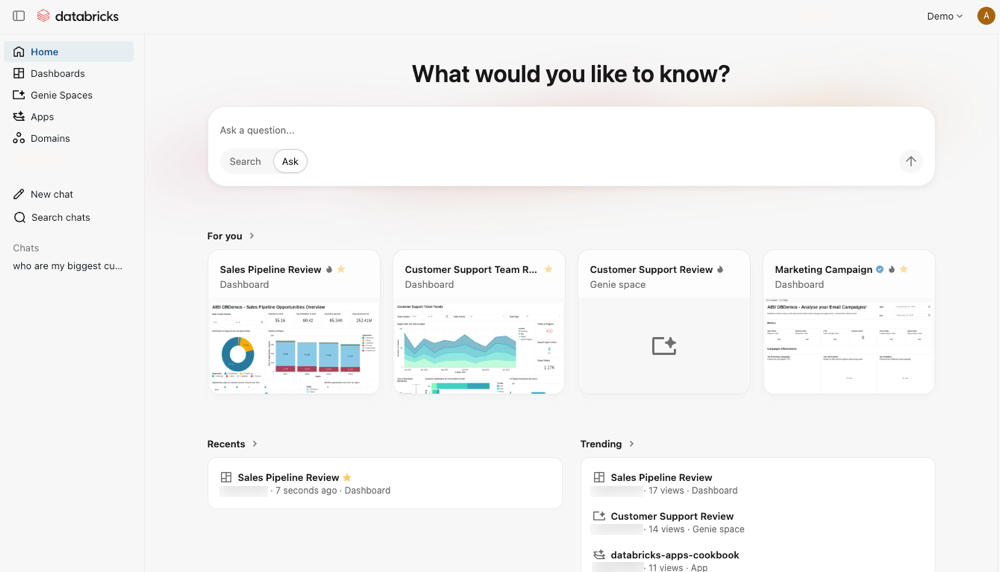
Account-level Genie brings together the features in individual workspace-level Genie into an account-wide experience. It includes the following features:
- Homepage: A unified view of assets across all workspaces in your account. Surfaces recently accessed content, trending assets, and your favorites, regardless of which workspace the assets belong to.
- Cross-workspace search: Find assets shared across all workspaces in your account. Search results include dashboards, Genie Spaces, and Databricks Apps from any workspace you have access to, scoped to your permissions.
- Recommendations and favorites: The homepage surfaces recommended assets based on your usage patterns across workspaces. Mark an asset as a favorite by clicking the star icon next to its name. Favorites are available across all workspaces from the account-level view.
- Chat and Genie Spaces: Ask natural language questions about your data across workspaces. Genie Spaces provide a shared conversational interface where you can collaborate with teammates on data questions.
For more information on using Genie, see Interact with data assets.
Enable or disable account-level Genie
Account admins can enable or disable account-level Genie in the account console. This setting applies to all users in the account and does not apply to workspace-level Genie.
- In the account console, click
 Settings.
 - Click the Feature enablement tab.
- Use toggles
 to enable or disable Genie.
Who can use account-level Genie?
All users in the account can use account-level Genie, but they can only access assets that have been explicitly shared with them. The account-level view does not grant additional permissions to workspace assets.
Access account-level Genie
You can access account-level Genie in several ways:
-
Account landing page: From the account console, click Genie to open the account-level view.
-
Direct URL: Navigate directly to your account-level Genie URL using the
/onevanity URL:https://accounts.gcp.databricks.com/one -
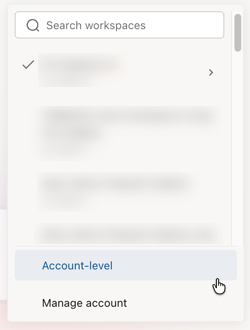
Workspace switcher: Use the workspace switcher within the Genie interface to and select Account-level.
Data handling and processing
Account-level Genie is an account-wide discovery and search surface for dashboards, Genie Spaces, Databricks Apps, and other assets that you have permission to access. When you open an asset, it opens in the originating workspace.
What data is processed and where
When you use account-level Genie, metadata (such as asset identifiers, titles, usage signals, and audit events) might be processed in the US. Other data (such as tables, dashboards, charts, and similar objects) stays in the same region as your workspace.
If your data residency or compliance policies do not permit metadata to be sent to US-based services, disable account-level Genie using the control described in Enable account-level Genie. Disabling the feature stops account-level Genie from sending additional metadata to US-based services.
Workspaces using the compliance security profile are excluded
Account-level Genie does not aggregate data from workspaces with the compliance security profile enabled.