
What's coming?
Learn about features and behavioral changes in upcoming Databricks releases.
Workspace-level package repositories for Databricks Apps will soon be available by default for workspaces with the compliance security profile enabled
Starting November 13, 2026, workspace-level package repositories for Databricks Apps will be automatically enabled for workspaces with the compliance security profile enabled. Workspace admins can configure default Python and npm package repositories that apps inherit while still allowing app-level overrides.
See Configure default package repositories.
Unity Catalog Scala and Java UDFs and Scalar and Batch Unity Catalog Python UDFs will soon be available by default for workspaces with the compliance security profile enabled
Unity Catalog Scala and Java UDFs and Scalar and Batch Unity Catalog Python UDFs will be available by default for workspaces with the compliance security profile enabled in November 2026.
See Python UDF feature requirements and Scala and Java user-defined functions (UDFs) in Unity Catalog.
OAuth custom identity claims for service principal tokens will soon be available
Applications will be able to attach a custom identity claim to the OAuth tokens they request for a service principal, by adding the custom_claim parameter to a token request that uses the client_credentials or urn:ietf:params:oauth:grant-type:token-exchange grant type. You can then read the value in SQL with the current_oauth_custom_identity_claim() function.
Use custom identity claims to serve many end users through one service principal while each user sees only their own data. A dynamic view filters rows by comparing a column to the claim. The Genie Conversation API, the SQL Statement Execution API, and the Databricks JDBC Driver honor the claim.
If a token has no custom identity claim, the function returns NULL. Write filters that match no rows when the claim is NULL.
See Authorize service principal access to Databricks with OAuth and Use the Genie Agents API.
CREATE OR REPLACE VIEW will soon preserve grants, comments and tags by default
Starting December 2, 2026, CREATE OR REPLACE VIEW will update views in-place, instead of dropping and re-creating the view. Grants, tags, and comments are preserved with two caveats:
- As views execute with view owner's permissions, grants are not preserved if a non-owner alters the view query via
CREATE OR REPLACE VIEW - You must first remove governed tags on a view column before dropping the column via
CREATE OR REPLACE VIEW. Otherwise, the statement will fail with aCANNOT_DROP_TAGGED_COLUMNerror to protect the ABAC policies that depend on them (learn more).
Use CREATE OR REPLACE VIEW <catalog>.<schema>.<view> NOCOPY * … to drop grants, tags and comments on view explicitly (governed tags are still retained).
See Upcoming change to CREATE OR REPLACE VIEW metadata preservation.
The remote_query function will soon be available by default for workspaces with the compliance security profile enabled
In November 2026, the remote_query table-valued function will be available by default for workspaces with the compliance security profile enabled.
Use remote_query to run queries on external databases in their native SQL syntax, with credentials from a Unity Catalog connection.
See Query external databases using the remote_query function.
Salesforce Data 360 file sharing will soon be available by default for workspaces with the compliance security profile enabled
The Salesforce Data 360 file sharing connector (formerly Salesforce Data Cloud file sharing) will be available by default for workspaces with the compliance security profile enabled.
Use the connector in Lakehouse Federation to query Salesforce Data 360 data directly from cloud object storage without copying it into Databricks. Queries run on Databricks compute.
See Lakehouse Federation for Salesforce Data 360 File Sharing.
Variant shredding will soon be enabled by default on new Variant tables
Starting November 18, 2026, Databricks will automatically add the variantShredding table feature to new tables that contain a column of the VARIANT type when they are created on Databricks Runtime 17.3 or above. Variant shredding stores frequently accessed fields in a typed, columnar layout to improve query performance.
This is a breaking change for Databricks Runtime 15.4: clusters running Databricks Runtime 15.4 can't read from or write to tables that have variant shredding enabled. Upgrade affected clusters to Databricks Runtime 16.4 or above before this change takes effect.
See Use variant shredding to optimize performance.
Bundled BigQuery JDBC driver removal in Databricks Runtime 20
Starting with Databricks Runtime 20, Databricks Runtime no longer includes the bundled BigQuery JDBC driver, while Databricks Runtime 19 and earlier continue to include it.
Classic compute workloads that use Spark JDBC with a jdbc:bigquery: URL fail with a driver-not-found error unless a BigQuery JDBC driver is installed. Before upgrading an affected workload, migrate the workload.
Webhook-triggered deployments for Databricks Apps will soon be generally available
Starting in October 2026, webhook-triggered deployments for Databricks Apps will be generally available. Automatically deploy your app when changes are pushed to a connected GitHub or Azure DevOps repository, so your deployed app stays in sync with your repository without manual redeployment.
OpenSharing SecureConnect will be available by default for all accounts
OpenSharing SecureConnect is generally available and available by default for accounts on the Premium plan. For accounts on the Enterprise plan, Databricks will enable it automatically in mid-October 2026, and by early 2027 for the rest.
Until it is available for your account, an account admin on the provider side can turn on the OpenSharing SecureConnect preview from the Previews page in the account console. See Share data behind a firewall with SecureConnect and Manage Databricks previews.
Expanded networking billing for OpenSharing SecureConnect
Databricks will be expanding networking billing for OpenSharing SecureConnect.
The following table summarizes the planned charges, who is billed, and how each applies across access scenarios:
Charge type | Status | Cross-region or cross-cloud | Same-region (classic or open recipient) | Same-region (serverless recipient) |
|---|---|---|---|---|
Data transfer | Coming soon | Bill to provider | Not applicable ¹ | Not applicable ¹ |
Public Connectivity | Coming soon | Bill to recipient | Not applicable ² | Not applicable ³ |
¹ Data transfer (egress) does not apply when the recipient is in the same region as the provider.
² Databricks does not bill this charge. If recipients on classic compute or open recipients reach storage over the public network, their own cloud provider might bill them for network address translation (NAT) directly.
³ Same-region serverless recipients read from storage directly.
For rates, see Data transfer and connectivity pricing, or contact your Databricks account team.
The READ METADATA privilege will soon be available by default for workspaces with the compliance security profile enabled
The READ METADATA privilege will be available by default for workspaces with the compliance security profile enabled in mid-October 2026.
READ METADATA grants read-only visibility into an object's metadata, including security-sensitive information that BROWSE doesn't expose, such as privilege grants, row filters and column masks, and ABAC policies. It's intended for users who inspect and debug access controls, such as security auditors, data governance teams, and site reliability engineers (SREs).
See READ METADATA.
JAR tasks on serverless compute will soon be available for workspaces with the compliance security profile enabled
In early October 2026, running JAR tasks on serverless compute will be automatically enabled for workspaces with the compliance security profile enabled. Package your Java or Scala Spark code in a JAR and run it as a JAR task on serverless compute in a Lakeflow Job, without provisioning or managing clusters.
See Create and run JARs on serverless compute.
Automatic change data feed will soon be available in all supported regions
Automatic change data feed (Auto CDF) is rolling out to workspaces over the next month and will be available in all supported regions by the end of October 2026. Auto CDF computes row-level changes at query time using row tracking, so you don't need to enable change data feed on each Delta Lake or Apache Iceberg v3 table. It requires Databricks Runtime 19 or above with row tracking enabled.
See Automatic change data feed.
Horizontal scaling for Databricks Apps will soon be available for workspaces with the compliance security profile enabled
In early October 2026, horizontal scaling for Databricks Apps will be automatically enabled for workspaces with the compliance security profile enabled. Horizontal scaling lets you run an app across multiple instances behind a single app URL for higher availability and concurrency.
See Horizontal scaling for Databricks apps.
The partner-powered AI features setting will be removed
On November 1, 2026, Databricks will remove the account- and workspace-level toggle for partner-powered AI features. Each workspace will keep its current setting value: if the setting is enabled, it stays enabled, and if it's disabled, it stays disabled. Removing the toggle doesn't change any setting values. After November 1, 2026, to change this setting, contact your Databricks account team.
See Partner-powered AI features.
Incremental ingestion for Salesforce formula fields in Lakeflow Connect will soon be generally available
Incremental ingestion for Salesforce formula fields in Lakeflow Connect will soon be generally available. Today, Lakeflow Connect ingests formula fields by taking a full snapshot on each pipeline run by default. When incremental formula field ingestion is generally available, full snapshots will no longer be the default. Incremental ingestion typically improves performance and reduces cost.
See Ingest Salesforce formula fields incrementally.
Consumer access to query Unity Gateway services will become generally available
Querying Unity Gateway model services and model provider services with Consumer access is currently opt-in through the Consumer access to Unity Gateway Public Preview. When this capability becomes generally available, consumer access users will be able to query these services without the preview enabled. This can increase model traffic from consumer users, including traffic to model provider services that route to external providers.
Before this change, account admins should set budgets and rate limits, or disable direct model access, for consumer access users so these controls are in effect when the capability becomes generally available. See Manage budgets for Unity Gateway, Apply rate limits to model and MCP services, and Manage entitlements.
Role-based access control (RBAC) will soon be available by default for workspaces with the compliance security profile enabled
Role-based access control (RBAC) will be available by default for workspaces with the compliance security profile enabled in mid-September 2026.
RBAC lets users assume a role in Databricks. When a user assumes a role, only that role's permissions apply, rather than the user's accumulated permissions. This enables exclusive access. Users must actively assume a role to access sensitive data, preventing them from accessing it under their own identity and from mixing data across use cases, clinical trials, projects, or clients.
See Role-based access control (RBAC).
Upcoming deprecation of the data quality monitoring downstream_impact column
The downstream_impact column in the data quality monitoring results system table is being deprecated.
Deprecation begins September 7, 2026, and rolls out gradually across regions over the following week. Until the rollout reaches your workspace, you might still be able to query downstream_impact. After deprecation completes, the column is no longer populated.
For the affected column, see Data quality monitoring results system table reference and Review anomaly detection logged results.
Upcoming deprecation of the data quality monitoring root_cause_analysis column
The root_cause_analysis column in the data quality monitoring results system table is being deprecated.
Deprecation begins August 18, 2026, and rolls out gradually across regions over the following several days. Until the rollout reaches your workspace, you might still be able to query root_cause_analysis. After deprecation completes, the column is no longer populated.
For the affected column, see Data quality monitoring results system table reference and Review anomaly detection logged results.
Sharing tables backed by default storage will be enabled by default for all accounts
OpenSharing support for tables backed by default storage is generally available and on by default for most accounts. For most Enterprise or Premium tier accounts, Databricks will enable it automatically in mid-September 2026, and by early 2027 for the rest.
Until it is enabled for your account, an account admin can turn on the OpenSharing for Default Storage – Expanded Access feature from the Previews page in the account console. See Manage Databricks previews.
Secrets in Unity Catalog will soon be available by default for workspaces with the compliance security profile enabled
Secrets in Unity Catalog will be available by default for workspaces with the compliance security profile enabled in late September 2026.
Store, govern, and access secrets as securable objects in Unity Catalog. A Unity Catalog secret uses the three-level namespace (catalog.schema.secret) and is governed by Unity Catalog privileges, so you can apply the same access controls and auditing that you use for other data assets.
Upcoming general availability of Unity Gateway
Unity Gateway, the Databricks governance solution for enterprise AI, is scheduled for general availability soon. Built on Unity Catalog, Unity Gateway extends governance to the runtime interactions between models, agents, MCP servers, and tools. You can control which AI services teams use, route and manage AI traffic, and monitor usage from one control plane.
The following capabilities will be generally available. Model, MCP, and model provider services are Unity Catalog securables that you govern with the same privileges as tables and volumes:
- Model services route requests to pay-per-token and external models with traffic splitting and fallback, and you can share them across workspaces. See Custom model services.
- MCP services register external or Databricks-provided MCP servers, so you can govern agent access with grants and tool selection. See MCPs.
- Model provider services represent external model providers such as OpenAI, Anthropic, and Amazon Bedrock, with centrally managed credentials. See Model providers external to Databricks.
- Budgets monitor and control monthly Unity Gateway spend with per-user thresholds and hard caps. See Manage budgets for Unity Gateway.
Unity Gateway will be available by default for workspaces with the compliance security profile enabled in mid-September 2026.
See AI governance with Unity Gateway.
Dedicated group clusters will soon be available by default for workspaces with the compliance security profile enabled
Dedicated group clusters will be available by default for workspaces with the compliance security profile enabled in September 2026.
You can assign a compute resource to a group using the Dedicated access mode, letting group members share compute while securely running languages and workloads not supported by standard access mode, such as Databricks Runtime for ML, RDD APIs, and R. When a user connects to a group cluster, their permissions down-scope to the group's permissions for the cluster session.
See Dedicated compute group access.
AI Search high QPS will soon be available by default for workspaces with the compliance security profile enabled
AI Search high QPS will be available by default for workspaces with the compliance security profile enabled in late August 2026.
Set a target QPS on standard AI Search endpoints to power high-throughput, real-time workloads like search bars, recommendation systems, and entity matching. High QPS is enabled by default, but existing endpoints are not affected. Additional capacity and the associated cost apply only when you configure a target QPS for an endpoint.
See Scale AI Search endpoint throughput with high QPS.
Query-based connectors in Lakeflow Connect will soon be available by default for workspaces with the compliance security profile enabled
Query-based connectors in Lakeflow Connect will soon be available by default for workspaces with the compliance security profile enabled. Query-based connectors ingest data from databases by querying the source directly using a cursor column, without requiring change data capture (CDC) configuration or an ingestion gateway. Supported sources include Oracle, Teradata, SQL Server, MySQL, MariaDB, and PostgreSQL, as well as all Lakehouse Federation data sources using foreign catalog ingestion.
Request for Access will soon be enabled by default for all workspaces
In an upcoming release, Request for Access will be enabled by default for all workspaces, and access requests will be routed to the owner of the requested Unity Catalog object via email. You can configure access request destinations at any time in the metastore settings. The legacy workspace-level access request settings will be deprecated.
See Enable access requests across the metastore.
Automatic upgrades will roll out more features to existing tables
Automatic upgrades apply recommended features to your Unity Catalog managed tables after verifying workload compatibility. Databricks is expanding the features that automatic upgrades apply to existing tables.
Starting in July 2026, automatic upgrades will roll out row tracking and Checkpoint V2 to existing tables. This rollout is gradual, so these features will be available to different customers at different times.
In August 2026, automatic upgrades will roll out catalog commits and deletion vectors to existing tables.
Automatic upgrades turn on a feature only after the observation window verifies that every client accessing a table supports it. To track which features are available for automatic upgrades, see Supported features.
Databricks-provided MCP Services will GA soon
Databricks-provided MCP Services for SaaS applications such as Slack, GitHub, Atlassian, and Google Drive will soon be generally available, with both read and write operations enabled by default. Admins and users can disable MCP Services and individual tools in Unity Gateway.
See MCPs.
Change to default pipeline editor for workspaces with the compliance security profile enabled
The Lakeflow Pipelines Editor has been generally available since May 2026. In August, it will become the default editor for developing and debugging pipelines in workspaces with the compliance security profile enabled. At that time the legacy editor will be removed.
For more information about the Lakeflow Pipelines Editor, see Develop and debug ETL pipelines with the Lakeflow Pipelines Editor. If you have questions about this transition, contact your account team.
Behavior changes for continuous jobs and pipelines
In early August 2026, continuous Lakeflow pipelines and jobs will receive updates to simplify configuration.
You will be able to configure a continuous schedule directly from the pipeline page, including job-level settings such as performance mode. Configuring a continuous schedule this way wraps the pipeline in a continuous job.
Databricks recommends running continuous pipelines with a continuous job rather than the pipeline's built-in continuous setting. When a continuous job wraps a pipeline, the job will manage the pipeline's execution lifecycle. The built-in continuous setting is not being removed, but new continuous pipelines should use the continuous job pattern.
Classic workspace creation with a Databricks-managed VPC will soon be deprecated
In a future release, Databricks plans to deprecate classic workspace creation with a Databricks-managed VPC. For new workspaces, Databricks recommends a customer-managed VPC. A detailed migration timeline will be communicated separately.
See Create a classic workspace.
Lakeflow Designer will soon be available by default for workspaces with the compliance security profile enabled
Lakeflow Designer will be available by default for workspaces with the compliance security profile enabled in late July 2026.
Lakeflow Designer is a visual, no-code experience for preparing and transforming data on a drag-and-drop canvas, with all workflows backed by production-ready code governed by Unity Catalog.
See Lakeflow Designer.
Declarative Automation Bundles will soon default to use the direct deployment engine
On July 24, 2026, Declarative Automation Bundles in the workspace will start using the direct deployment engine by default instead of the Terraform deployment engine. This will trigger an automatic migration for all bundles in the workspace still using the Terraform deployment engine.
For Databricks CLI bundle deployments, the direct deployment engine will become the default beginning August 26, 2026. The Terraform deployment engine will be disabled in new releases of the Databricks CLI in September 2026.
For more information about the direct deployment engine and migration from the Terraform deployment engine, see Migrate to the direct deployment engine.
Variant will soon be available by default for workspaces with the compliance security profile enabled
Variant will be available by default for workspaces with the compliance security profile enabled in July 2026.
Use Variant to ingest semi-structured data from streaming sources (Kinesis, Event Hub), REST APIs, and schemaless databases, while maintaining high-performance query access.
See Variant type support for Apache Iceberg and Delta Lake.
Upcoming behavior change: Choose entitlements when adding principals to workspaces
Databricks is changing how principals get workspace entitlements. After this change, you grant entitlements explicitly when adding a principal to a workspace instead of relying on inheritance from the users system group. Workspace administrators can opt in starting June 15, 2026, and the new behavior is enforced for all workspaces on September 14, 2026.
This change enables you to add principals at any access level, including consumer-only users, without them automatically inheriting authoring privileges.
What's changing
Every workspace has two system groups: users, which includes all principals granted access to the workspace, and admins, which includes the workspace administrators. Today, every principal added to a workspace inherits the entitlements granted to users. By default, these are:
- Workspace access — create and use notebooks, jobs, pipelines, apps, and more.
- Databricks SQL access — create and use dashboards, Genie Agents, alerts, and more.
After the change:
- The
usersgroup will have no entitlements. Theadminsgroup will have all workspace entitlements. Both groups' entitlements are locked. - New principals must be granted entitlements explicitly when added to a workspace.
usersandadminscannot be nested as members of other groups.
Existing principals retain their current level of access. Databricks automatically migrates the entitlements previously granted to users to a new, workspace-local clone group named users-clone-<TIMESTAMP> (where <TIMESTAMP> is the time of migration). You manage the clone group like any other workspace-local group, and you can customize its name when you opt in early. The admins group doesn't require migration.
Action required
- If you manage system group entitlements through automation (Terraform, Workspace SCIM APIs, or custom scripts), update your workflows to target standard account groups, not system groups. After the new behavior is enabled, attempts to modify system group entitlements will fail.
- If
usersoradminsis nested as a member of another group, remove the nesting. Nesting is not permitted under the new behavior. - If your SCIM sync deletes workspace groups it doesn't recognize, update its configuration to preserve the migration clone group (
users-clone-<TIMESTAMP>). If the sync removes the clone group, principals migrated to it lose their entitlements.
Timeline
- June 15, 2026 – Opt-in available in workspace settings under Advanced > Access control.
- July 27, 2026 – Auto-enabled for workspaces that haven't opted in or out. Opt-out remains available.
- September 14, 2026 – New behavior enforced for all workspaces. Opt-out removed.
You manage the new behavior from your workspace settings under Advanced > Access control:
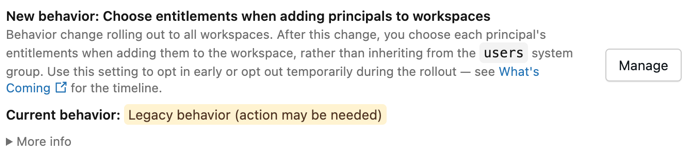
Before opt-in: legacy behavior is active.
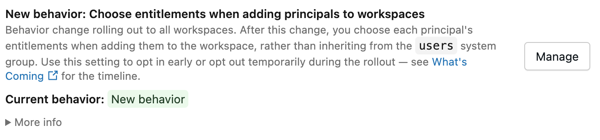
After opt-in or auto-enable: new behavior is active.
For more information, see Migrate workspace entitlement control.
Databricks Runtime 19 will use a unified release model
Starting with version 19, Databricks Runtime will use a unified release model. Instead of multiple feature versions (for example, 19.0, 19.1, 19.2), each major version will have a single release notes page.
After an initial Beta, each Databricks Runtime version will launch as generally available (GA) and receive new features and fixes approximately weekly, with updates differentiated by date on a single page. Clusters will receive updates when they restart. After approximately six months, the version transitions to long-term support (LTS) with three years of support.
Databricks Runtime 18 is the transition release. The 18.0, 18.1, and 18.2 feature version pages remain available for historical reference, and Databricks Runtime 18 LTS will be the final unified version in the 18.x line.
Power BI connections will transition to ADBC
Power BI plans to transition all Power BI connections to Arrow Database Connectivity (ADBC). To avoid disruptions, Databricks recommends switching your development and staging semantic models to ADBC now and validating your workloads. For Microsoft's transition timeline, see Transition from ODBC to ADBC drivers.
The ADBC driver for Power BI on Databricks has been in Public Preview since October 2025. Since February 2026, all new connections in Power BI Desktop and the Power BI service use ADBC by default. Existing connections continue to use ODBC unless you manually update them.
See Configure ADBC or ODBC driver for Power BI.
Workspace object permissions will soon be inherited from all account groups
In an upcoming release, workspace object permissions will be inherited from all account groups, not just groups directly assigned to the workspace. Principals will inherit permissions on workspace objects, such as jobs, notebooks, folders, queries, and dashboards, from all account groups of which they are a member, regardless of whether those groups are assigned to the workspace. Users still need to be assigned to the workspace to use these permissions.
This change also activates inactive ("orphaned") permission grants. These are permission grants that remain on a group after it's removed from a workspace. No new permissions are being added, but existing orphaned grants will become active, potentially giving workspace members unexpected access. For example, if a "Contractors" group was removed from a workspace but still has edit access to a folder, any workspace member in "Contractors" will gain access to that folder.
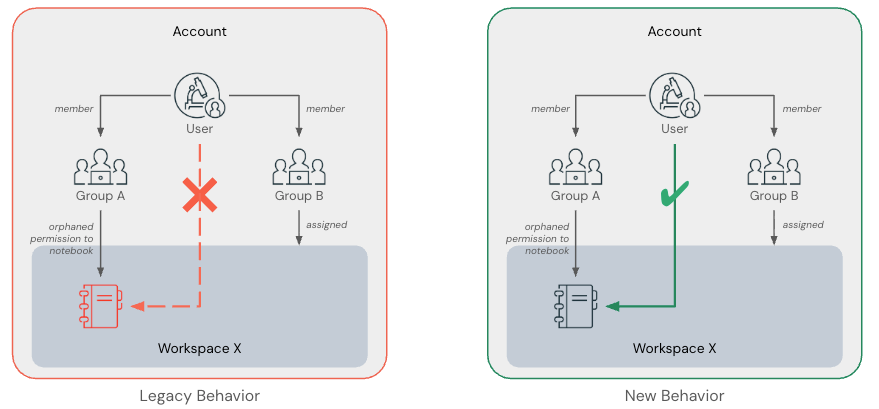
Databricks recommends reviewing your workspace permissions. Use the following notebook to identify inactive permission grants in your workspaces:
Orphaned permissions analysis notebook
Upcoming breaking change: default behavior when deleting a Unity Catalog pipeline
In an upcoming release, the default behavior when deleting a Unity Catalog pipeline will change. Currently, deleting a pipeline also removes all associated materialized views, streaming tables, and views. After this change, associated tables will be retained, but inactive after the pipeline is removed. The API will also change to retain tables by default, but setting the cascade field to true overrides this and keeps the current behavior.
The cascade field is available now. To preserve the current behavior of removing all tables when deleting a pipeline, update your code to set cascade=true.
See Delete a pipeline, and Delete a pipeline.
New SQL editor default enablement and legacy SQL editor retirement
The new SQL editor has been generally available since October 2025. As part of the transition to the new editor, the following changes are planned:
- Starting in late May 2026: The new SQL editor will be enabled by default for all workspaces. The ability to turn off the feature at the workspace level will no longer be available. Individual users will still be able to switch their queries to the legacy SQL editor after this period begins.
- Starting in late July 2026: The legacy SQL editor will be retired. All users will use the new SQL editor, and the individual opt-out will no longer be available.
To learn more about the new SQL editor, see Write queries and explore data in the new SQL editor. If you have questions about this transition, contact your account team.
Changes to OpenSharing (formerly Delta Sharing) open recipient tokens
Based on customer feedback and the introduction of OpenSharing, this change has been postponed from July 1, 2026. The new transition date will be updated when available. No immediate action is required. Existing recipient URLs and tokens continue to work as they do today.
OpenSharing for open recipients will transition to a new recipient-specific URL format. New tokens created after the transition date will automatically use the new URL format. This change improves network security and lets recipients configure recipient-specific network policies and firewall rules.
The new URLs include the recipient ID in the domain:
https://<recipient-id>.opensharing.us-central1.gcp.databricks.com/api/2.0/opensharing/metastores/<metastore-id>
For reference, URLs created before this change do not contain the recipient ID and use the Delta Sharing endpoint.
https://us-central1.gcp.databricks.com/api/2.0/delta-sharing/metastores/<metastore-id>
The old URLs will continue to work for a period of time. The specific duration depends on the recipient type and the token creation date. Data providers should transition to the new URL format before the old URL format becomes invalid.
OIDC Federation sharing:
Databricks recommends that data providers begin transitioning their recipients to the new URL format. Although a transition date hasn't been set, transition now to allow time to troubleshoot. After the transition, providers can find the new URL in the OpenSharing UI. After the old URL format is retired, it's no longer valid.
Bearer token sharing:
Token creation date | URL format | Token expiration date | Recommended action |
|---|---|---|---|
Before the transition date | Old format | One year from creation date or December 8, 2026, whichever date is further in the future | Data providers need to rotate tokens before expiration to migrate to the new URL format. To provide recipients time to migrate, configure a downtime window by setting an expiration date for the current token during rotation. Both old and new URL formats are supported during this period. |
On or after the transition date | New format | Per your configuration, up to one year from creation date. | None |
Change to use_case field in VPC endpoint API responses
In an upcoming release, the use_case field in the VPC endpoint CRUD response JSON will change from WORKSPACE_ACCESS to GENERAL_ACCESS. This change should not impact most customers.
See the VPC Endpoints API and Register your VPC endpoints.
The sourceIpAddress field in audit logs will no longer include a port number
Due to a bug, certain authorization and authentication audit logs include a port number in addition to the IP in the sourceIPAddress field (for example, "sourceIPAddress":"10.2.91.100:0"). The port number, which is logged as 0, does not provide any real value and is inconsistent with the rest of the Databricks audit logs. To enhance the consistency of audit logs, Databricks plans to change the format of the IP address for these audit log events. This change will gradually roll out starting in early August 2024.
If the audit log contains a sourceIpAddress of 0.0.0.0, Databricks might stop logging it.
MLflow trace storage in Unity Catalog will soon be available by default for workspaces with the compliance security profile enabled
MLflow trace storage in Unity Catalog tables will be available by default for workspaces with the compliance security profile enabled in mid-August 2026.
Store MLflow traces in Unity Catalog tables for scalable, governed trace storage: storage is unlimited, traces are stored in OpenTelemetry (OTel) format, access is governed through Unity Catalog schema and table permissions, and you can query traces with SQL. To view traces, point an MLflow experiment at a Unity Catalog trace location.