Use Genie Code for data science
Genie Code is the AI data science partner for developers in Databricks notebooks and the SQL Editor. It explores data, generates and runs code, and fixes errors from a single prompt, with your approval before execution.
For GPU-based deep learning workloads in notebooks connected to AI Runtime, see Use Genie Code with AI Runtime.
What is Genie Code for data science?
Genie Code can automate entire multi-step data science workflows in Databricks notebooks and the SQL Editor.
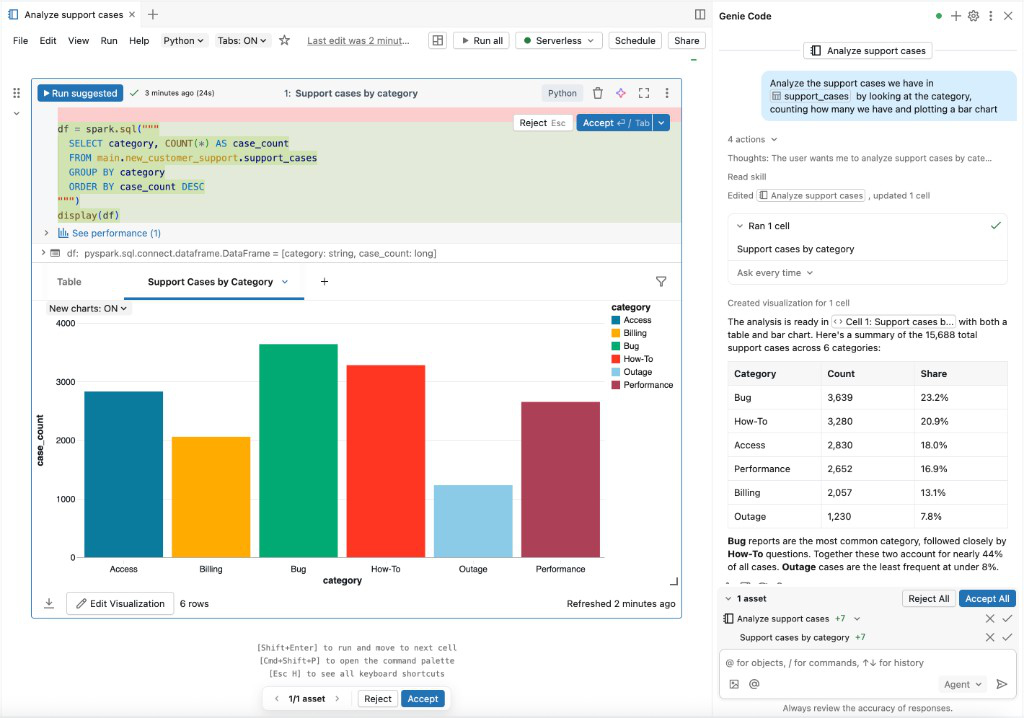
Genie Code plans solutions, retrieves relevant assets, runs code, uses cell outputs to improve results, and fixes errors automatically.
Genie Code can plan and generate code to run in notebooks or queries to run in the SQL editor. Genie Code works with you to approve its plans and confirm its next steps before proceeding. With your approval, Genie Code can use tools to perform tasks like searching tables, editing a notebook, running cells, and reading cell outputs.
Genie Code's access and actions are governed by the user’s permissions. It can only access data that you have access to and perform operations that you have permissions for.
Requirements
To use Genie Code's agentic data science capabilities, your workspace needs the following:
- Partner-powered AI features enabled for both the account and workspace. See Partner-powered AI features.
- Your workspace must be in a supported region. Genie Code is a Designated Service that uses Geos to manage data residency. See Geo availability of Genie Code features.
Use Genie Code for data science
To use Genie Code for data science tasks:
-
From a Databricks notebook or the SQL Editor, open the Genie Code side panel.
-
Enter a prompt for Genie Code. For example, "Analyze
@sales_transactionsfrom samples.bakehouse to identify the top-selling product."tipReference specific tables by using
@table_name. The agent will use that table and any associated metadata to curate its response. The agent respects the user’s Unity Catalog permissions, so it can only access the data that you have access to. -
As Genie Code generates its response, it often pauses to get your input:
-
For more complex tasks, Genie Code may create a step-by-step plan and ask clarifying questions. Answer its clarifying questions to help it hone its plan.
-
When Genie Code needs to run code, it asks for your approval before proceeding. Click Allow or Skip, or set the approval mode to Auto-approve to skip future prompts. See Approve tool actions.
importantGenie Code can generate and run code in your notebook. While it has guardrails to prevent dangerous actions, there is still risk. Use it only with code and data you trust.
-
As Genie Code continues its work, you may be prompted to select Continue or Reject. Review Genie Code's existing work, then select Continue to allow it to continue to its next steps or Reject to tell it to try something else.
-
To stop Genie Code while it is working, click the red
 .
.
-
Genie Code can create new notebook cells (or queries), generate text and code, run the notebook cells, and access the cell output to interpret the results.
Genie Code requires the current tab to remain open to complete multi-step tasks.
You can add instructions for Genie Code to use in most responses. For example, if you have code conventions or preferred libraries to use, you can add these guidelines to instructions for Genie Code. You can also create skills to extend Genie Code with specialized capabilities for your domain-specific tasks. For more details and other tips, see Tips to improve Genie Code responses.
Use cases
Genie Code has expanded capabilities, such as finding data, interpreting outputs, and performing cell actions.
Genie Code can help with complex data science tasks, including exploratory data analysis, forecasting, and machine learning. You can even create a new data analysis notebook from scratch with Genie Code. For better results, provide the agent with context by referencing tables, pipelines, notebooks, queries, and files with @<resource_name>. You can also click  Add context to manually select context to provide. Each reference asset persists in the chat context.
Try the following prompts to get started:
- Data discovery:
- "Which table contains bakehouse transaction data?"
- "I want to see the weather data for the date 2025-01-01 in the city of Los Angeles, CA."
- "Find a table that contains New York City taxi data and show me the first 10 rows."
- Exploratory data analysis:
- "Help me parse the JSON string in column A."
- "Create a visualization of the data from this table."
- "Interpret this bar chart."
- "Describe the
@sales_transactionsdataset. Perform some EDA to help me understand the column statistics and visualize the distribution of values. Think like a data scientist." - “Analyze
@workload_insightsto find the top 5 customers for Databricks SQL workloads last week by revenue. Then plot how many users those customers had for Databricks SQL per week for the last 6 weeks.”
- Forecasting:
- "Using the
@incidentsdataset, build a forecast of the daily number of incidents for the next 2 weeks. When you’re done, give me a data table and an interactive chart to display the results." - "Using the
@website_trafficdataset, predict daily visitor counts for the upcoming month. Highlight any seasonal patterns." - "Generate a forecast of product demand for the next 6 months from the
@inventorydataset, including confidence intervals."
- "Using the
- Machine learning:
- "Perform some data preparation and feature engineering to prepare this dataset for model training."
- "Train a classification model on the
@customer_datadataset to predict churn. Evaluate the model with accuracy and AUC metrics." - "Perform hyperparameter tuning on a regression model using the
@housing_pricesdataset to improve prediction error." - "Build a clustering model on the
@sales_leadsdataset to identify customer segments and provide a summary of each cluster's characteristics."
- Deep learning on GPUs:
- "Update this notebook to run distributed training on all eight H100 GPUs in AI Runtime."
- "Investigate this GPU memory failure and recommend an evidence-based next step."
- "Diagnose and fix this notebook's environment or dependency error."
- Notebook organization:
- "Create a new cell that summarizes the results from this notebook."
- "Give this notebook a relevant name."
Exploratory data analysis
Use Genie Code to perform exploratory data analysis on a dataset. For example, try asking it to help you create a new notebook that analyzes the samples.bakehouse.sales_transactions dataset.
In an empty notebook tab, open the Genie Code panel and enter the following prompt: "Describe the dataset, @sales_transactions. I want to do some EDA so I can understand the column statistics and visualize the distribution of values."
The agent creates a plan to answer your prompt and might ask clarifying questions. With your approval, it generates new notebook cells that include code to explore the data and text that explains its process and findings.