Connect Power BI Desktop to SAP Databricks
This page describes how to connect to SAP Databricks from Microsoft Power BI Desktop. Power BI Desktop is a Windows-based application that enables you to connect to, shape, and visualize data from a wide range of sources. With Power BI Desktop, you can create interactive reports and dashboards using self-service business intelligence tools.
When you use SAP Databricks as a data source with Power BI, you extend the performance and capabilities of SAP Databricks beyond data scientists and data engineers to all business users.
If you want to publish data from SAP Databricks to the Power BI service, see Publish to the Power BI service from SAP Databricks.
The SAP Databricks connector for Power BI supports the Arrow Database Connectivity (ADBC) driver. Learn more here.
Requirements
- To use data managed by Unity Catalog with Power BI, Databricks recommends using the latest version of Power BI Desktop.
If your operating system is not Windows, run Power BI Desktop on a physical host or a Windows-based virtual machine and then connect to it from your operating system.
If you use a version of Power BI Desktop below 2.85.681.0, install the Databricks ODBC driver in the same environment as Power BI Desktop.
- Use one of the following to authenticate:
- Power BI enabled as an OAuth application in your account. This is enabled by default.
- An SAP Databricks service principal for machine-to-machine (M2M) OAuth. Power BI Desktop 2.143.878.0 (May 2025 release) or above is required for this authentication method. See Configure service principals on SAP Databricks for Power BI.
- An SAP Databricks personal access token.
- A Databricks SQL warehouse.
Connect to SAP Databricks manually
Follow these instructions, depending on your chosen authentication method, to connect to a SQL warehouse with Power BI Desktop. Databricks SQL warehouses are recommended when using Power BI in DirectQuery mode.
-
Get the Server hostname and HTTP Path of your Databricks SQL warehouse:
i. In the SAP Databricks sidebar, click SQL > SQL Warehouses.
ii. In the list of available warehouses, select the target warehouse's name.
iii. On the Connection Details tab, copy the Server hostname and HTTP Path. -
Start Power BI Desktop.
-
Click Get data or File > Get data.
-
Click Get data to get started.
-
Search for Databricks, then click the connector Databricks.
-
Click Connect.
-
Enter the Server Hostname and HTTP Path.
-
Optionally, specify Advanced options configurations.
-
Select your Data Connectivity mode. For information about the difference between Import and DirectQuery, see Use DirectQuery in Power BI Desktop.
-
Click OK.
-
Select your authentication method:
- Personal Access Token: Enter your personal access token.
- OAuth: Click Sign in. A browser window opens and prompts you to sign in with your IdP. After the success message appears, exit your browser and return to Power BI Desktop.
- Client credentials: Use if authenticating with service principals. Enter the client ID and client secret of your service principal.
-
Click Connect.
-
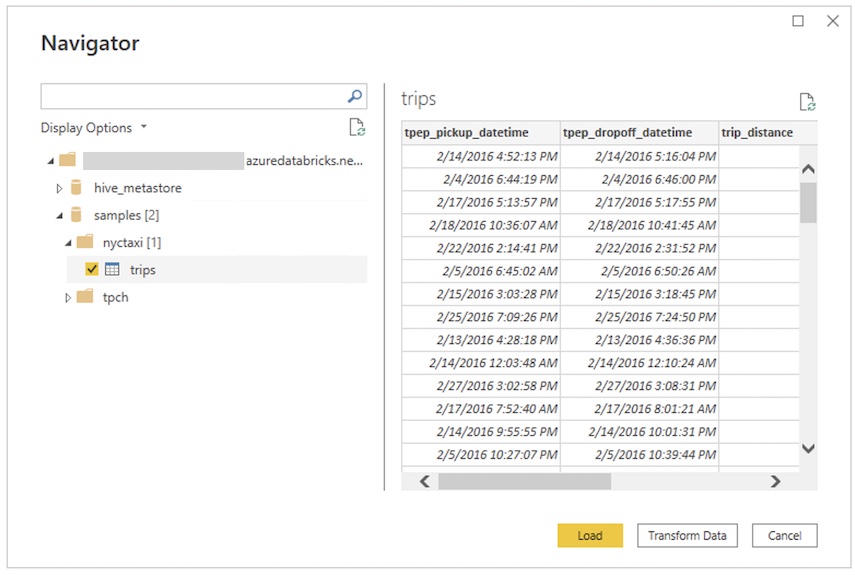
Select the SAP Databricks data to query from the Power BI Navigator.
Connection configurations
The SAP Databricks Power BI connector supports the following additional connection configurations.
Native SQL queries
The Databricks connector allows you to use native SQL queries for larger operations and compute intensive queries against a Databricks SQL warehouse in Power BI Desktop. This requires Power BI v2.112.603.0 or above (December 2022 release).
Do the following on Power BI Desktop to use native SQL queries:
- From the Get Data menu, find the SAP Databricks datasource.
- In the connection dialog, enter your catalog and database server details. These fields are required if you want to use native queries.
- In Native query, enter the SQL query you want to submit.
- After you authenticate, you can query.
- To modify the query, use the Power BI Advanced Query Editor. Save your query if you make any changes.
Automated HTTP proxy detection
Power BI Desktop version 2.104.941.0 and above (May 2022 release) has built-in support for detecting Windows system-wide HTTP proxy configuration.
Power BI Desktop can automatically detect and use your Windows system-wide HTTP proxy configuration.
If the proxy server does not provide a CRL distribution point (CDP), Power BI might show the following error message:
Details: "ODBC: ERROR [HY000] [Microsoft][DriverSupport] (1200)
-The revocation status of the certificate or one of the certificates in the certificate chain is unknown."
To fix this error, complete the following steps:
-
Create the file
C:\Program Files\Microsoft Power BI Desktop\bin\ODBC Drivers\Simba Spark ODBC Driver\microsoft.sparkodbc.iniif it does not exist. -
Add the following config to your
microsoft.sparkodbc.inifile:ini[Driver]
CheckCertRevocation=0
Limitations
- The SAP Databricks connector supports web proxy. However, automatic proxy settings defined in
.pacfiles aren't supported. - In the SAP Databricks connector, the
Databricks.Querydata source is not supported in combination with DirectQuery mode.