Use Genie One
Genie One is the simplified Databricks UI for business users, a single entry point for interacting with data and AI without navigating technical concepts like compute, queries, models, or notebooks.
Genie One was previously known as Databricks One.
Genie One enables users to:
- View and interact with AI/BI dashboards to track key performance indicators (KPIs) and analyze metrics.
- Ask data questions in natural language.
- Use custom-built Databricks Apps that combine analytics, AI, and workflows.
Genie One is available at the workspace level and the account level. See Open Genie One.
Open Genie One
You can use Genie One at two levels:
- Workspace-level: Scoped to a single workspace and available only to its members. Account-only users don't have access. Workspace members need at least one workspace entitlement. Consumer access, the least-privileged option, is enough for Genie One chat. Higher entitlements such as Databricks SQL access, Workspace access, and workspace admin also qualify. See What is consumer access? and Manage entitlements.
- Account-level: A unified view across all workspaces in your Databricks account, available to all account users. Users can only access assets explicitly shared with them. To view data from a specific workspace, the Consumer access entitlement is required for that workspace.
Workspace-level Genie One
If a user's only entitlement is Consumer access, they land on the Genie One homepage after they log in.
If a user has other entitlements, they can use the app switcher  in the upper-right corner of the workspace to move between the two UIs.
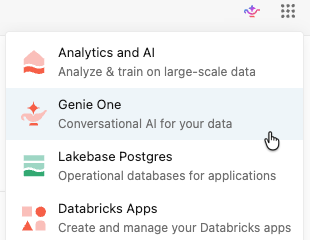
Alternatively, users can navigate to the Genie One UI by adding /one to their workspace URL, for example:
https://<WORKSPACE_URL>/one?o=<WORKSPACE_ID>
Account-level Genie One
You can access account-level Genie One in several ways:
-
Account landing page: From the account console, click Genie to open the account-level view.
-
Direct URL: Navigate directly to your account-level Genie One URL using the
/onevanity URL:https://accounts.cloud.databricks.com/one -
Workspace switcher: Use the workspace switcher in Genie One and select Account-level.
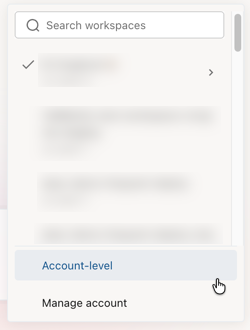
Users in a registered identity provider who aren't assigned to a workspace can use a limited account-only experience. This feature is in Beta.
Find assets
You can only interact with data assets that have been shared with you. See Data governance. To mark an asset as a favorite, click the star icon next to the asset's name. To show only your favorites, use the Favorited filter in Discover.
Discover
Use Discover to find the dashboards, Genie Agents, apps, tables, metric views, and Pages that are shared with you. You can search for assets, browse them by domain, and filter the results by type, owner, certification status, or favorites.
When an account admin sets up Genie Search, Discover also searches connected sources such as Google Drive and Jira. See Use Genie Search in Genie One.
Search bar
Use the search bar to find assets or ask data questions in natural language:
-
Search: Find assets that have been shared with you by name.
-
Ask: When Ask is turned on, you can use the search bar to interact with Genie.
If chat is not enabled, click Ask in the search bar and select a Genie Agent. The search bar connects to that space and interprets your question using Genie Code.
Domains
This feature is in Public Preview.
Domains group assets by business context, making it easier to find data relevant to your work without navigating catalog hierarchies. Browse domains from Discover. See Discover page.
For you
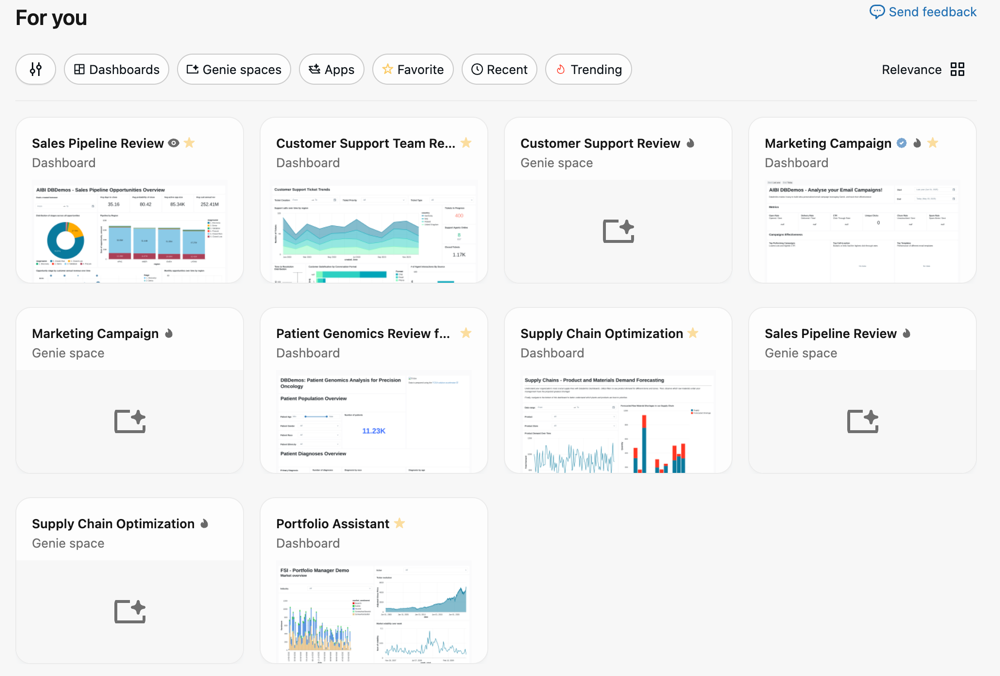
The For you section on the Genie One home page shows personalized asset recommendations based on your activity and the activity of other users in your workspace, including:
- Recently opened: Assets you have opened recently.
- Favorites: Assets you have marked with a star.
- Recently shared: Assets that have been shared with you recently.
- Trending: Assets that are popular among similar users in the workspace.
Open and work with assets
Click an asset to open it. What you can do with it depends on your permissions and on the type of asset.
Open assets
When you click an asset, it opens in the familiar experience for that object (for example, a dashboard).
- If you have viewing rights only, the asset opens within Genie One.
- If you have authoring privileges, click Edit draft to edit the asset in the Analytics and AI workspace UI.
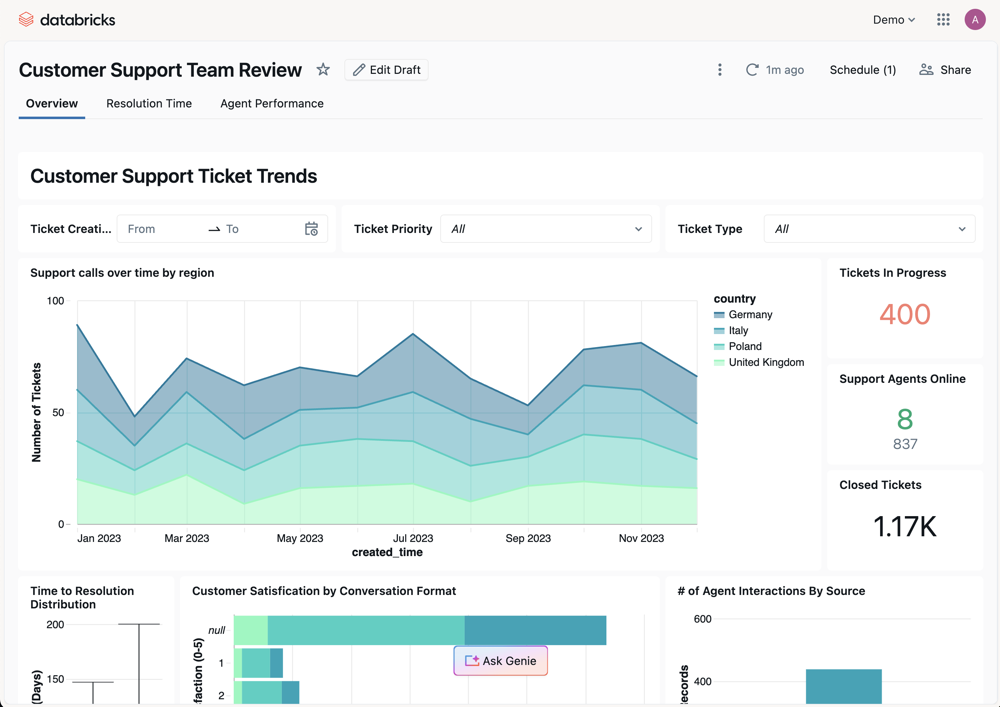
This applies to Genie Agents as well. If you have viewing rights only, a Genie Agent opens as a chat within Genie One. If you have authoring privileges, click Edit draft to edit the agent in the Analytics and AI workspace UI.
Open tables
You can open Unity Catalog tables directly in Genie without navigating to Catalog Explorer. How a table opens depends on where you open it from:
- From chat: Opening a table from a chat conversation keeps you in the conversation. The table opens next to your chat, where you can view its overview details, columns, and sample data.
- From Discover: Opening a table from Discover shows a full-page, catalog-style view optimized for Genie.
When you open a table from Discover, you can also:
- Ask Genie: Click Ask Genie to start a chat about the table.
- Request access: If you have browse access only, request access to the table from the table view.
Chat and get work done
Genie One answers questions and takes action, grounded in your organization's business context in Genie Ontology.
-
Chat: Ask questions about your data and get answers with citations. See Chat in Genie One.
Chat can also use content outside Databricks through Genie Search and MCP connectors. See Use content from outside Databricks.
-
Starter questions (Beta): When enabled, the home page shows personalized starter questions, one-click prompts tailored to your recent activity that open a chat. See Personalized starter questions.
-
Scheduled tasks: In the sidebar, click Schedules to create and manage scheduled chat tasks. See Scheduled tasks.
-
Documents: Ask Genie to draft a shareable document from any chat conversation. See Documents in Genie One.
-
Artifacts (Beta): Ask Genie to create slide decks and other visual pages from your data. Artifacts appear in My stuff and Discover. See Artifacts in Genie One and Slides in Genie One.
To find teammates, see the org chart, and view profiles, open org directories from the People page. An account admin must first connect a people source. See Browse org directories in Genie One.
Admin settings
Admins control whether account-level Genie One is available, how Genie One looks, and who can read conversation data.
Disable account-level Genie One
Account admins can disable account-level Genie One in the account console. This setting applies to all users in the account and does not apply to workspace-level Genie One.
- In the account console, click
 Settings.
- Click the Feature enablement tab.
- Turn off Genie.
Customize the Genie One homepage
Workspace admins can customize the Genie One homepage appearance for all users in the workspace, including branding colors, a logo, a markdown welcome message, and pinned content. See Customize the Genie One homepage.
Admin access to conversations
If a workspace admin turns on Genie tracing, Genie One copies your prompts and responses, and tool call results such as query results, to the Unity Gateway unified trace table. The table's owner, and anyone given access to that table, can read them. Metastore admins can give themselves access. Deleting a conversation in Genie One doesn't delete its traces. See Monitor Genie Code and Genie One with the unified trace table.
Governance and permissions
Genie One doesn't have a separate permission system for your data. It enforces the permissions you already manage in Unity Catalog, on workspace assets, and in connected external sources.
- Data in Unity Catalog: When Genie One writes and runs SQL to answer your question, the query runs as you. Your Unity Catalog privileges, row filters, column masks, and catalog-workspace bindings apply the same way they do everywhere else in Databricks. See Row filters and column masks.
- Workspace assets: Genie One only finds, cites, and opens dashboards, queries, Genie Agents, and Databricks apps that you have permission to access. Genie Agents always evaluate data access with your own Unity Catalog permissions. Dashboards and apps run queries with either the viewer's credentials or credentials that their authors configure. See Data governance.
- Genie Ontology: Genie One only uses ontology context extracted from assets you have permission to see. See Genie Ontology.
- External sources: MCP connections use your own OAuth credentials. Genie One sees only what you can see in each source application. Databricks governs these connections through Unity Catalog and Unity Gateway. Metastore admins and connection owners control who can use each connection, and the gateway authorizes each tool call and records usage in system tables. See Connect Genie One to external applications with MCP.
Account-level Genie One data handling and processing
Account-level Genie One is an account-wide discovery and search surface for dashboards, Genie Agents, Databricks Apps, and other assets that you have permission to access. When you open an asset, it opens in the originating workspace.
System workspace for account-level Genie One
To support account-level features, Databricks automatically provisions a managed workspace named databricks-system-workspace in your account. Account-level Genie One runs on this workspace.
The system workspace appears in the system.access.workspaces_latest system table.
Like account-level Genie One, the system workspace does not aggregate or process data from workspaces that use the compliance security profile.
To remove the system workspace from your account, contact Databricks support.
Network connectivity
Account-level Genie One supports front-end Private Link (Beta). Users in your VPCs or on-premises networks can reach account-level Genie One over a private connection instead of the public internet. For setup, see Configure inbound Private Link for account-level resources.
What data is processed and where
When you use account-level Genie One, Databricks-generated metadata (such as asset identifiers, usage signals, and audit events) might be processed in the US. Customer data and metadata (such as tables, dashboards, charts, and similar objects) is stored in the same region as your workspace but processed according to your Geo settings:
- If you've disabled cross-Geo processing, processing happens in the same Geo as the workspace.
- If not, processing can happen across multiple Geos.
If your data residency or compliance policies do not permit metadata to be sent to US-based services, disable account-level Genie One using the control described in Disable account-level Genie One. Disabling the feature stops account-level Genie One from sending additional metadata to US-based services.
Workspaces using the compliance security profile are excluded
Account-level Genie One does not aggregate data from workspaces with the compliance security profile enabled.