Microsoft SharePoint インジェストのトラブルシューティング
このページでは、DatabricksLakeflowコネクトのMicrosoft SharePointコネクタに関する一般的な問題とその解決方法について説明します。
一般的なパイプラインのトラブルシューティング
パイプラインの実行中に失敗した場合、失敗したステップをクリックし、エラーメッセージにエラーの性質に関する十分な情報があるかをご確認ください。
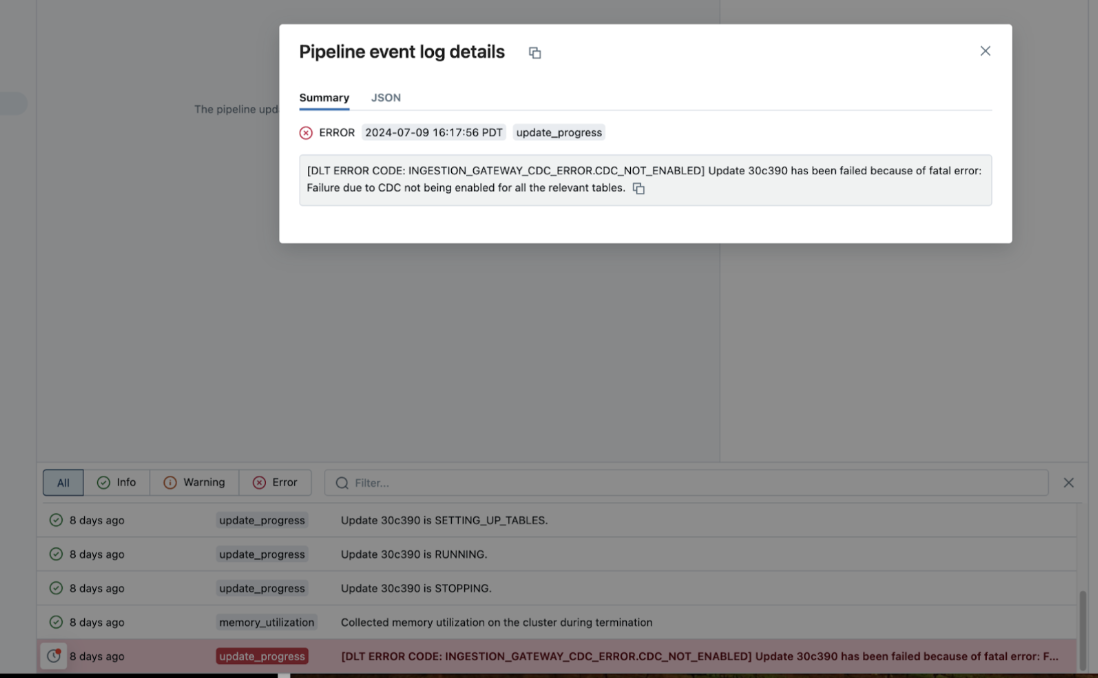
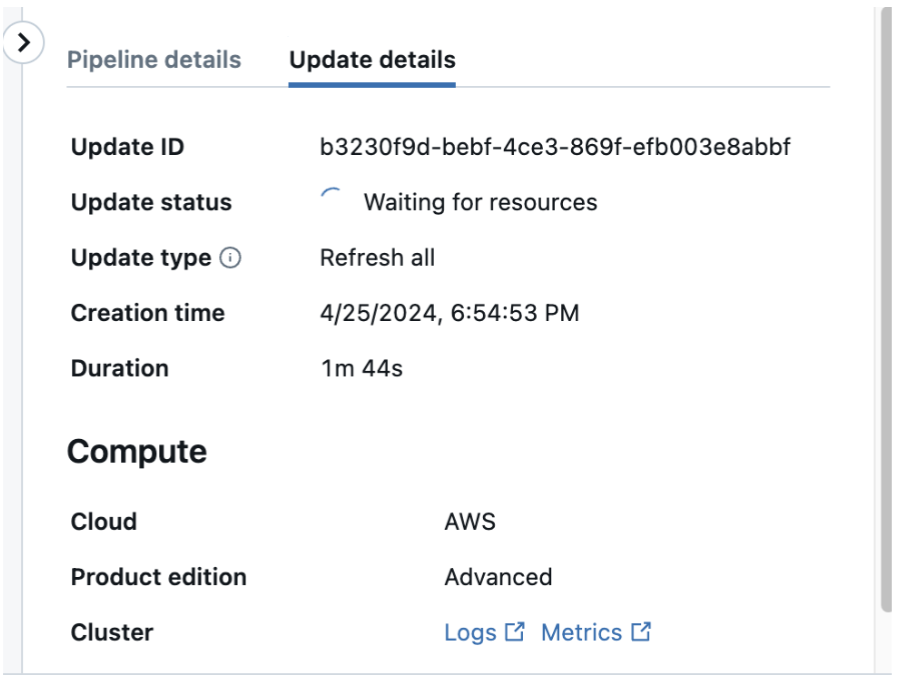
右側のパネルで Update details をクリックし、次に Logs をクリックして、パイプラインの詳細ページからクラスターログを確認してダウンロードすることもできます。ログをスキャンしてエラーまたは例外を探します。
SharePointファイルのアクセス制限
コネクタがアクセスできる SharePoint ファイルを制限するには、制限された SharePoint 権限を持つ専用の Microsoft Entra ID ユーザーを作成し、そのアカウントで SharePoint に認証してください。コネクタは委任アクセス (U2M OAuth) を使用するため、Microsoft Entra ID ユーザーに代わって動作し、そのユーザーが表示を許可されているファイルにのみアクセスできます。
認証エラー
OAuthエラーが発生した場合、更新トークンが期待どおりに機能していることを確認するために、次のコードを実行してください:
Python
# Fill in these values
refresh_token = ""
tenant_id = ""
client_id = ""
client_secret = ""
site_id = ""


# Get an access token
import requests


# Token endpoint
token_url = f"https://login.microsoftonline.com/{tenant_id}/oauth2/v2.0/token"


scopes = ["Sites.Read.All"]
scope = " ".join(["https://graph.microsoft.com/{}".format(s) for s in scopes])
scope += (" offline_access")


# Parameters for the request
token_params = {
    "client_id": client_id,
    "client_secret": client_secret,
    "grant_type": "refresh_token",
    "refresh_token": refresh_token,
    "scope": scope
}


# Send a POST request to the token endpoint
response = requests.post(token_url, data=token_params)
response.json()


access_token = response.json().get("access_token")

# You should get an access token here. You can then check if the access token is able to list all the drives in your SharePoint site.
# List all drives
url = f"https://graph.microsoft.com/v1.0/sites/{site_id}/drives"


# Authorization header with access token
headers = {
    "Authorization": f"Bearer {access_token}",
    "Accept": "application/json"
}


# Send a GET request to list files with specific extensions
requests.get(url, headers=headers).json()